Best PDF Tools for Remote Workers and Freelancers
Discover the best free PDF tools for remote workers and freelancers. Merge, compress, convert, and sign PDFs from anywhere without expensive software.
Remote work and freelancing have exploded in recent years. Whether you work from home, a coffee shop, or a beach in Bali, you deal with PDF documents every day. Contracts, invoices, proposals, reports, and client deliverables all come in PDF format. Having the right PDF tools for remote workers makes your workflow faster and more professional.
In this guide, you will discover the best free PDF tools for remote workers and freelancers, organized by the tasks you face every day. PDF Manager is designed for students, businesses, teachers, and professionals who need reliable PDF tools without expensive software.
Table of Contents
- Why Remote Workers Need PDF Tools
- Essential PDF Tools for Remote Work
- Freelancer PDF Workflow
- Preparing Client Deliverables
- Cost Savings vs Adobe Acrobat
- Tips for Remote PDF Workflows
- Frequently Asked Questions
Why Remote Workers Need PDF Tools
Remote workers face unique document challenges:
- No office printer - You cannot walk to the office copier to scan or print documents.
- Multiple time zones - Clients and colleagues are in different locations, so documents must be self-contained and clear.
- Various devices - You may work from a laptop, tablet, or phone depending on your location.
- Limited software budgets - Freelancers and remote workers often cannot justify $20/month for Adobe Acrobat.
- Client expectations - Professional-looking documents are essential when you cannot meet clients in person.
Essential PDF Tools for Remote Work
For Contracts and Agreements
- Protect PDF - Add password protection to sensitive contracts before sharing with clients.
- Unlock PDF - Remove passwords from contracts you need to edit or reference.
- PDF to Word - Convert client contracts to editable format for review and redlining.
For Invoices and Financial Documents
- Excel to PDF - Convert spreadsheets and invoices to professional PDF format.
- PDF to Excel - Extract data from client-provided financial PDFs for analysis.
- Merge PDF - Combine multiple invoices into a single billing document.
For Proposals and Reports
- Word to PDF - Convert proposals and reports to polished PDF format.
- PPT to PDF - Convert presentation decks to shareable PDF documents.
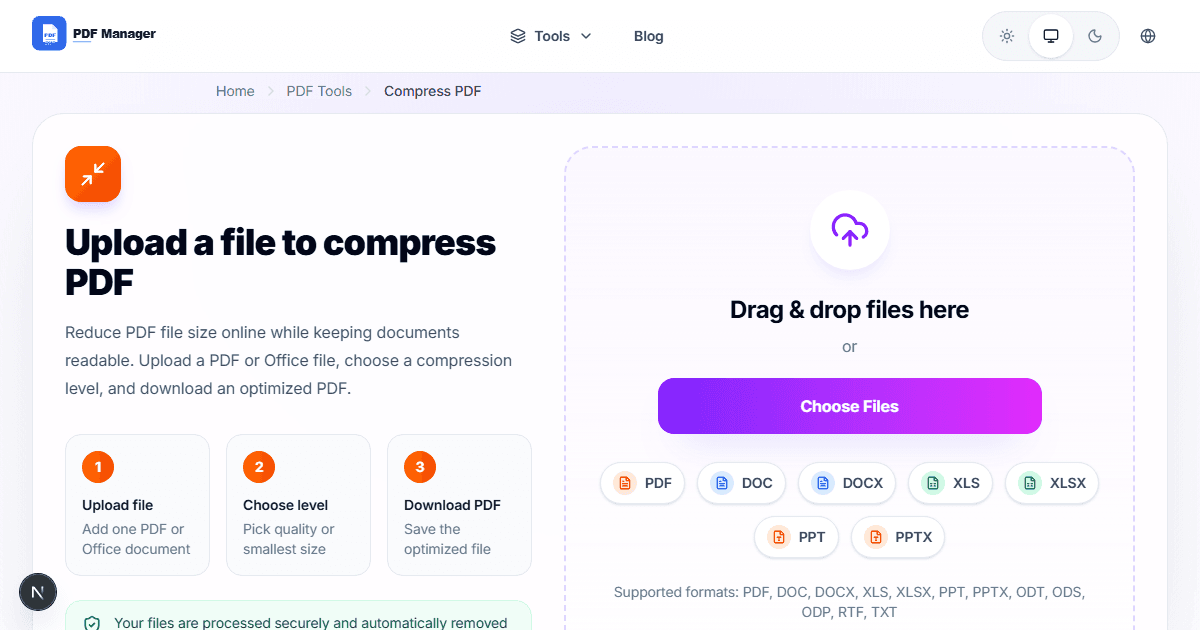
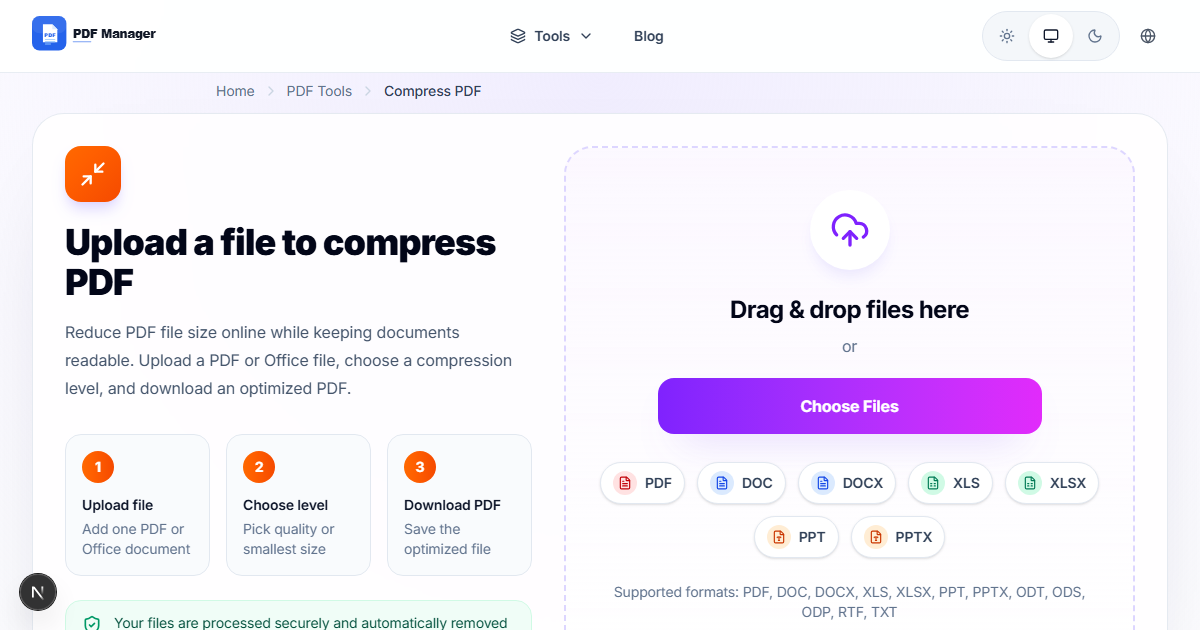
- Compress PDF - Reduce file size for email attachments and cloud uploads.
For Document Management
- Split PDF - Break large documents into smaller, focused files.
- Organize PDF - Reorder pages and fix document structure.
- Delete Pages - Remove blank or irrelevant pages from documents.
- Rotate PDF - Fix page orientation in scanned documents.
Freelancer PDF Workflow
Here is a typical day for a freelancer using PDF tools:
Morning: Client Onboarding
- Receive signed contract as PDF from client
- Use Merge PDF to combine contract with your standard terms
- Use Protect PDF to secure the final agreement
Midday: Project Work
- Convert client brief from PDF to Word using PDF to Word for annotation
- Extract data tables from research PDFs using PDF to Excel
- Combine reference materials using Merge PDF
Afternoon: Deliverables
- Convert final report from Word to PDF using Word to PDF
- Compress the deliverable using Compress PDF for email
- Send to client with professional formatting
Preparing Client Deliverables
Professional deliverables make a strong impression. Follow this checklist:
- Convert to PDF - Never send editable Word files as final deliverables unless requested.
- Compress file size - Keep deliverables under 5MB for easy email attachment.
- Check formatting - Open the PDF on your phone to verify it looks good on mobile.
- Name professionally - Use format: "ProjectName_Deliverable_Date.pdf"
- Add protection if needed - For confidential work, add password protection before sending.
Cost Savings vs Adobe Acrobat
| Tool | Monthly Cost | Annual Cost |
|---|---|---|
| Adobe Acrobat Pro | $20/month | $240/year |
| Adobe Acrobat Standard | $13/month | $156/year |
| PDF Manager | Free | Free |
As a freelancer or remote worker, saving $156-$240 per year on PDF software is significant. PDF Manager provides all the essential tools you need at zero cost, with no watermarks, no file size limits, and no sign-up required.
Tips for Remote PDF Workflows
- Bookmark PDF Manager - Add it to your browser bookmarks for instant access from any device.
- Use cloud storage - Store PDFs in Google Drive or Dropbox for access from anywhere.
- Mobile-ready - PDF Manager works on phones and tablets, so you can handle PDF tasks even without your laptop.
- Batch processing - Process multiple files at once to save time when you have many documents to handle.
- Keep originals - Always keep a copy of the original file before converting, merging, or compressing.
Frequently Asked Questions
Can I use PDF Manager offline?
No. PDF Manager requires an internet connection to process files. However, most remote workers have reliable internet access, and the processing is fast (usually under 10 seconds per file).
Is PDF Manager secure for client documents?
Yes. Files are processed securely and automatically deleted from the server after processing. No one else can access your uploaded documents.
Can I use PDF Manager on my phone?
Yes. PDF Manager works on any device with a web browser, including iPhones, Android phones, iPads, and tablets.
Are there any limits on free usage?
PDF Manager offers unlimited free conversions with no watermarks, no file size limits, and no sign-up required.
Related Tools
- Merge PDF - Combine multiple documents into one file
- Compress PDF - Reduce file size for email and uploads
- Word to PDF - Convert documents to professional PDF format
Why Use PDF Manager
Built for speed
Upload to result with minimal friction.
Practical workflows
Move between tools without confusion.
Simple and secure
Clear states and polished result screens.

Written by
Umar Draz
Document Tools Specialist
Software engineer with 5+ years building document processing tools. Created PDF Manager to make PDF tools accessible to everyone. Tests every feature with real-world documents before release.
Ready to use the tool?
Open the tool and follow the same workflow from this guide.
Related Tools
Related Articles
How to Convert PDF to Word Without Losing Formatting
Turn PDFs into editable Word documents while preserving structure, spacing, tables, and readable layout.
How to Convert Word to PDF (Free & Fast)
A clean guide to turning Word documents into PDFs quickly for sharing, printing, and final delivery.
Quick Answers
Can I use PDF Manager offline?
No. PDF Manager requires an internet connection to process files. However, most remote workers have reliable internet access, and the processing is fast (usually under 10 seconds per file).
Is PDF Manager secure for client documents?
Yes. Files are processed securely and automatically deleted from the server after processing. No one else can access your uploaded documents.
Can I use PDF Manager on my phone?
Yes. PDF Manager works on any device with a web browser, including iPhones, Android phones, iPads, and tablets.
Are there any limits on free usage?
PDF Manager offers unlimited free conversions with no watermarks, no file size limits, and no sign-up required.