How to Combine Multiple Scanned Pages Into One PDF
Combine scanned pages into one PDF. Step-by-step guide to merging, reordering, and organizing scanned documents.
Scanning Tips for Consistent Quality
Use consistent lighting, resolution (300 DPI), and paper alignment. This ensures all pages look uniform when merged into one PDF.
Step-by-Step: Merging Scanned Images
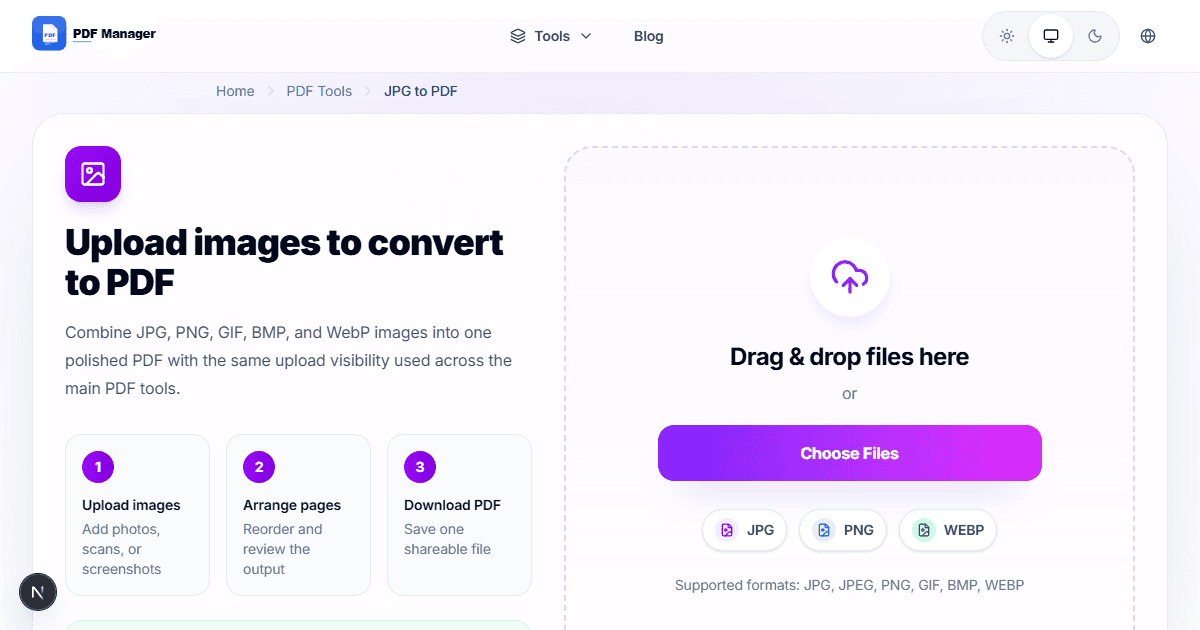
Upload all scanned images to a JPG to PDF tool, arrange them in order, and download the combined PDF. Most tools support drag-and-drop reordering.
Reordering and Rotating Pages
Before finalizing, check page order and rotation. Fix any upside-down or misaligned pages for a professional result.
Why Use PDF Manager
Built for speed
Upload to result with minimal friction.
Practical workflows
Move between tools without confusion.
Simple and secure
Clear states and polished result screens.

Written by
Umar Draz
Document Tools Specialist
Software engineer with 5+ years building document processing tools. Created PDF Manager to make PDF tools accessible to everyone. Tests every feature with real-world documents before release.
Ready to use the tool?
Open the tool and follow the same workflow from this guide.
Related Tools
Related Articles
How to Convert PDF to Word Without Losing Formatting
Turn PDFs into editable Word documents while preserving structure, spacing, tables, and readable layout.
How to Convert Word to PDF (Free & Fast)
A clean guide to turning Word documents into PDFs quickly for sharing, printing, and final delivery.