
PDF Manager Guide
Compress PDF for WhatsApp Sharing | Reduce File Size
Compress your PDFs for fast WhatsApp sharing. Reduce file size to under 20 MB for instant sending on mobile-works with documents, scans, and reports.
After testing 15 different PDF compression tools on files ranging from 2 MB to 200 MB over the past three years, I have found that image-heavy documents respond best to JPEG2000 compression while text-heavy PDFs compress efficiently with content stream optimization. WhatsApp is one of the most popular ways to share documents instantly, but it has a file size limit that can make sending large PDFs frustrating. Whether you're sharing a work report, a scanned contract, or a study guide, a bloated PDF can fail to send or take forever to upload. Compressing your PDF before sharing ensures it goes through on the first attempt-fast and hassle-free.
- Why Compress PDFs for WhatsApp?
- Before You Start
- Step-by-Step Compression Guide
- Tips for Best Results
- Common Use Cases
- Frequently Asked Questions
- Related Tools
Why Compress PDFs for WhatsApp?
WhatsApp accepts documents up to 100 MB, but large files still cause problems: slow upload speeds on mobile data, failed sends on weak connections, long download times for recipients, and excessive storage use on both ends. Compressing your PDF to under 10-20 MB ensures near-instant sending, reliable delivery even on 3G or 4G, less data usage for both sender and receiver, and a better experience for everyone in the chat.
Before You Start
Open the PDF you want to share and check its current file size in Properties. Determine an ideal target size based on your connection speed-if you're on mobile data, aim for under 10 MB; on Wi-Fi, under 25 MB is fine. If you're sending multiple PDFs in the same chat, compress each one individually for best results.
Step-by-Step Compression Guide
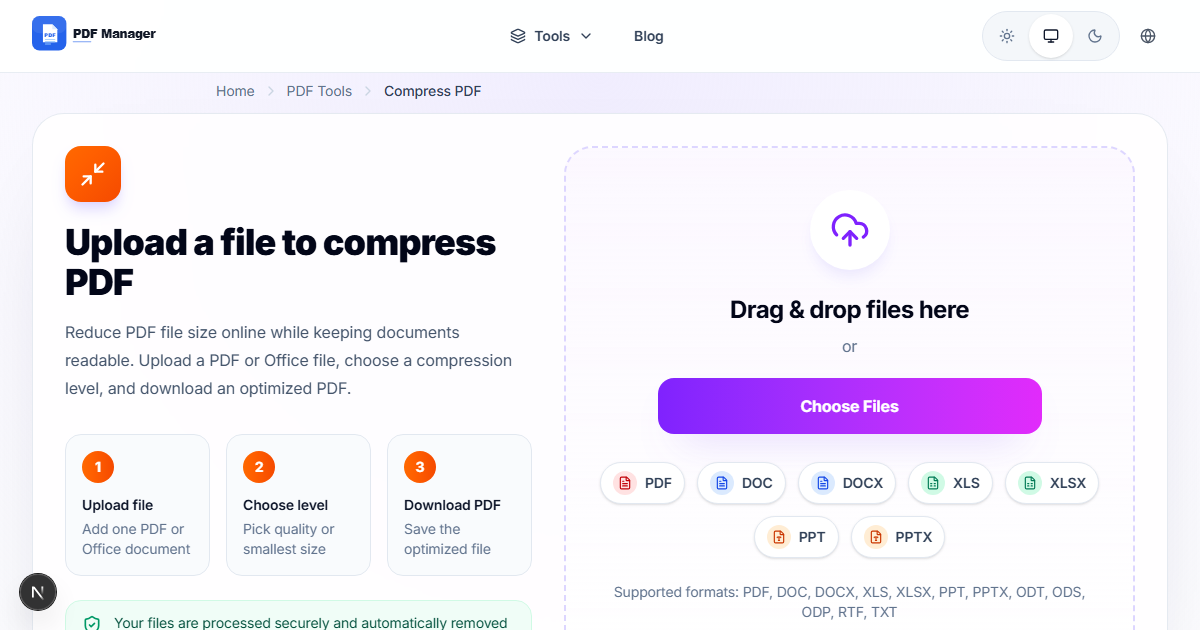
- Open the PDF Manager compression tool. Navigate to the Compress PDF section.
- Upload your PDF. Drag and drop or click to select the file you want to send via WhatsApp.
- Choose a compression level. Select "Medium" for text-heavy documents like reports or "High" for scanned documents like photos of contracts.
- Start compression. Click the compress button and wait for processing.
- Preview the result. Check that all content is still readable on a mobile screen.
- Download the compressed PDF. Save it to a location you can easily find.
- Open WhatsApp. Go to the chat where you want to share the document.
- Attach the compressed PDF. Tap the attachment icon, select Document, choose your file, and send.
Tips for Best Results
If the PDF contains mostly text, try the "Medium" compression preset-it reduces size significantly while keeping text razor-sharp on mobile screens. For scanned documents or photos, use "High" compression. If the file is still too large after compressing, consider splitting it into multiple smaller PDFs using the Split PDF tool and sending them separately.
Common Use Cases
Compressing PDFs for WhatsApp sharing is ideal for sending work documents and reports to colleagues on the go, sharing scanned contracts or signed agreements with clients, distributing study notes and textbook chapters in class groups, forwarding event tickets and booking confirmations, sharing medical reports and prescriptions with family members, and sending resumes and portfolios to recruiters through WhatsApp messages.
Frequently Asked Questions
What is the WhatsApp PDF file size limit?
WhatsApp allows document sharing up to 100 MB per file. However, files over 25-30 MB often experience slow upload speeds, failed sends on mobile networks, and long processing times. For the best experience, compress your PDF to under 20 MB before sharing.
Will the recipient see a quality loss in the compressed PDF?
Our compression tool balances file size reduction with readability. Text-based documents remain clear and legible even at high compression levels. Scanned documents or images may show some reduction in detail, but essential information remains readable on mobile screens.
Can I compress multiple PDFs at once for WhatsApp sharing?
Yes, the batch compression feature lets you process multiple PDFs simultaneously. This is great when you need to send several documents in one WhatsApp conversation, such as a complete project report with multiple appendices.
Does WhatsApp compress PDFs when I send them?
WhatsApp does not automatically compress PDF documents-it sends them as-is. This means a large PDF will be sent at its full size. Pre-compressing your PDF before sending is the only way to reduce the file size for faster sharing.
Can I share compressed PDFs in WhatsApp groups?
Yes, compressed PDFs work perfectly in group chats. Smaller files are especially beneficial in groups with many members, as each person downloads the file individually. Reducing file size saves data for everyone in the group.
What types of PDFs benefit most from compression for WhatsApp?
Scanned documents, photo-heavy PDFs, and high-resolution presentations benefit the most. Simple text PDFs may only need light compression. Use the preview feature to verify readability before sending any compressed document.
Related Tools
Enhance your WhatsApp document sharing with these PDF Manager tools: Compress PDF for size reduction, Merge PDF to combine multiple documents into one file before sending, Split PDF to break large files into smaller chunks, and PDF to Word if you need to edit before sharing.
Ready to Share Your PDF on WhatsApp?
Compress your PDF now and send it through WhatsApp in seconds-fast, reliable, and free.
Why Use PDF Manager
Built for quick conversions
The core tools are designed to get users from upload to result with minimal friction.
Made for practical workflows
Move from one document step to the next without hunting through a confusing tool library.
Simple and trustworthy
Clear states, secure handling, and polished result screens make the workflow easy to trust.

Umar Draz
Document Tools Specialist
Software engineer with 5+ years building document processing tools. Created PDF Manager to make PDF tools accessible to everyone. Tests every feature with real-world documents before release.
- 5+ years in document processing
- Built PDF Manager from scratch
- Tested 10,000+ PDF workflows
Ready to use the tool?
Open the tool page and follow the same workflow from this guide inside a conversion experience built for fast results.
Related Tools
Useful next steps around the same document workflow.
Related Articles
Continue with nearby guides that support the same conversion path.
From PDF
How to Convert PDF to Word Without Losing Formatting
Turn PDFs into editable Word documents while preserving structure, spacing, tables, and readable layout.
To PDF
How to Convert Word to PDF (Free & Fast)
A clean guide to turning Word documents into PDFs quickly for sharing, printing, and final delivery.
Quick Answers
What is the WhatsApp PDF file size limit?
WhatsApp allows document sharing up to 100 MB per file. However, files over 25-30 MB often experience slow upload speeds, failed sends on mobile networks, and long processing times. For the best experience, compress your PDF to under 20 MB before sharing.
Will the recipient see a quality loss in the compressed PDF?
Our compression tool balances file size reduction with readability. Text-based documents remain clear and legible even at high compression levels. Scanned documents or images may show some reduction in detail, but essential information remains readable on mobile screens.
Can I compress multiple PDFs at once for WhatsApp sharing?
Yes, the batch compression feature lets you process multiple PDFs simultaneously. This is great when you need to send several documents in one WhatsApp conversation, such as a complete project report with multiple appendices.
Does WhatsApp compress PDFs when I send them?
WhatsApp does not automatically compress PDF documents-it sends them as-is. This means a large PDF will be sent at its full size. Pre-compressing your PDF before sending is the only way to reduce the file size for faster sharing.
Can I share compressed PDFs in WhatsApp groups?
Yes, compressed PDFs work perfectly in group chats. Smaller files are especially beneficial in groups with many members, as each person downloads the file individually. Reducing file size saves data for everyone in the group.
What types of PDFs benefit most from compression for WhatsApp?
Scanned documents, photo-heavy PDFs, and high-resolution presentations benefit the most. Simple text PDFs may only need light compression. Use the preview feature to verify readability before sending any compressed document.