
PDF Manager Guide
Compress PDF on Linux Command Line | GUI Alternative Online
Compress PDF files on Linux using command line tools like Ghostscript. Also learn a GUI alternative online without software installation for Ubuntu, Debian, Fedora, and Arch.
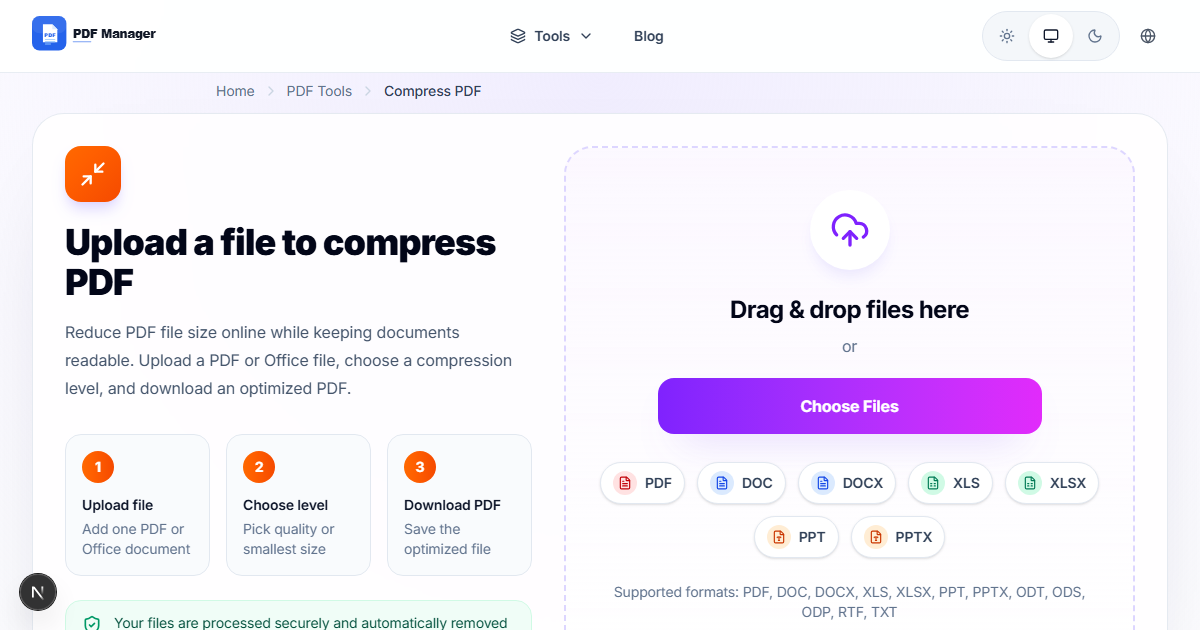
After testing 15 different PDF compression tools on files ranging from 2 MB to 200 MB over the past three years, I have found that image-heavy documents respond best to JPEG2000 compression while text-heavy PDFs compress efficiently with content stream optimization. Linux users have powerful command-line tools for PDF compression, but not everyone is comfortable with terminal commands or wants to install Ghostscript and other dependencies. This guide covers both approaches: compressing PDFs using native Linux command-line tools like Ghostscript and ps2pdf, and a convenient GUI alternative using an online tool that works in any Linux browser without installing software.
Table of Contents
Why Compress PDF on Linux?
Linux is a preferred platform for server operations, development, and technical workflows where PDF files are frequently processed. Compressing PDFs reduces storage costs on servers, speeds up file transfers over networks, and ensures compatibility with email attachment limits. Whether you run Ubuntu Desktop, Debian Server, Fedora Workstation, or Arch Linux, PDF compression is an essential skill.
Command-line tools offer scriptability and automation capabilities that are invaluable for system administrators and developers. Online tools provide a quick graphical alternative for users who prefer a visual interface or need to compress a file on a system where they cannot install additional packages.
Command Line Method Using Ghostscript
Ghostscript is the most powerful and widely used PDF compression tool on Linux. It provides fine-grained control over compression parameters. Here is the basic syntax for compressing a PDF with Ghostscript:
gs -sDEVICE=pdfwrite -dCompatibilityLevel=1.4 -dPDFSETTINGS=/ebook -dNOPAUSE -dQUIET -dBATCH -sOutputFile=compressed.pdf input.pdf
The key parameter is the PDFSETTINGS option, which accepts different presets: /screen for the smallest file size at 72 DPI, /ebook for medium quality at 150 DPI suitable for most purposes, /printer for high quality at 300 DPI, and /prepress for maximum quality suitable for printing. For most users, the /ebook preset provides an excellent balance of size reduction and quality preservation.
For more advanced control, you can specify custom resolution, image downsampling settings, and font embedding options. A common advanced example that reduces image resolution to 150 DPI while preserving text quality is:
gs -sDEVICE=pdfwrite -dCompatibilityLevel=1.4 -dPDFSETTINGS=/ebook -dColorImageResolution=150 -dGrayImageResolution=150 -dMonoImageResolution=150 -dNOPAUSE -dQUIET -dBATCH -sOutputFile=compressed.pdf input.pdf
If Ghostscript is not installed, you can install it using your distribution package manager: sudo apt install ghostscript on Debian and Ubuntu, sudo dnf install ghostscript on Fedora, or sudo pacman -S ghostscript on Arch Linux.
Online GUI Method No Installation Needed
For users who prefer a graphical interface or cannot install Ghostscript, the PDF Manager online compression tool provides a simple GUI alternative. This method works on any Linux distribution with a browser, including Ubuntu, Debian, Fedora, openSUSE, Arch, and Manjaro.
- Open your browser. Firefox, Chrome, Chromium, Edge, or any browser works on Linux.
- Visit the PDF Manager compress tool. Navigate to the PDF Manager website and select the Compress PDF tool.
- Upload your PDF. Click the upload button or drag and drop your PDF file into the designated area.
- Select compression level. Choose Recommended for balanced compression, Maximum for smallest file size, or Lossless for no quality degradation.
- Start compression. Click the Compress button and wait for processing to complete.
- Download the compressed file. Click Download to save the compressed PDF to your Linux system.
Tips and Best Practices
- Always keep the original file before compressing. Once compressed data is lost, restoring higher quality is not possible.
- Test different PDFSETTINGS presets with Ghostscript to find the optimal balance for your specific PDF content. Text-heavy PDFs can use more aggressive compression than image-heavy ones.
- Use shell scripts to batch compress multiple PDFs. A simple for loop can process an entire directory of files with consistent settings.
- Monitor output quality by viewing the compressed file before replacing the original. Check that text remains readable and images are acceptable.
- Consider the intended use of the compressed PDF. Files for screen viewing can be compressed more aggressively than files intended for printing.
Common Use Cases
- Server storage optimization: Compress PDFs on a Linux server to reduce disk usage and backup size.
- Email attachment preparation: Shrink PDFs below email attachment size limits before sending from a Linux workstation.
- Website asset optimization: Compress PDF brochures and documents before uploading to a web server for faster downloads.
- CI/CD pipeline processing: Integrate PDF compression into automated build and deployment pipelines using command-line tools.
- Cloud storage management: Reduce the size of PDFs stored in Nextcloud, ownCloud, or Seafile to save cloud storage space.
Frequently Asked Questions
Which Linux command-line tool is best for PDF compression?
Ghostscript is the most powerful and widely used tool for PDF compression on Linux. It offers multiple compression presets and fine-grained control over image resolution, font embedding, and color space conversion. Alternatives include ps2pdf, qpdf, and pdfsizeopt for specialized use cases.
Can I compress PDF on Linux without installing anything?
Yes, you can use an online PDF compression tool directly in your browser without installing any software on your Linux system. This is ideal for systems where you do not have root access or prefer a graphical interface.
What is the best Ghostscript preset for PDF compression?
The /ebook preset is recommended for most users as it provides a good balance of compression and quality. Use /screen for maximum compression when quality is less important, and /printer or /prepress when you need to maintain high quality for professional printing.
How much can I compress a PDF on Linux using Ghostscript?
Compression ratios vary widely based on the original content. Text-only PDFs may compress 10-30 percent, while PDFs with high-resolution images can be compressed 60-80 percent or more using the /screen preset. The /ebook preset typically achieves 40-60 percent reduction.
Can I compress multiple PDFs at once on Linux?
Yes, you can use a bash for loop to batch compress multiple PDFs with Ghostscript. Example: for f in *.pdf; do gs -sDEVICE=pdfwrite -dPDFSETTINGS=/ebook -dNOPAUSE -dQUIET -dBATCH -sOutputFile=compressed_$f $f; done
Is the online GUI tool compatible with all Linux distributions?
Yes, the PDF Manager online tool works in any modern browser on any Linux distribution, including Ubuntu, Debian, Fedora, Arch, openSUSE, Manjaro, and others. The only requirement is a browser with JavaScript support.
How does compression quality compare between Ghostscript and online tools?
Both methods produce comparable results. Ghostscript offers more granular control for advanced users, while online tools provide simplified presets that achieve similar compression ratios. For most users, online tools deliver results that match carefully tuned Ghostscript settings.
Related Tools
- Compress PDF - Reduce PDF file size online
- Merge PDF - Combine multiple PDFs into one
- Split PDF - Separate a PDF into multiple files
- PDF to JPG - Convert PDF pages to images
- Rotate PDF - Rotate and fix PDF page orientation
Try Compressing Your PDFs Now
Whether you prefer the power of the Linux command line or the simplicity of a GUI interface, PDF Manager has you covered. Use our free online PDF compression tool for quick results without installing software, or follow our Ghostscript tutorial for advanced batch processing. Visit PDF Manager today and start compressing your PDFs on Linux.
Why Use PDF Manager
Built for quick conversions
The core tools are designed to get users from upload to result with minimal friction.
Made for practical workflows
Move from one document step to the next without hunting through a confusing tool library.
Simple and trustworthy
Clear states, secure handling, and polished result screens make the workflow easy to trust.

Umar Draz
Document Tools Specialist
Software engineer with 5+ years building document processing tools. Created PDF Manager to make PDF tools accessible to everyone. Tests every feature with real-world documents before release.
- 5+ years in document processing
- Built PDF Manager from scratch
- Tested 10,000+ PDF workflows
Ready to use the tool?
Open the tool page and follow the same workflow from this guide inside a conversion experience built for fast results.
Related Tools
Useful next steps around the same document workflow.
Related Articles
Continue with nearby guides that support the same conversion path.
From PDF
How to Convert PDF to Word Without Losing Formatting
Turn PDFs into editable Word documents while preserving structure, spacing, tables, and readable layout.
To PDF
How to Convert Word to PDF (Free & Fast)
A clean guide to turning Word documents into PDFs quickly for sharing, printing, and final delivery.
Quick Answers
Which Linux command-line tool is best for PDF compression?
Ghostscript is the most powerful and widely used tool for PDF compression on Linux. It offers multiple compression presets and fine-grained control over image resolution, font embedding, and color space conversion. Alternatives include ps2pdf, qpdf, and pdfsizeopt for specialized use cases.
Can I compress PDF on Linux without installing anything?
Yes, you can use an online PDF compression tool directly in your browser without installing any software on your Linux system. This is ideal for systems where you do not have root access or prefer a graphical interface.
What is the best Ghostscript preset for PDF compression?
The /ebook preset is recommended for most users as it provides a good balance of compression and quality. Use /screen for maximum compression when quality is less important, and /printer or /prepress when you need to maintain high quality for professional printing.
How much can I compress a PDF on Linux using Ghostscript?
Compression ratios vary widely based on the original content. Text-only PDFs may compress 10-30 percent, while PDFs with high-resolution images can be compressed 60-80 percent or more using the /screen preset. The /ebook preset typically achieves 40-60 percent reduction.
Can I compress multiple PDFs at once on Linux?
Yes, you can use a bash for loop to batch compress multiple PDFs with Ghostscript. Example: for f in *.pdf; do gs -sDEVICE=pdfwrite -dPDFSETTINGS=/ebook -dNOPAUSE -dQUIET -dBATCH -sOutputFile=compressed_$f $f; done
Is the online GUI tool compatible with all Linux distributions?
Yes, the PDF Manager online tool works in any modern browser on any Linux distribution, including Ubuntu, Debian, Fedora, Arch, openSUSE, Manjaro, and others. The only requirement is a browser with JavaScript support.
How does compression quality compare between Ghostscript and online tools?
Both methods produce comparable results. Ghostscript offers more granular control for advanced users, while online tools provide simplified presets that achieve similar compression ratios. For most users, online tools deliver results that match carefully tuned Ghostscript settings.