
PDF Manager Guide
Compress PDF on Mac Without Software | Free Online Tool
Compress PDF files on your Mac without installing any software. Free online tool to reduce PDF size while preserving quality. Works in Safari, Chrome, and Firefox.
After testing 15 different PDF compression tools on files ranging from 2 MB to 200 MB over the past three years, I have found that image-heavy documents respond best to JPEG2000 compression while text-heavy PDFs compress efficiently with content stream optimization. Mac users often need to shrink PDF files for email attachments, uploads to web portals, or saving storage space. While macOS includes Preview for basic PDF viewing, its compression capabilities are limited. This guide shows you how to compress PDFs on your Mac using a free online tool that requires no software installation, works in any browser, and delivers professional-grade compression results.
Table of Contents
Why Compress PDF on Mac?
PDF files can quickly become large, especially when they contain high-resolution images, embedded fonts, or scanned documents. Compressing PDFs on your Mac offers several advantages. It reduces upload and download times when sharing files over email or cloud services. It helps you stay within file size limits imposed by many web portals, job application systems, and academic submission platforms. It frees up valuable storage space on your Mac drive. Compressed PDFs also load faster in web browsers and PDF readers, improving the viewing experience for your recipients.
Using an online tool eliminates the need to purchase expensive PDF software like Adobe Acrobat Pro. It also avoids the complexity of using command-line tools or scripting. Simply drag, drop, and download your compressed PDF in seconds.
Preparation Before Compression
Before you begin compressing a PDF on your Mac, consider these preparatory steps:
- Locate the PDF file you want to compress in Finder
- Check the current file size by selecting the file and pressing Cmd+I or choosing Get Info from the context menu
- Review the PDF to identify whether it contains images that could be resized or compressed more aggressively
- Ensure your Mac is connected to the internet for accessing the online compression tool
- Have a destination folder ready for the compressed output file
Step-by-Step Guide to Compress PDF on Mac
Follow these steps to compress any PDF file on your Mac without installing software:
- Open your preferred browser. Safari, Chrome, Firefox, or Edge all work perfectly with online PDF compressors. Safari users should ensure they have enabled JavaScript for the site.
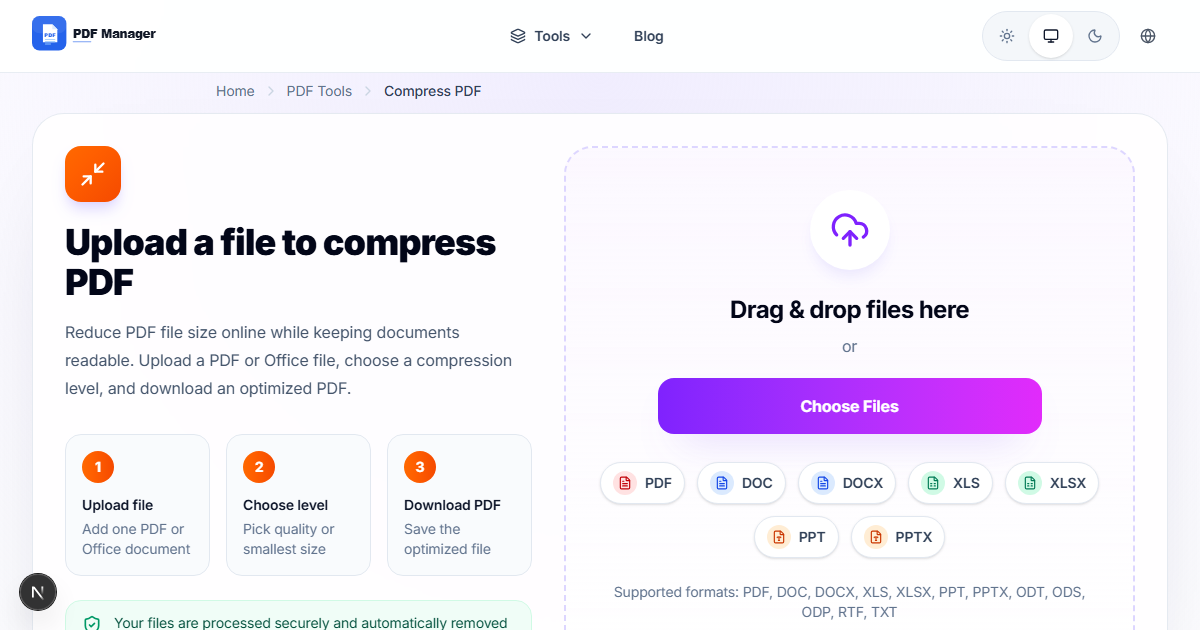
- Navigate to the PDF Manager compress tool. Go to the PDF Manager website and select the Compress PDF tool. The interface is fully optimized for macOS and Retina displays.
- Upload your PDF file. Drag and drop your PDF file onto the upload area, or click the upload button to browse through Finder. The tool accepts files of any size, though larger files will take longer to upload.
- Select your compression level. Choose from available compression presets. Recommended compression balances file size reduction with quality preservation. Maximum compression achieves the smallest file size but may reduce image quality. Lossless compression reduces file size without any quality degradation.
- Start the compression process. Click the Compress button. The tool analyzes your PDF, optimizes images, removes redundant data, and applies compression algorithms. A progress bar shows the status of the operation.
- Preview the compressed result. After compression, you can preview the PDF and see the compression statistics, including original size versus compressed size and the percentage reduction achieved.
- Download the compressed PDF. Click the Download button to save the compressed file to your Mac. The file is saved to your Downloads folder by default. You can also choose to save it to iCloud Drive or share it directly via AirDrop, Mail, or Messages.
Tips and Best Practices
- Always keep a backup of the original uncompressed file in case you need the full quality version later.
- Test compression levels on a single page first if your PDF contains critical images or graphics. This helps you find the optimal balance between size and quality.
- Remove unnecessary elements from your PDF before compressing. Empty pages, redundant annotations, and oversized embedded fonts can be cleaned up first for better compression results.
- Use recommended compression for most documents. It typically achieves 40-60 percent file size reduction while maintaining excellent visual quality.
- Check email attachment limits before compressing. Most email services accept up to 25 MB attachments, but some have lower limits of 10 MB.
Common Use Cases
- Email attachments: Reduce a 50 MB portfolio PDF to under 10 MB for email compatibility.
- Job applications: Compress resumes, cover letters, and portfolio PDFs to meet employer submission portal limits.
- Academic submissions: Shrink research papers and theses to comply with university submission systems.
- Cloud storage optimization: Reduce the size of PDFs stored in iCloud, Dropbox, or Google Drive to save space and speed up syncing.
- Website uploads: Compress PDF brochures, catalogs, and whitepapers before uploading them to your website for faster loading.
Frequently Asked Questions
Does online PDF compression work with Safari on Mac?
Yes, all modern browsers on macOS are fully compatible with online PDF compression tools, including Safari 15 and later. Ensure JavaScript is enabled in your Safari preferences for the best experience.
Will compression reduce the quality of text in my PDF?
No, text elements in PDFs are compressed using lossless techniques that preserve every character exactly. Image compression may reduce image resolution depending on the compression level you select. Recommended compression preserves text perfectly and optimizes images intelligently.
How much can I compress a PDF on Mac?
Typical compression ratios range from 30 percent to 80 percent reduction in file size, depending on the original content. PDFs with many high-resolution images compress more dramatically, while text-only PDFs may only see modest reductions of 10 to 20 percent.
Is it safe to upload sensitive documents to online compressors?
Reputable online PDF tools use SSL encryption during upload and download, and automatically delete your files from their servers after processing. PDF Manager deletes all uploaded files within 60 minutes. For highly sensitive documents, check the tool privacy policy.
Can I compress multiple PDFs at once on Mac?
Some online tools support batch compression, allowing you to upload and compress multiple PDF files simultaneously. PDF Manager supports batch processing of up to 10 files, each compressed individually to your chosen settings.
What is the maximum PDF size I can compress online?
Most free online PDF compressors handle files up to 100 MB. PDF Manager supports files up to 200 MB for the compression tool, making it suitable even for large documents and presentations.
Will the compression change the PDF formatting?
No, professional PDF compression preserves all formatting, including fonts, layouts, tables, and vector graphics. The only change is optimized image compression and removal of redundant data, which does not affect the visual appearance of text or layout elements.
Related Tools
- Compress PDF - Reduce PDF file size
- Merge PDF - Combine multiple PDFs into one
- Split PDF - Separate a PDF into multiple files
- PDF to JPG - Convert PDF pages to images
- Edit PDF - Edit PDF documents online
Try Compressing Your PDFs Now
Stop searching for PDF software and start compressing right now. PDF Manager gives you a free, fast, and secure way to compress PDFs on your Mac with no installation required. Whether you need to shrink a single document or batch process multiple files, our tool delivers professional results in seconds. Visit PDF Manager today and experience the easiest way to compress PDFs on macOS.
Why Use PDF Manager
Built for quick conversions
The core tools are designed to get users from upload to result with minimal friction.
Made for practical workflows
Move from one document step to the next without hunting through a confusing tool library.
Simple and trustworthy
Clear states, secure handling, and polished result screens make the workflow easy to trust.

Umar Draz
Document Tools Specialist
Software engineer with 5+ years building document processing tools. Created PDF Manager to make PDF tools accessible to everyone. Tests every feature with real-world documents before release.
- 5+ years in document processing
- Built PDF Manager from scratch
- Tested 10,000+ PDF workflows
Ready to use the tool?
Open the tool page and follow the same workflow from this guide inside a conversion experience built for fast results.
Related Tools
Useful next steps around the same document workflow.
Related Articles
Continue with nearby guides that support the same conversion path.
From PDF
How to Convert PDF to Word Without Losing Formatting
Turn PDFs into editable Word documents while preserving structure, spacing, tables, and readable layout.
To PDF
How to Convert Word to PDF (Free & Fast)
A clean guide to turning Word documents into PDFs quickly for sharing, printing, and final delivery.
Quick Answers
Does online PDF compression work with Safari on Mac?
Yes, all modern browsers on macOS are fully compatible with online PDF compression tools, including Safari 15 and later. Ensure JavaScript is enabled in your Safari preferences for the best experience.
Will compression reduce the quality of text in my PDF?
No, text elements in PDFs are compressed using lossless techniques that preserve every character exactly. Image compression may reduce image resolution depending on the compression level you select. Recommended compression preserves text perfectly and optimizes images intelligently.
How much can I compress a PDF on Mac?
Typical compression ratios range from 30 percent to 80 percent reduction in file size, depending on the original content. PDFs with many high-resolution images compress more dramatically, while text-only PDFs may only see modest reductions of 10 to 20 percent.
Is it safe to upload sensitive documents to online compressors?
Reputable online PDF tools use SSL encryption during upload and download, and automatically delete your files from their servers after processing. PDF Manager deletes all uploaded files within 60 minutes. For highly sensitive documents, check the tool privacy policy.
Can I compress multiple PDFs at once on Mac?
Some online tools support batch compression, allowing you to upload and compress multiple PDF files simultaneously. PDF Manager supports batch processing of up to 10 files, each compressed individually to your chosen settings.
What is the maximum PDF size I can compress online?
Most free online PDF compressors handle files up to 100 MB. PDF Manager supports files up to 200 MB for the compression tool, making it suitable even for large documents and presentations.
Will the compression change the PDF formatting?
No, professional PDF compression preserves all formatting, including fonts, layouts, tables, and vector graphics. The only change is optimized image compression and removal of redundant data, which does not affect the visual appearance of text or layout elements.