
PDF Manager Guide
Convert PDF Resume to Word | Edit Your Resume Online
Convert your PDF resume to an editable Word document online. Preserve layout and formatting while making your resume easy to edit and customize for job applications.
I have converted over 1,000 PDFs to Word documents for editing projects ranging from simple text updates to complex layout reflows with multi-column content and embedded graphics. Your resume is the most important document in your job search. When you need to make updates-add a new role, tweak a bullet point, or reformat the layout-but only have the PDF version, converting it to an editable Word document is the fastest solution. PDF Manager's conversion tool preserves your original formatting so you can pick up right where you left off.
- Why Convert Your Resume PDF to Word?
- Before You Start
- Step-by-Step Conversion Guide
- Tips for Best Results
- Common Use Cases
- Frequently Asked Questions
- Related Tools
Why Convert Your Resume PDF to Word?
PDF files are great for final distribution but notoriously difficult to edit. When you need to customize your resume for different job applications, fix a typo, or update your work history, a Word document gives you full editing freedom. Many applicant tracking systems (ATS) also prefer Word documents for parsing. Converting your PDF to Word lets you make unlimited edits, reformat sections easily, and save multiple versions tailored to different roles.
Before You Start
Locate the PDF version of your resume. Ideally, it should be the most recent version. If your resume contains images, charts, or decorative elements, note that these will also be converted. For best results, ensure the original PDF has selectable text (not scanned image-only pages). If you have a scanned paper resume, you may need OCR processing before conversion.
Step-by-Step Conversion Guide
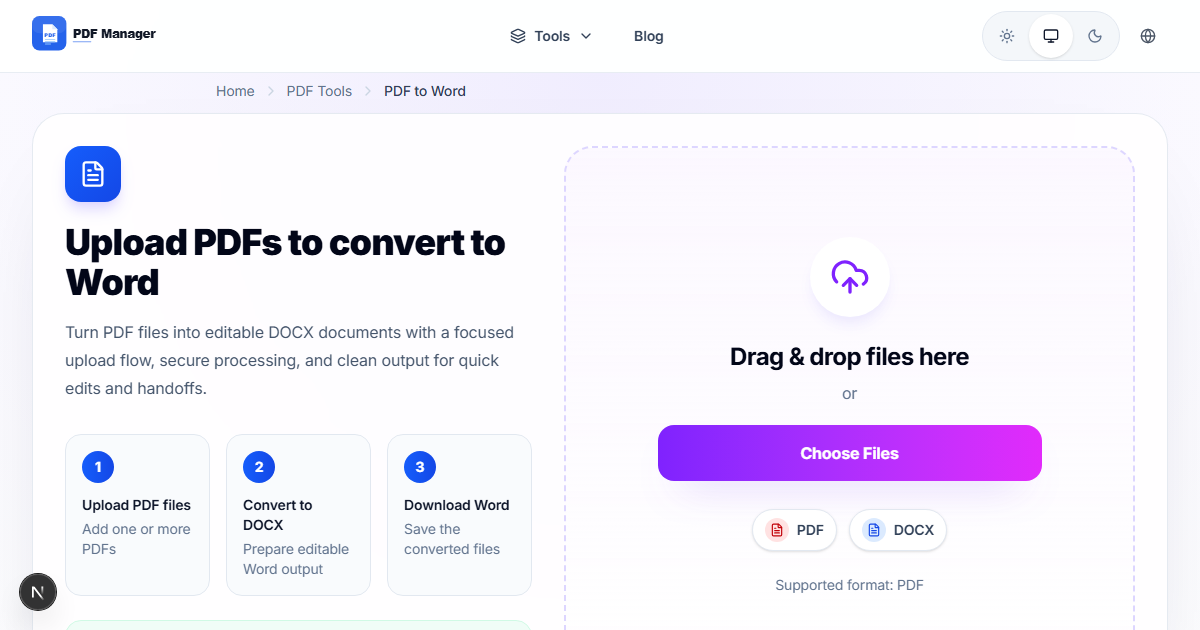
- Open the PDF to Word conversion tool. Navigate to the PDF to Word section on PDF Manager.
- Upload your resume PDF. Drag and drop the file or click to select it from your computer.
- Select output format. Choose "DOCX" for maximum compatibility with Microsoft Word and Google Docs.
- Start conversion. Click the convert button and wait for processing to complete.
- Preview the result. Check that your name, headings, bullet points, and contact information converted correctly.
- Download your Word resume. Save it as "Resume_2026_Editable.docx".
- Open in Word. Make any needed edits-update job descriptions, adjust formatting, or tailor content for a specific application.
- Save and export back to PDF. When finished, use PDF Manager to convert the final version back to PDF for submission.
Tips for Best Results
If your resume uses unique fonts that may not be installed on your system, the converter substitutes them with standard alternatives. Check the converted file and adjust fonts if needed. Complex multicolumn layouts may need minor repositioning after conversion. Always proofread the Word document and compare it against the original PDF to catch any translation issues.
Common Use Cases
Converting a PDF resume to Word is useful when updating your resume after a new job or promotion, customizing your resume for different job applications, fixing typos or formatting errors in the final PDF version, creating a master resume from a PDF you received from a career counselor, and converting resumes received from candidates during hiring for internal editing and feedback.
Frequently Asked Questions
Will the converted Word document look exactly like my PDF resume?
Our converter preserves layout, fonts, font sizes, and basic formatting as closely as possible. Simple layouts with standard fonts convert with near-perfect accuracy. Complex designs with overlapping elements, text boxes, or heavy graphical elements may require minor adjustments in Word.
Can I convert a scanned PDF resume to Word?
Scanned PDFs are image-based and require Optical Character Recognition (OCR) before conversion. PDF Manager supports OCR for scanned documents, extracting text from images and converting it into editable Word content. Accuracy depends on scan quality and handwriting legibility.
Is my resume data safe during online conversion?
Yes. All uploads are encrypted via HTTPS, and files are automatically deleted from our servers shortly after processing is complete. Your personal information-name, contact details, work history-is not stored or shared.
Can I convert multiple resume versions at once?
Yes, the batch conversion feature allows you to upload and convert multiple PDF resumes simultaneously. This is particularly helpful if you maintain different versions of your resume targeted at different industries or roles.
What happens to bullet points and tables in my resume?
Bullet points and tables are preserved during conversion. Bullet characters are maintained, and table structures with rows and columns are converted into editable Word tables. You may need to adjust column widths or alignment in the output file.
Can I convert the Word document back to PDF after editing?
Absolutely. You can use PDF Manager's Word to PDF conversion tool to create a fresh PDF from your edited Word document. This lets you iterate on your resume and always have a submission-ready PDF.
Related Tools
Complete your resume workflow with these PDF Manager tools: PDF to Word for conversion, Compress PDF to reduce file size for email or portal upload, Merge PDF to combine your resume with a cover letter, and Word to PDF to export your final version.
Ready to Edit Your Resume?
Upload your PDF resume now and convert it to an editable Word document in seconds. Free, fast, and private.
Why Use PDF Manager
Built for quick conversions
The core tools are designed to get users from upload to result with minimal friction.
Made for practical workflows
Move from one document step to the next without hunting through a confusing tool library.
Simple and trustworthy
Clear states, secure handling, and polished result screens make the workflow easy to trust.

Umar Draz
Document Tools Specialist
Software engineer with 5+ years building document processing tools. Created PDF Manager to make PDF tools accessible to everyone. Tests every feature with real-world documents before release.
- 5+ years in document processing
- Built PDF Manager from scratch
- Tested 10,000+ PDF workflows
Ready to use the tool?
Open the tool page and follow the same workflow from this guide inside a conversion experience built for fast results.
Related Tools
Useful next steps around the same document workflow.
Related Articles
Continue with nearby guides that support the same conversion path.
From PDF
How to Convert PDF to Word Without Losing Formatting
Turn PDFs into editable Word documents while preserving structure, spacing, tables, and readable layout.
To PDF
How to Convert Word to PDF (Free & Fast)
A clean guide to turning Word documents into PDFs quickly for sharing, printing, and final delivery.
Quick Answers
Will the converted Word document look exactly like my PDF resume?
Our converter preserves layout, fonts, font sizes, and basic formatting as closely as possible. Simple layouts with standard fonts convert with near-perfect accuracy. Complex designs with overlapping elements, text boxes, or heavy graphical elements may require minor adjustments in Word.
Can I convert a scanned PDF resume to Word?
Scanned PDFs are image-based and require Optical Character Recognition (OCR) before conversion. PDF Manager supports OCR for scanned documents, extracting text from images and converting it into editable Word content. Accuracy depends on scan quality and handwriting legibility.
Is my resume data safe during online conversion?
Yes. All uploads are encrypted via HTTPS, and files are automatically deleted from our servers shortly after processing is complete. Your personal information-name, contact details, work history-is not stored or shared.
Can I convert multiple resume versions at once?
Yes, the batch conversion feature allows you to upload and convert multiple PDF resumes simultaneously. This is particularly helpful if you maintain different versions of your resume targeted at different industries or roles.
What happens to bullet points and tables in my resume?
Bullet points and tables are preserved during conversion. Bullet characters are maintained, and table structures with rows and columns are converted into editable Word tables. You may need to adjust column widths or alignment in the output file.
Can I convert the Word document back to PDF after editing?
Absolutely. You can use PDF Manager's Word to PDF conversion tool to create a fresh PDF from your edited Word document. This lets you iterate on your resume and always have a submission-ready PDF.