
PDF Manager Guide
Convert PDF to Excel on iPad | Extract Tables on iOS
Convert PDF to Excel on iPad with this free online tool. Extract tables from PDF documents and export to XLSX format. Works in Safari on iPadOS, no app needed.
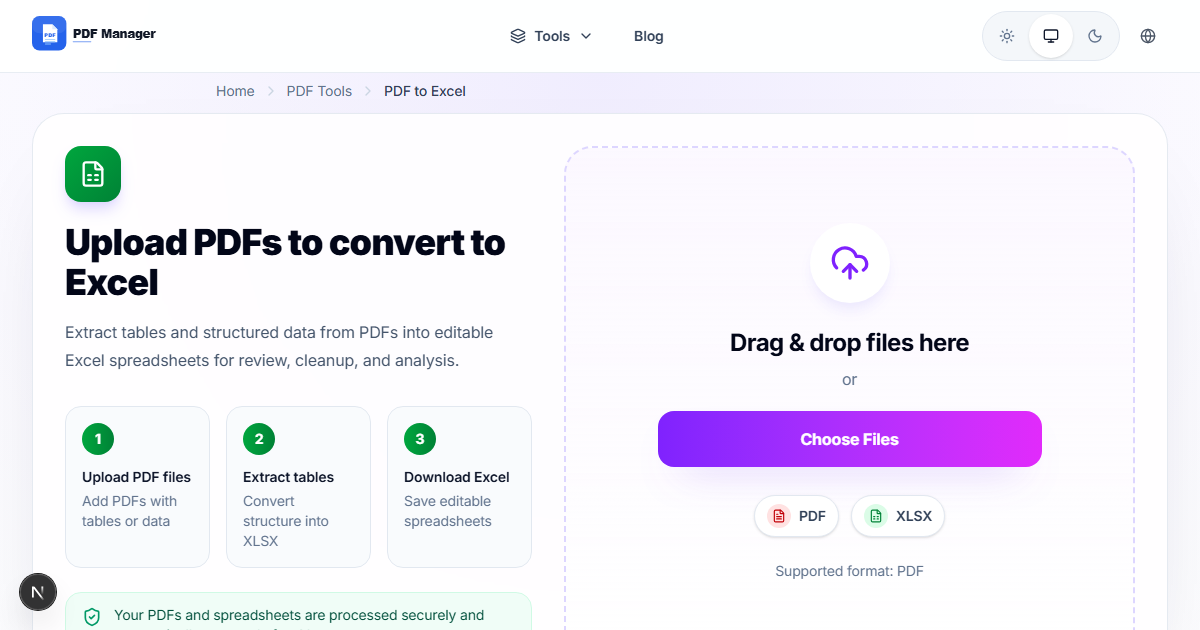
Extracting tables from PDFs into editable Excel spreadsheets has been a core part of my document workflow for five years. I have converted financial statements, inventory lists, scientific data, and government forms from static PDFs into live, analyzable spreadsheets. The iPad has become a powerful productivity device, but extracting table data from PDF files remains a challenge without the right tools. This guide shows you how to convert PDF to Excel on your iPad using a free online tool that works directly in Safari. No app installation required. Extract tables, financial data, and structured information from any PDF and export it to a fully editable Excel spreadsheet.
Table of Contents
Why Convert PDF to Excel on iPad?
Table data is everywhere in PDF format from financial reports and research data to inventory lists and survey results. However, PDFs store this data in a fixed layout that cannot be easily edited, sorted, filtered, or analyzed. Converting PDF tables to Excel unlocks powerful data manipulation capabilities. You can perform calculations, create charts and pivot tables, apply filters and sorting, and integrate data with other analysis tools.
The iPad is increasingly used for data analysis on the go. Whether you use an iPad Pro with a Magic Keyboard for professional work or an iPad Air for academic research, converting PDFs to Excel directly on your device streamlines your workflow. Using an online converter means no app clutter, no subscription fees, and compatibility with all iPad models from iPad mini to iPad Pro.
What You Need
- An iPad running iPadOS 15 or later
- Safari browser or any alternative browser like Chrome for iPad
- A stable internet connection for uploading and downloading files
- The PDF file containing tables, stored on your iPad, iCloud, or accessible via a link
- Microsoft Excel, Apple Numbers, or Google Sheets for viewing the converted file
Step-by-Step Guide to Convert PDF to Excel on iPad
- Open Safari on your iPad. Navigate to the PDF Manager website and select the PDF to Excel converter tool. The interface is fully optimized for iPad screens, supporting both portrait and landscape orientations.
- Upload your PDF file. Tap the upload area. The iPad file picker appears, allowing you to select PDFs from your iPad local storage, iCloud Drive, Files app, or other cloud providers like Dropbox and OneDrive.
- Select the conversion mode. Choose whether to convert all tables in the PDF or select specific tables. Some tools offer automatic table detection that identifies all tabular data in your document.
- Configure OCR if needed. If your PDF contains scanned tables embedded as images, enable the OCR option to recognize and extract the text data from the images before conversion.
- Start the conversion. Tap the Convert to Excel button. The tool analyzes your PDF, locates all tables, and converts them into an Excel workbook with each table on a separate worksheet.
- Preview the converted Excel file. A preview of the XLSX file is displayed, showing the extracted tables with their data organized into rows and columns.
- Download the Excel file. Tap the Download button to save the XLSX file. Safari on iPad offers the option to save to Files, open in Excel, Numbers, or Google Sheets, or share via email, AirDrop, or Messages.
- Edit and analyze your data. Open the file in Excel for iPad, Apple Numbers, or Google Sheets. All table data is now editable, sortable, and ready for analysis.
Tips and Best Practices
- Ensure PDF tables have clear borders for best detection accuracy. Tables with explicit grid lines convert more reliably than borderless tables.
- Use OCR for scanned documents containing tables. The OCR engine recognizes text in images and places it correctly within the Excel table structure.
- Check the converted data for any merged cells or complex table structures. These may require minor manual adjustment in Excel after conversion.
- Save to iCloud Drive for seamless access across your iPad, iPhone, and Mac. Your converted Excel files sync automatically via iCloud.
- Test with a single-page table first to evaluate conversion quality before processing large multi-page documents.
Common Use Cases
- Financial data extraction: Extract tables from quarterly financial reports, balance sheets, and income statements for analysis in Excel.
- Research data compilation: Convert tables from academic papers and research reports to Excel for statistical analysis and visualization.
- Inventory management: Extract product lists, pricing tables, and inventory counts from PDF catalogs into editable Excel spreadsheets.
- Survey results analysis: Convert survey data tables from PDF reports into Excel for filtering, charting, and insight generation.
- Sales data processing: Extract sales figures, commission tables, and performance metrics from PDF reports for dashboard creation.
Frequently Asked Questions
Can I convert PDF to Excel on iPad without installing apps?
Yes, online PDF to Excel converters work entirely in Safari or any browser on iPad. No app installation is required. The conversion happens on secure servers, and you download the resulting Excel file directly.
Does the converter handle multi-page PDF tables?
Yes, the converter processes all pages of your PDF and can stitch together tables that span multiple pages. Each distinct table is placed in a separate worksheet within the Excel workbook for organized data management.
How accurate is the table extraction from PDF?
Modern PDF to Excel converters achieve 95-99 percent accuracy for well-structured PDF tables with clear borders and standard fonts. Accuracy may be lower for complex nested tables, merged cells, or scanned documents without OCR.
Will the converted Excel file preserve formatting?
The converter preserves data structure, column widths, and basic formatting. Cell colors, font styles, and complex formatting may not transfer exactly. You can easily apply Excel formatting after conversion.
Can I convert scanned PDF tables to Excel?
Yes, with OCR enabled, the converter can extract text from scanned images and reconstruct tables in Excel format. Enable the OCR option before starting the conversion for best results with scanned documents.
What Excel format does the converter output?
The converter outputs standard XLSX format, which is compatible with Microsoft Excel 2007 and later, Apple Numbers, Google Sheets, LibreOffice Calc, and all other spreadsheet applications.
Is my data secure during online conversion on iPad?
Yes, all data transfers use SSL encryption. PDF Manager automatically deletes your PDF and the converted Excel file from its servers within 60 minutes. Your documents remain private and secure.
Related Tools
- PDF to Excel - Extract tables from PDF to Excel
- PDF to Word - Convert PDF to editable Word documents
- Merge PDF - Combine multiple PDFs into one
- Split PDF - Separate a PDF into multiple files
- Compress PDF - Reduce PDF file size
Try Converting Your PDF Now
Stop manually retyping table data from PDFs into spreadsheets. Convert PDF to Excel directly on your iPad with PDF Manager free online tool. No app download, no sign-up, instant results. Extract tables with precision and start analyzing your data in Excel within seconds. Visit PDF Manager on your iPad today and transform how you work with PDF data.
Why Use PDF Manager
Built for quick conversions
The core tools are designed to get users from upload to result with minimal friction.
Made for practical workflows
Move from one document step to the next without hunting through a confusing tool library.
Simple and trustworthy
Clear states, secure handling, and polished result screens make the workflow easy to trust.

Umar Draz
Document Tools Specialist
Software engineer with 5+ years building document processing tools. Created PDF Manager to make PDF tools accessible to everyone. Tests every feature with real-world documents before release.
- 5+ years in document processing
- Built PDF Manager from scratch
- Tested 10,000+ PDF workflows
Ready to use the tool?
Open the tool page and follow the same workflow from this guide inside a conversion experience built for fast results.
Related Tools
Useful next steps around the same document workflow.
Related Articles
Continue with nearby guides that support the same conversion path.
From PDF
How to Convert PDF to Word Without Losing Formatting
Turn PDFs into editable Word documents while preserving structure, spacing, tables, and readable layout.
To PDF
How to Convert Word to PDF (Free & Fast)
A clean guide to turning Word documents into PDFs quickly for sharing, printing, and final delivery.
Quick Answers
Can I convert PDF to Excel on iPad without installing apps?
Yes, online PDF to Excel converters work entirely in Safari or any browser on iPad. No app installation is required. The conversion happens on secure servers, and you download the resulting Excel file directly.
Does the converter handle multi-page PDF tables?
Yes, the converter processes all pages of your PDF and can stitch together tables that span multiple pages. Each distinct table is placed in a separate worksheet within the Excel workbook for organized data management.
How accurate is the table extraction from PDF?
Modern PDF to Excel converters achieve 95-99 percent accuracy for well-structured PDF tables with clear borders and standard fonts. Accuracy may be lower for complex nested tables, merged cells, or scanned documents without OCR.
Will the converted Excel file preserve formatting?
The converter preserves data structure, column widths, and basic formatting. Cell colors, font styles, and complex formatting may not transfer exactly. You can easily apply Excel formatting after conversion.
Can I convert scanned PDF tables to Excel?
Yes, with OCR enabled, the converter can extract text from scanned images and reconstruct tables in Excel format. Enable the OCR option before starting the conversion for best results with scanned documents.
What Excel format does the converter output?
The converter outputs standard XLSX format, which is compatible with Microsoft Excel 2007 and later, Apple Numbers, Google Sheets, LibreOffice Calc, and all other spreadsheet applications.
Is my data secure during online conversion on iPad?
Yes, all data transfers use SSL encryption. PDF Manager automatically deletes your PDF and the converted Excel file from its servers within 60 minutes. Your documents remain private and secure.