
PDF Manager Guide
Convert PDF to Word for Translation | Editable Text Output
Convert PDF to Word for translation projects. Get editable text output that works with CAT tools and professional linguists for accurate, efficient document translation.
I have converted over 1,000 PDFs to Word documents for editing projects ranging from simple text updates to complex layout reflows with multi-column content and embedded graphics. Translating a PDF document is notoriously difficult because PDFs are designed as fixed-layout files. Professional translators and translation tools like SDL Trados, memoQ, and Google Translate all work best with editable text formats. Converting your PDF to Word before translation gives you clean, selectable text that preserves structure-making the translation process faster, more accurate, and significantly less frustrating.
- Why Convert PDF to Word for Translation?
- Before You Start
- Step-by-Step Conversion Guide
- Tips for Best Results
- Common Use Cases
- Frequently Asked Questions
- Related Tools
Why Convert PDF to Word for Translation?
PDF files store text as positioned objects, making them difficult to edit or extract directly. Converting to Word produces a flowing text document that translation memory tools can process, segment, and align. It also allows translators to see the full context of sentences, maintain formatting like bold and italic for emphasis, handle tables and lists properly, and preserve headers and footers for reference. The result is a higher-quality translation produced in less time.
Before You Start
Check whether your PDF is a digital (text-based) file or a scanned (image-based) document. Digital PDFs convert directly with high accuracy. Scanned PDFs require OCR before conversion. Also check if the PDF has any restrictions or passwords-you'll need to remove those first. Identify the target language and confirm your translation tool accepts DOCX input.
Step-by-Step Conversion Guide
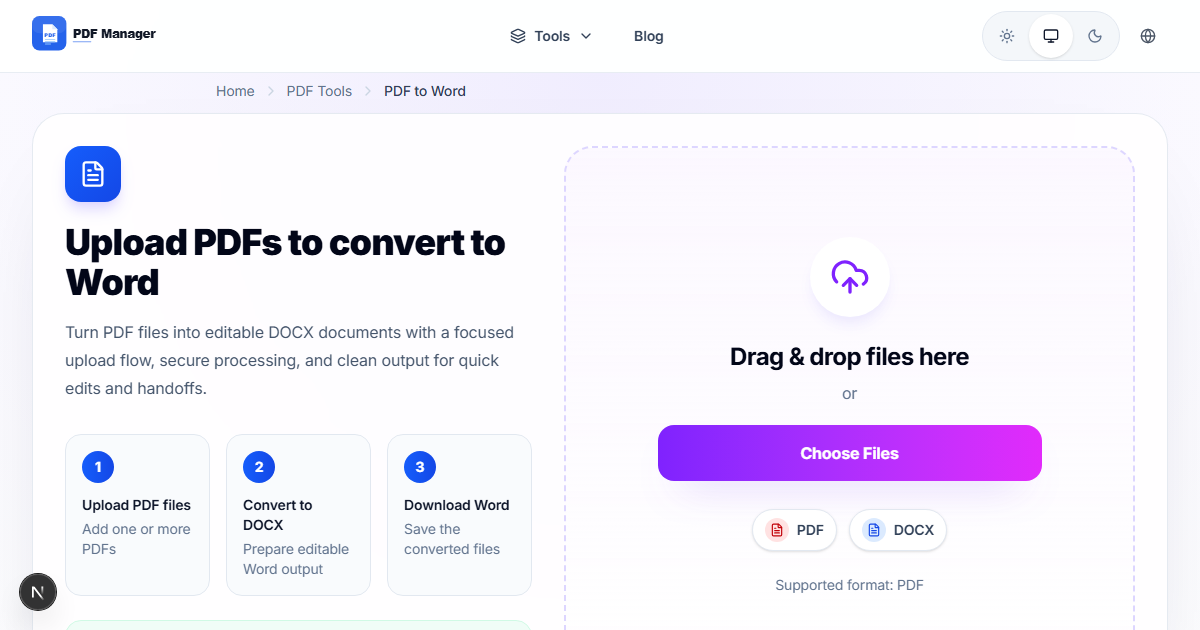
- Open the PDF to Word conversion tool. Navigate to the PDF to Word section on PDF Manager.
- Upload the PDF you need to translate. Drag and drop or click to select your file.
- Select output format. Choose DOCX for maximum compatibility with translation tools.
- Enable OCR if needed. For scanned PDFs, toggle OCR to extract text from images.
- Start conversion. Click the convert button and wait for the process to complete.
- Preview the Word document. Check that paragraphs, bullet points, and tables converted correctly.
- Download the DOCX file. Save it and import into your translation tool or share with your translator.
- Begin translation. Work in your CAT tool or directly in Word, preserving the original structure.
Tips for Best Results
If the PDF contains complex layouts like multiple columns or text boxes, check the converted Word file carefully-some elements may shift. For the best translation output, clean up the Word document before importing into your CAT tool: remove extra spaces, fix any broken paragraphs, and ensure headings use proper styles. If your PDF uses special characters or non-Latin scripts, verify these render correctly in the Word output.
Common Use Cases
Converting PDF to Word for translation applies to legal contracts and agreements that need multilingual versions, medical reports and clinical trial documentation, technical manuals and user guides for international markets, academic papers and research articles being translated for publication, marketing materials and website content for global campaigns, and government forms and official documents for multicultural populations.
Frequently Asked Questions
Will the converted Word document retain the original PDF formatting?
Our converter preserves headings, paragraphs, lists, tables, and basic formatting like bold and italic. Complex layouts with multiple columns, text boxes, or floating elements may need manual adjustment in Word. The goal is to produce a clean, editable document that accurately represents the original text structure.
Can I convert a scanned PDF (image) for translation?
Yes, PDF Manager includes OCR (Optical Character Recognition) for scanned documents. The OCR engine extracts text from images and places it into the Word document. Accuracy depends on scan quality, font clarity, and language. For best results, use a 300 DPI or higher scan.
Is the converted Word file compatible with translation memory tools?
Yes, the DOCX output is compatible with all major CAT (Computer-Assisted Translation) tools including SDL Trados, memoQ, Wordfast, and Crowdin. The clean text structure allows these tools to segment sentences and match against translation memories effectively.
What languages and character sets are supported in the conversion?
The converter supports all major languages and character sets including Latin, Cyrillic, Arabic, Hebrew, CJK (Chinese, Japanese, Korean), and more. Unicode encoding ensures special characters and diacritical marks are preserved in the Word output.
Can I convert and translate password-protected PDFs?
Password-protected PDFs must be unlocked before conversion. Use PDF Manager's unlock PDF tool to remove security restrictions first. Documents with editing restrictions may also need to be unlocked to enable full text extraction.
How do I handle PDFs with right-to-left text (Arabic, Hebrew) for translation?
The converter preserves text direction information. When opened in Microsoft Word, right-to-left text should display correctly with appropriate paragraph direction settings. You may need to enable RTL support in Word for full compatibility.
Related Tools
Complete your document translation workflow with these PDF Manager tools: PDF to Word for conversion, Compress PDF for sharing translated files, Merge PDF to combine translated chapters, and Word to PDF to convert your final translation back to PDF for distribution.
Ready to Translate Your PDF?
Convert your PDF to an editable Word document now and start the translation process in seconds.
Why Use PDF Manager
Built for quick conversions
The core tools are designed to get users from upload to result with minimal friction.
Made for practical workflows
Move from one document step to the next without hunting through a confusing tool library.
Simple and trustworthy
Clear states, secure handling, and polished result screens make the workflow easy to trust.

Umar Draz
Document Tools Specialist
Software engineer with 5+ years building document processing tools. Created PDF Manager to make PDF tools accessible to everyone. Tests every feature with real-world documents before release.
- 5+ years in document processing
- Built PDF Manager from scratch
- Tested 10,000+ PDF workflows
Ready to use the tool?
Open the tool page and follow the same workflow from this guide inside a conversion experience built for fast results.
Related Tools
Useful next steps around the same document workflow.
Related Articles
Continue with nearby guides that support the same conversion path.
From PDF
How to Convert PDF to Word Without Losing Formatting
Turn PDFs into editable Word documents while preserving structure, spacing, tables, and readable layout.
To PDF
How to Convert Word to PDF (Free & Fast)
A clean guide to turning Word documents into PDFs quickly for sharing, printing, and final delivery.
Quick Answers
Will the converted Word document retain the original PDF formatting?
Our converter preserves headings, paragraphs, lists, tables, and basic formatting like bold and italic. Complex layouts with multiple columns, text boxes, or floating elements may need manual adjustment in Word. The goal is to produce a clean, editable document that accurately represents the original text structure.
Can I convert a scanned PDF (image) for translation?
Yes, PDF Manager includes OCR (Optical Character Recognition) for scanned documents. The OCR engine extracts text from images and places it into the Word document. Accuracy depends on scan quality, font clarity, and language. For best results, use a 300 DPI or higher scan.
Is the converted Word file compatible with translation memory tools?
Yes, the DOCX output is compatible with all major CAT (Computer-Assisted Translation) tools including SDL Trados, memoQ, Wordfast, and Crowdin. The clean text structure allows these tools to segment sentences and match against translation memories effectively.
What languages and character sets are supported in the conversion?
The converter supports all major languages and character sets including Latin, Cyrillic, Arabic, Hebrew, CJK (Chinese, Japanese, Korean), and more. Unicode encoding ensures special characters and diacritical marks are preserved in the Word output.
Can I convert and translate password-protected PDFs?
Password-protected PDFs must be unlocked before conversion. Use PDF Manager's unlock PDF tool to remove security restrictions first. Documents with editing restrictions may also need to be unlocked to enable full text extraction.
How do I handle PDFs with right-to-left text (Arabic, Hebrew) for translation?
The converter preserves text direction information. When opened in Microsoft Word, right-to-left text should display correctly with appropriate paragraph direction settings. You may need to enable RTL support in Word for full compatibility.