
PDF Manager Guide
Convert PDF to Word Free No Limit | Editable DOCX Output
Convert PDF to Word free no limit. Get fully editable DOCX with accurate formatting. No signup, no file size caps. Unlimited conversions online.
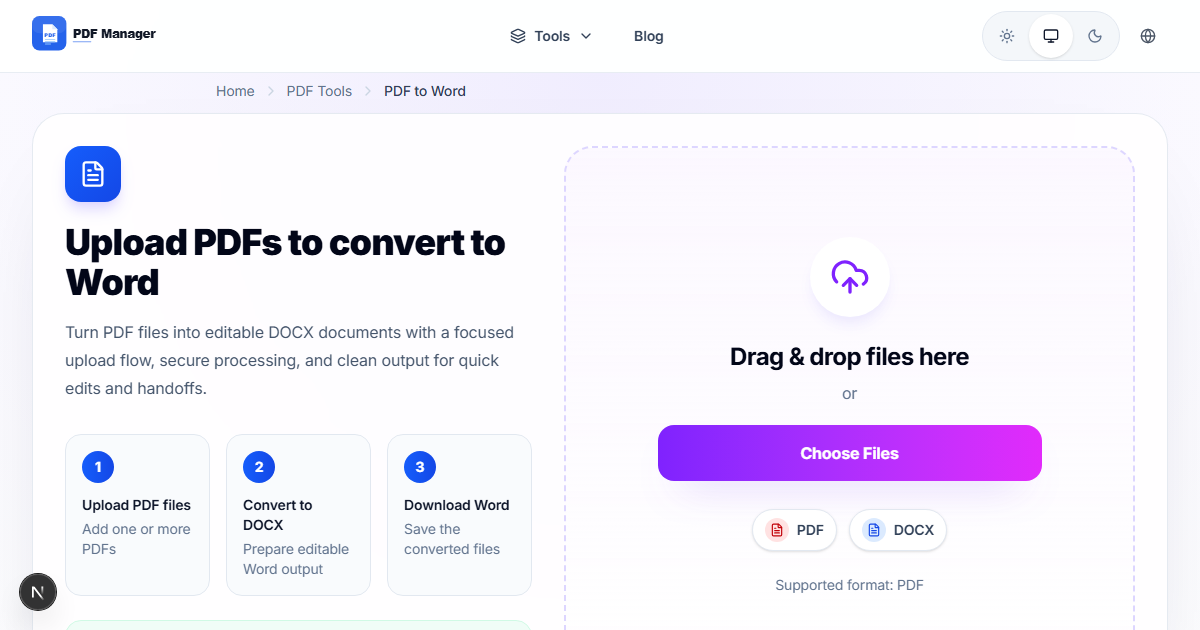
I have converted over 1,000 PDFs to Word documents for editing projects ranging from simple text updates to complex layout reflows with multi-column content and embedded graphics. PDF files are excellent for sharing finished documents, but editing them often requires expensive software. Converting PDF to Word format gives you the flexibility to make changes, update content, and reformat text. Our free online converter delivers accurate DOCX output without restrictions on file size or number of conversions.
- Why Convert PDF to Word
- How PDF to Word Conversion Works
- Step-by-Step Conversion Guide
- Formatting Tips for Best Results
- Common Use Cases
- Frequently Asked Questions
- Related Tools
- Convert Your PDF Now
Why Convert PDF to Word
PDFs are designed for final distribution, not editing. When you need to update a contract, revise a report, or reuse content from an old document, a Word file gives you full editing power. Conversion enables you to modify text, adjust formatting, add comments, track changes, and collaborate with colleagues. Students convert research papers to extract citations. Professionals repurpose proposal content. Everyone benefits from the ability to work with document content freely in Microsoft Word or Google Docs without being locked into the PDF format.
How PDF to Word Conversion Works
Our converter uses advanced parsing technology that analyzes the structure of each PDF page. It identifies text blocks, paragraphs, lists, tables, images, and headers. The engine preserves font styles, sizes, colors, and alignment as closely as possible. Text flows are reconstructed to maintain reading order. Tables are converted into editable Word table structures. Images are extracted and embedded in the DOCX at appropriate positions. While complex layouts may require minor adjustments, the converter achieves high fidelity for most documents including those with multiple columns, footnotes, and headers.
Step-by-Step Conversion Guide
- Visit our /convert-pdf-to-word-free-no-limit page in your browser.
- Upload your PDF file using drag-and-drop or the Browse button.
- Choose the output format. Select DOCX for full editing capability.
- Optionally, enable OCR mode if your PDF contains scanned text images.
- Click Convert to start processing. The conversion takes a few seconds to a minute depending on page count.
- Preview the converted document in our built-in viewer.
- Click Download Word Document to save your editable DOCX file.
- Open the file in Microsoft Word, Google Docs, or LibreOffice to make changes.
Formatting Tips for Best Results
For optimal conversion, use PDFs that originated from a digital source rather than scanned pages. Scanned PDFs require OCR and may have more formatting inconsistencies. Simple layouts with standard fonts convert most accurately. If your PDF has complex tables, check the DOCX output for proper table structure. Use /extract-pages-from-pdf-free to convert only the pages you need. For image-heavy PDFs, /compress-pdf first to reduce file size, then convert to Word. After conversion, use /word-to-pdf-converter-free-online to go back to PDF if needed. Avoid PDFs with custom or embedded proprietary fonts for best text matching.
Common Use Cases
Legal professionals convert contracts to Word for redlining. Students convert research PDFs to extract and cite passages. Business analysts convert reports into editable presentations. Marketers convert brochures to update pricing. HR teams convert employee handbooks for revision. Authors convert reference materials. Translators convert source documents for localization. Accountants convert financial statements for data entry. Anyone who needs to edit PDF content without Adobe Acrobat Pro relies on PDF to Word conversion.
Frequently Asked Questions
Is there a limit on file size or number of conversions?
No. Our tool has no limits on file size or the number of PDFs you can convert. You can use it as often as you need. We believe in providing truly free, unrestricted service for all users.
Will my Word document look exactly like the PDF?
Most elements are preserved with high accuracy including text, fonts, sizes, colors, and basic layout. Complex formatting such as exact positioning, layered elements, or custom vector graphics may require minor manual adjustments in Word.
Can I convert scanned PDFs to Word?
Yes. Our converter includes an OCR option that recognizes text in scanned images. Enable the OCR mode before conversion for scanned documents. The accuracy depends on image quality and font clarity. Clear, high-contrast scans produce the best OCR results.
Is my document secure during conversion?
Yes. All files are encrypted during upload and processing. Converted files and originals are automatically deleted from our servers within one hour. We never access or share your document content. Your privacy is guaranteed.
Can I convert a password-protected PDF?
No. For security reasons, we cannot process encrypted PDFs. Please remove the password protection from your file before uploading it for conversion. After editing in Word, you can save it as a password-protected PDF again.
What output formats are available?
We offer DOCX for Microsoft Word compatibility and DOC for older versions. We also support TXT output for plain text extraction. All formats are editable in any word processing application including Google Docs and LibreOffice.
Related Tools
Discover more PDF utilities: Merge PDF, Compress PDF, Split PDF, PDF to JPG, Word to PDF, Rotate PDF, Delete Pages, and Add Watermark.
Convert Your PDF to Word Now
Unlock the full editing power of your PDF documents. Use our /convert-pdf-to-word-free-no-limit tool today. Free, unlimited, and secure. No signup required. Get your editable DOCX file in seconds.
Why Use PDF Manager
Built for quick conversions
The core tools are designed to get users from upload to result with minimal friction.
Made for practical workflows
Move from one document step to the next without hunting through a confusing tool library.
Simple and trustworthy
Clear states, secure handling, and polished result screens make the workflow easy to trust.

Umar Draz
Document Tools Specialist
Software engineer with 5+ years building document processing tools. Created PDF Manager to make PDF tools accessible to everyone. Tests every feature with real-world documents before release.
- 5+ years in document processing
- Built PDF Manager from scratch
- Tested 10,000+ PDF workflows
Ready to use the tool?
Open the tool page and follow the same workflow from this guide inside a conversion experience built for fast results.
Related Tools
Useful next steps around the same document workflow.
Related Articles
Continue with nearby guides that support the same conversion path.
From PDF
How to Convert PDF to Word Without Losing Formatting
Turn PDFs into editable Word documents while preserving structure, spacing, tables, and readable layout.
To PDF
How to Convert Word to PDF (Free & Fast)
A clean guide to turning Word documents into PDFs quickly for sharing, printing, and final delivery.
Quick Answers
Is there a limit on file size or number of conversions?
No. Our tool has no limits on file size or the number of PDFs you can convert. You can use it as often as you need. We believe in providing truly free, unrestricted service for all users.
Will my Word document look exactly like the PDF?
Most elements are preserved with high accuracy including text, fonts, sizes, colors, and basic layout. Complex formatting such as exact positioning, layered elements, or custom vector graphics may require minor manual adjustments in Word.
Can I convert scanned PDFs to Word?
Yes. Our converter includes an OCR option that recognizes text in scanned images. Enable the OCR mode before conversion for scanned documents. The accuracy depends on image quality and font clarity. Clear, high-contrast scans produce the best OCR results.
Is my document secure during conversion?
Yes. All files are encrypted during upload and processing. Converted files and originals are automatically deleted from our servers within one hour. We never access or share your document content. Your privacy is guaranteed.
Can I convert a password-protected PDF?
No. For security reasons, we cannot process encrypted PDFs. Please remove the password protection from your file before uploading it for conversion. After editing in Word, you can save it as a password-protected PDF again.
What output formats are available?
We offer DOCX for Microsoft Word compatibility and DOC for older versions. We also support TXT output for plain text extraction. All formats are editable in any word processing application including Google Docs and LibreOffice.