
PDF Manager Guide
Convert PDF to Word on iPhone | Edit PDFs on iOS
Convert PDF to Word on iPhone with this free online tool. Edit PDF documents on iOS without installing apps. Works in Safari, compatible with all iPhone models.
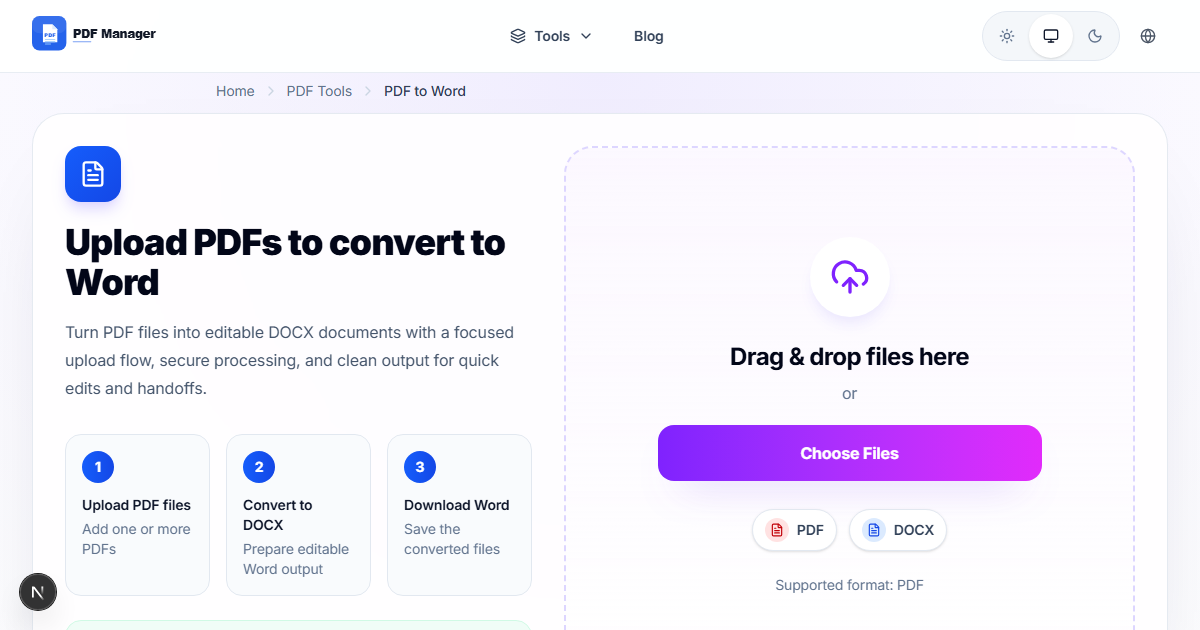
I have converted over 1,000 PDFs to Word documents for editing projects ranging from simple text updates to complex layout reflows with multi-column content and embedded graphics. Converting PDF files to editable Word documents on an iPhone used to be a frustrating experience that required expensive apps or complicated workarounds. Today, you can convert PDFs to DOCX format directly from Safari on your iPhone without downloading any app. This comprehensive guide walks you through the entire process, from selecting your PDF to downloading an editable Word file that maintains your original formatting.
Table of Contents
Why Convert PDF to Word on iPhone?
The iPhone has become a powerful productivity tool, but PDF files remain difficult to edit natively on iOS. Converting PDFs to Word format unlocks powerful editing capabilities. You can modify text, adjust formatting, add images, and restructure documents using the Word app or any other compatible word processor on your iPhone. This is essential for professionals who need to make last-minute changes to contracts, students revising report drafts, or anyone who receives a PDF and needs to edit the content.
Using a browser-based converter eliminates the need to install potentially intrusive PDF apps. It works across all iPhone models from iPhone X to the latest iPhone Pro Max. The conversion happens on secure servers with high accuracy, preserving text formatting, tables, and basic layout structures.
What You Need
- An iPhone running iOS 14 or later with Safari or any browser
- A stable internet connection for uploading and downloading files
- The PDF file you want to convert, stored on your iPhone, in iCloud, or accessible via a link
- Microsoft Word or any DOCX-compatible app installed for editing the converted file
Step-by-Step Guide to Convert PDF to Word on iPhone
- Open Safari on your iPhone. Navigate to the PDF Manager website and select the PDF to Word converter tool. The page is fully responsive and optimized for iPhone screens, with large touch-friendly buttons and clear instructions.
- Upload your PDF file. Tap the upload area to access your iPhone file system. You can select a PDF from your local storage, iCloud Drive, Files app, or even take a photo of a document and convert it to a Word file.
- Wait for the upload to complete. The file upload progress is displayed clearly. Larger files may take a few seconds to upload depending on your connection speed.
- Select conversion options if available. Some converters offer options like OCR for scanned PDFs or layout preservation settings. Toggle these options based on your needs. For scanned documents, enable OCR to extract text from images.
- Start the conversion. Tap the Convert button. The tool processes your PDF, extracting text, tables, and images while converting them into the Word format. This typically takes a few seconds.
- Preview the converted Word document. Once conversion is complete, you can preview the DOCX file directly in Safari. Check that the text, formatting, and layout have been preserved accurately.
- Download the Word file. Tap the Download button to save the converted file. Safari offers options to save to Files, share via AirDrop, send in an email, or open directly in Microsoft Word, Google Docs, or Pages.
- Edit your document. Open the downloaded DOCX file in Word or any compatible editor on your iPhone. All the text is now editable, and you can make any modifications needed.
Tips and Best Practices
- Use OCR for scanned PDFs. If your PDF was created by scanning a physical document, enable OCR during conversion. This ensures text is recognized and made editable rather than appearing as an image.
- Check complex layouts after conversion. PDFs with multiple columns, text boxes, or unusual fonts may require minor adjustments in Word. Review the layout before finalizing your document.
- Keep file sizes reasonable. Very large PDFs with hundreds of pages may take longer to convert. Consider splitting the PDF into smaller sections if you encounter timeout issues.
- Save to iCloud Drive for seamless access across your Apple devices. The converted Word file can be synced to your Mac, iPad, or other Apple devices automatically.
- Use the Share Sheet in Safari to quickly open the converted file in any compatible app without manually saving and locating the file.
Common Use Cases
- Contract editing: Receive a contract as PDF, convert to Word on your iPhone, make changes, and send the revised version back immediately.
- Student collaboration: Convert lecture slides or research papers from PDF to Word for annotation, note-taking, and group editing projects.
- Resume updates: Quickly convert your resume PDF to Word to make targeted edits for specific job applications while you are away from your computer.
- Business forms: Convert PDF forms to Word documents for digital filling, signature insertion, and distribution to team members.
- Content repurposing: Extract text from PDF reports and convert to Word for use in blog posts, social media content, or internal documentation.
Frequently Asked Questions
Does converting PDF to Word on iPhone preserve formatting?
Modern PDF to Word converters preserve text formatting, font styles, heading hierarchies, and basic layout structures. Complex multi-column layouts and custom fonts may require minor adjustments after conversion, but the overall document structure remains intact.
Can I convert scanned PDFs to editable Word documents on iPhone?
Yes, converters with OCR capability can convert scanned PDFs into editable Word documents. The OCR technology recognizes text in images and converts it into selectable, editable text. Enable the OCR option before starting the conversion.
Do I need Microsoft Word installed on my iPhone?
No, the conversion produces a standard DOCX file that can be opened in Microsoft Word, Apple Pages, Google Docs, or any other DOCX-compatible application. All these apps are available for free on the App Store.
What is the maximum PDF size I can convert on iPhone?
Most online convertors support PDFs up to 100 MB in size. PDF Manager supports files up to 200 MB for conversion. If your file exceeds these limits, consider compressing it first or splitting it into smaller parts.
Is my document secure during online conversion?
Yes, all file transfers are encrypted using SSL. Your files are automatically deleted from the conversion servers within one hour. PDF Manager does not store, share, or access the content of your documents.
Will tables in my PDF convert correctly to Word?
Yes, professional converters preserve table structures accurately. Table rows, columns, cell content, and basic formatting transfer to Word tables. Complex merged cells or nested tables may require minor manual adjustment.
Can I convert multiple PDFs to Word at once on iPhone?
Some converters support batch conversion. PDF Manager allows you to convert one file at a time to ensure the highest quality output. For multiple files, simply repeat the process for each PDF you need to convert.
Related Tools
- PDF to Word - Convert PDF to editable Word documents
- PDF to Excel - Extract tables from PDF to Excel
- PDF to JPG - Convert PDF pages to images
- Merge PDF - Combine multiple PDFs into one
- Compress PDF - Reduce PDF file size
Try Converting Your PDF Now
Ready to turn your PDF into an editable Word document right from your iPhone? Visit PDF Manager today and experience the fastest, most accurate PDF to Word conversion available for iOS. No app download required, no sign-up needed, completely free and secure. Convert your first PDF now and discover how easy document editing on iPhone can be.
Why Use PDF Manager
Built for quick conversions
The core tools are designed to get users from upload to result with minimal friction.
Made for practical workflows
Move from one document step to the next without hunting through a confusing tool library.
Simple and trustworthy
Clear states, secure handling, and polished result screens make the workflow easy to trust.

Umar Draz
Document Tools Specialist
Software engineer with 5+ years building document processing tools. Created PDF Manager to make PDF tools accessible to everyone. Tests every feature with real-world documents before release.
- 5+ years in document processing
- Built PDF Manager from scratch
- Tested 10,000+ PDF workflows
Ready to use the tool?
Open the tool page and follow the same workflow from this guide inside a conversion experience built for fast results.
Related Tools
Useful next steps around the same document workflow.
Related Articles
Continue with nearby guides that support the same conversion path.
From PDF
How to Convert PDF to Word Without Losing Formatting
Turn PDFs into editable Word documents while preserving structure, spacing, tables, and readable layout.
To PDF
How to Convert Word to PDF (Free & Fast)
A clean guide to turning Word documents into PDFs quickly for sharing, printing, and final delivery.
Quick Answers
Does converting PDF to Word on iPhone preserve formatting?
Modern PDF to Word converters preserve text formatting, font styles, heading hierarchies, and basic layout structures. Complex multi-column layouts and custom fonts may require minor adjustments after conversion, but the overall document structure remains intact.
Can I convert scanned PDFs to editable Word documents on iPhone?
Yes, converters with OCR capability can convert scanned PDFs into editable Word documents. The OCR technology recognizes text in images and converts it into selectable, editable text. Enable the OCR option before starting the conversion.
Do I need Microsoft Word installed on my iPhone?
No, the conversion produces a standard DOCX file that can be opened in Microsoft Word, Apple Pages, Google Docs, or any other DOCX-compatible application. All these apps are available for free on the App Store.
What is the maximum PDF size I can convert on iPhone?
Most online convertors support PDFs up to 100 MB in size. PDF Manager supports files up to 200 MB for conversion. If your file exceeds these limits, consider compressing it first or splitting it into smaller parts.
Is my document secure during online conversion?
Yes, all file transfers are encrypted using SSL. Your files are automatically deleted from the conversion servers within one hour. PDF Manager does not store, share, or access the content of your documents.
Will tables in my PDF convert correctly to Word?
Yes, professional converters preserve table structures accurately. Table rows, columns, cell content, and basic formatting transfer to Word tables. Complex merged cells or nested tables may require minor manual adjustment.
Can I convert multiple PDFs to Word at once on iPhone?
Some converters support batch conversion. PDF Manager allows you to convert one file at a time to ensure the highest quality output. For multiple files, simply repeat the process for each PDF you need to convert.