
PDF Manager Guide
Delete Pages from PDF Online Free | Remove Unwanted Pages
Delete pages from PDF online free. Remove blank pages, duplicates, or unwanted sections instantly. No signup needed. Secure and fast page deletion tool.
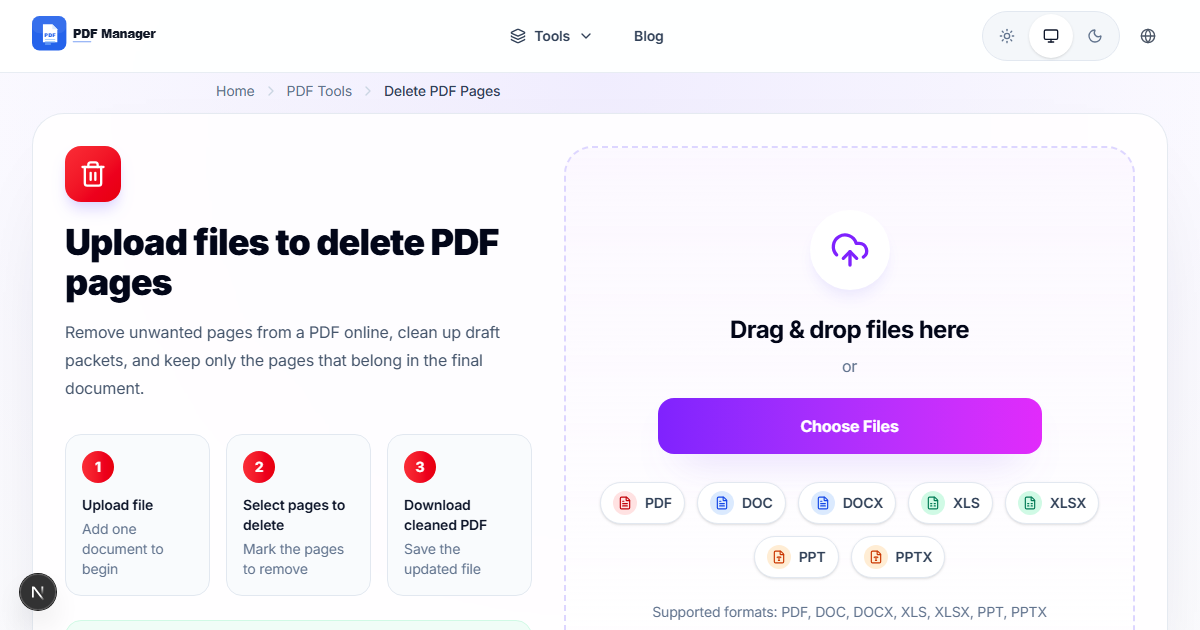
Through years of document preparation work across multiple industries, I have removed thousands of unwanted pages - from blank scanned pages and duplicate submissions to outdated appendix sections. PDFs often accumulate extra pages that you do not need blank sheets inserted by scanners, duplicate pages from reprints, cover pages that no longer apply, or outdated sections. Our free online tool lets you delete pages from any PDF quickly and permanently. No software downloads or account registration required.
- Why Delete Pages from a PDF
- How Page Deletion Works
- Step-by-Step Guide to Delete Pages
- Deletion Tips and Best Practices
- Common Use Cases
- Frequently Asked Questions
- Related Tools
- Delete Pages Now
Why Delete Pages from a PDF
Removing unnecessary pages streamlines your documents and reduces file size. Clean documents are more professional, easier to navigate, and faster to share. Blank pages waste space and confuse readers. Duplicate pages create redundancy. Outdated cover pages or appendices may no longer be relevant. Deleting these pages results in a polished final document that contains only the content your audience needs. It also simplifies subsequent operations such as /merge-pdf combining only relevant pages or /compress-pdf reducing the file size of only essential content.
How Page Deletion Works
Our tool creates a new PDF that contains only the pages you choose to keep. The source PDF is read page by page, and pages you mark for deletion are excluded from the output. The remaining pages are re-indexed and saved as a new file. All content on kept pages including text, images, vector graphics, annotations, bookmarks, and hyperlinks is preserved without any quality loss. The new PDF maintains the original formatting, fonts, and page layout. Deletion is permanent in the output file, but your original upload remains untouched until it is auto-deleted from our servers.
Step-by-Step Guide to Delete Pages
- Open our /delete-pages-from-pdf-online page in your browser.
- Upload your PDF file by dragging it or using the file browser.
- View the thumbnail preview of all pages in your document.
- Click the checkmark or X icon on each page you want to remove.
- Specify page ranges for bulk deletion, such as 1-3, 7, 9-11.
- Review the updated preview showing only the pages that will remain.
- Click Delete Pages to generate the cleaned PDF.
- Click Download to save your revised document.
Deletion Tips and Best Practices
Always preview your selection before finalizing deletion. Once you download the output, the removed pages cannot be recovered from our tool. If you are unsure, use /extract-pages-from-pdf-free instead to save specific pages as a new file while keeping the original intact. For large documents, delete unnecessary pages first, then /compress-pdf the result to minimize file size. After deleting pages, you may also want to use /rotate-pdf-pages-online-free if page orientations need adjustment. Create a backup of your original PDF before performing deletions on important documents.
Common Use Cases
Office workers remove blank pages from scanned contracts. Students delete cover sheets and appendices from assignment submissions. Publishers remove outdated chapters from document drafts. Legal professionals strip unnecessary exhibits from briefs. HR departments clean up employee handbooks. Accountants remove redundant pages from financial reports. Event organizers trim ticket PDFs. Anyone who needs a cleaner, more focused document uses page deletion tools.
Frequently Asked Questions
Can I recover deleted pages after downloading?
No. Once you download the processed PDF, the deleted pages are permanently removed from that file. To protect your original, we recommend keeping a backup of the source PDF. Our servers automatically delete all uploaded files within one hour.
Will deleting pages reduce file size?
Yes. Removing pages directly reduces the PDF file size proportionally. For additional compression, use /compress-pdf after deletion to further optimize the remaining pages. This two-step process yields the smallest possible file.
Can I delete pages from a scanned PDF?
Yes. Our tool works with any PDF including scanned documents. Scanned pages are treated as image-based pages and can be deleted just like text-based pages. The remaining scanned pages are preserved at original quality.
How do I select multiple pages for deletion?
You can click individual page thumbnails to toggle selection or enter page ranges in the input field. Use comma-separated ranges like 1-5, 8, 10-12. The preview updates instantly to show which pages will remain.
Are bookmarks and hyperlinks updated after deletion?
Yes. Bookmarks and internal hyperlinks are automatically adjusted to point to the correct pages in the new document. External hyperlinks remain unchanged. Page numbering in bookmarks reflects the new pagination.
What is the maximum file size for deletion?
You can upload PDFs up to 50 MB. If your file is larger, use /split-pdf to divide it into smaller parts, process each part, and then /merge-pdf the cleaned sections together.
Related Tools
Explore more PDF utilities: Merge PDF, Compress PDF, Split PDF, PDF to Word, PDF to JPG, Word to PDF, Rotate PDF Pages, and Add Watermark.
Delete Unwanted Pages Now
Clean up your PDFs by removing unnecessary pages instantly. Use our /delete-pages-from-pdf-online tool today. Free, fast, and secure. No signup required.
Why Use PDF Manager
Built for quick conversions
The core tools are designed to get users from upload to result with minimal friction.
Made for practical workflows
Move from one document step to the next without hunting through a confusing tool library.
Simple and trustworthy
Clear states, secure handling, and polished result screens make the workflow easy to trust.

Umar Draz
Document Tools Specialist
Software engineer with 5+ years building document processing tools. Created PDF Manager to make PDF tools accessible to everyone. Tests every feature with real-world documents before release.
- 5+ years in document processing
- Built PDF Manager from scratch
- Tested 10,000+ PDF workflows
Ready to use the tool?
Open the tool page and follow the same workflow from this guide inside a conversion experience built for fast results.
Related Tools
Useful next steps around the same document workflow.
Related Articles
Continue with nearby guides that support the same conversion path.
From PDF
How to Convert PDF to Word Without Losing Formatting
Turn PDFs into editable Word documents while preserving structure, spacing, tables, and readable layout.
To PDF
How to Convert Word to PDF (Free & Fast)
A clean guide to turning Word documents into PDFs quickly for sharing, printing, and final delivery.
Quick Answers
Can I recover deleted pages after downloading?
No. Once you download the processed PDF, the deleted pages are permanently removed from that file. To protect your original, we recommend keeping a backup of the source PDF. Our servers automatically delete all uploaded files within one hour.
Will deleting pages reduce file size?
Yes. Removing pages directly reduces the PDF file size proportionally. For additional compression, use /compress-pdf after deletion to further optimize the remaining pages. This two-step process yields the smallest possible file.
Can I delete pages from a scanned PDF?
Yes. Our tool works with any PDF including scanned documents. Scanned pages are treated as image-based pages and can be deleted just like text-based pages. The remaining scanned pages are preserved at original quality.
How do I select multiple pages for deletion?
You can click individual page thumbnails to toggle selection or enter page ranges in the input field. Use comma-separated ranges like 1-5, 8, 10-12. The preview updates instantly to show which pages will remain.
Are bookmarks and hyperlinks updated after deletion?
Yes. Bookmarks and internal hyperlinks are automatically adjusted to point to the correct pages in the new document. External hyperlinks remain unchanged. Page numbering in bookmarks reflects the new pagination.
What is the maximum file size for deletion?
You can upload PDFs up to 50 MB. If your file is larger, use /split-pdf to divide it into smaller parts, process each part, and then /merge-pdf the cleaned sections together.