
PDF Manager Guide
Extract Pages from PDF Free | Save Specific Pages as New File
Extract pages from PDF free. Save specific pages as a new PDF file. Select any page range. No signup needed. Fast, secure, and lossless extraction.
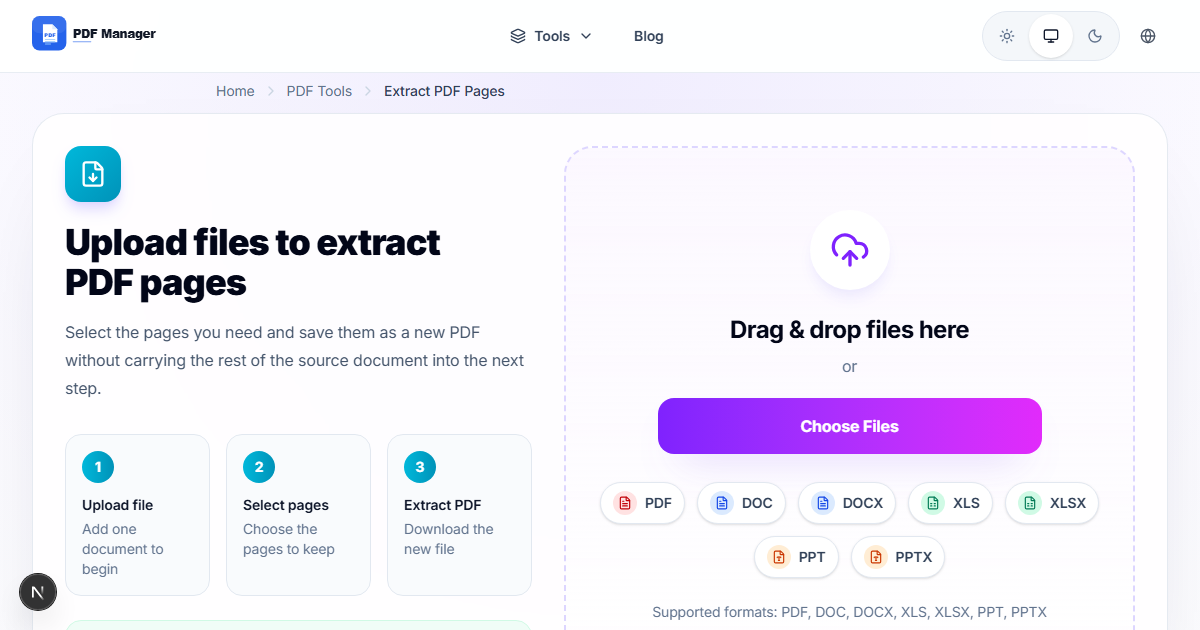
I have extracted specific pages from thousands of PDFs for purposes ranging from creating targeted reading packets for students to assembling evidence packets for legal proceedings. Large PDF documents often contain pages that you need to isolate for separate use. Whether you need to share a single chapter from a book, extract a signed signature page from a contract, or pull specific data sheets from a report, extracting pages into a new PDF is a fundamental document management task. Our free online tool makes extraction simple and precise.
- Why Extract Pages from a PDF
- How Page Extraction Works
- Step-by-Step Guide to Extract Pages
- Extraction Modes and Options
- Common Use Cases
- Frequently Asked Questions
- Related Tools
- Extract Pages Now
Why Extract Pages from a PDF
Extracting specific pages gives you flexibility to create focused documents from larger sources. Instead of sharing a 50-page report when only 3 pages are relevant, you extract just those pages. This reduces file size, protects sensitive information in other sections, and provides cleaner, more targeted deliverables. Extracted pages can be shared individually, combined with other documents using /merge-pdf, or further processed with /compress-pdf. Page extraction is essential for creating excerpts, compiling research, and organizing document archives.
How Page Extraction Works
Our extraction tool reads the source PDF and copies only the specified pages into a new document. The process preserves all content on the extracted pages including text, images, vector graphics, fonts, annotations, form fields, and hyperlinks. The new PDF maintains the original layout, orientation, and formatting of the extracted pages. Bookmarks that pointed to extracted pages are retained and re-indexed. The extraction is lossless because page content is copied without re-encoding. The original source PDF remains unchanged on our servers and is auto-deleted after processing.
Step-by-Step Guide to Extract Pages
- Navigate to our /extract-pages-from-pdf-free tool page.
- Upload your PDF file using drag-and-drop or the Browse button.
- Enter the pages you want to extract. Use formats like 1-5, 8, 10-12 for ranges.
- Choose whether to extract pages as a single new PDF or as separate files.
- Click Extract Pages to begin processing.
- Preview the extracted output to confirm it contains the correct pages.
- Click Download to save your extracted PDF or ZIP of individual files.
- Use the extracted document directly or combine it with other tools.
Extraction Modes and Options
Our tool offers two extraction modes. Single PDF mode combines all selected pages into one new document, preserving their original order. This is ideal for creating excerpts or chapter collections. Multiple PDFs mode creates a separate file for each selected page, useful when you need to distribute individual pages to different recipients. You can also use the extract function in conjunction with /split-pdf for more complex page separation workflows. For removing pages rather than extracting, use /delete-pages-from-pdf-online which inverts the selection logic.
Common Use Cases
Students extract specific chapters from textbooks for study sessions. Lawyers extract signature pages and clauses from contracts. Researchers pull relevant articles from academic journals. Business analysts extract data pages from comprehensive reports. Marketers extract testimonials and case study pages. HR professionals extract policy sections from employee handbooks. Authors extract excerpts for promotional material. Anyone who needs to reuse specific content from a larger PDF document relies on page extraction tools.
Frequently Asked Questions
Can I extract non-consecutive pages?
Yes. You can specify any combination of individual pages and ranges. For example, 1-3, 5, 8-10 will extract pages 1, 2, 3, 5, 8, 9, and 10 in that order. The extracted pages appear in the order you specify.
Will extracted pages lose quality or formatting?
No. Extraction copies page content without any modification. Text, images, vector graphics, fonts, and layout remain at full original quality. The extracted PDF is an exact copy of the selected pages from the source.
Can I extract pages from a password-protected PDF?
No. For security reasons, we cannot process encrypted files. Please remove the password protection from your PDF before uploading it for extraction. After extraction, you can apply password protection to the output using a dedicated tool.
What is the maximum file size for extraction?
You can upload PDFs up to 50 MB. If your source file exceeds this limit, use /compress-pdf first to reduce its size, then extract the pages you need from the compressed version.
Are bookmarks and hyperlinks preserved in extracted pages?
Yes. Bookmarks referencing extracted pages are preserved and re-indexed to match the new page numbering. Internal hyperlinks within the extracted pages remain functional. External hyperlinks are retained unchanged.
Can I extract pages as image files instead of PDF?
If you need JPG or PNG output, use our /pdf-to-jpg-converter-high-quality tool after extraction. Extract the pages as PDF first, then convert them to images using the PDF to JPG converter for the highest quality results.
Related Tools
Check out our full range of PDF utilities: Merge PDF, Compress PDF, Split PDF, PDF to Word, PDF to JPG, Word to PDF, Rotate PDF Pages, and Add Watermark.
Extract Pages from Your PDF Now
Get the exact pages you need from any PDF. Use our /extract-pages-from-pdf-free tool today. Free, fast, and secure. No signup required.
Why Use PDF Manager
Built for quick conversions
The core tools are designed to get users from upload to result with minimal friction.
Made for practical workflows
Move from one document step to the next without hunting through a confusing tool library.
Simple and trustworthy
Clear states, secure handling, and polished result screens make the workflow easy to trust.

Umar Draz
Document Tools Specialist
Software engineer with 5+ years building document processing tools. Created PDF Manager to make PDF tools accessible to everyone. Tests every feature with real-world documents before release.
- 5+ years in document processing
- Built PDF Manager from scratch
- Tested 10,000+ PDF workflows
Ready to use the tool?
Open the tool page and follow the same workflow from this guide inside a conversion experience built for fast results.
Related Tools
Useful next steps around the same document workflow.
Related Articles
Continue with nearby guides that support the same conversion path.
From PDF
How to Convert PDF to Word Without Losing Formatting
Turn PDFs into editable Word documents while preserving structure, spacing, tables, and readable layout.
To PDF
How to Convert Word to PDF (Free & Fast)
A clean guide to turning Word documents into PDFs quickly for sharing, printing, and final delivery.
Quick Answers
Can I extract non-consecutive pages?
Yes. You can specify any combination of individual pages and ranges. For example, 1-3, 5, 8-10 will extract pages 1, 2, 3, 5, 8, 9, and 10 in that order. The extracted pages appear in the order you specify.
Will extracted pages lose quality or formatting?
No. Extraction copies page content without any modification. Text, images, vector graphics, fonts, and layout remain at full original quality. The extracted PDF is an exact copy of the selected pages from the source.
Can I extract pages from a password-protected PDF?
No. For security reasons, we cannot process encrypted files. Please remove the password protection from your PDF before uploading it for extraction. After extraction, you can apply password protection to the output using a dedicated tool.
What is the maximum file size for extraction?
You can upload PDFs up to 50 MB. If your source file exceeds this limit, use /compress-pdf first to reduce its size, then extract the pages you need from the compressed version.
Are bookmarks and hyperlinks preserved in extracted pages?
Yes. Bookmarks referencing extracted pages are preserved and re-indexed to match the new page numbering. Internal hyperlinks within the extracted pages remain functional. External hyperlinks are retained unchanged.
Can I extract pages as image files instead of PDF?
If you need JPG or PNG output, use our /pdf-to-jpg-converter-high-quality tool after extraction. Extract the pages as PDF first, then convert them to images using the PDF to JPG converter for the highest quality results.