How to Fix Formatting Issues After Converting Word to PDF
Learn how to fix PDF formatting issues after converting from Word. Solve problems with fonts, spacing, tables, and layout shifts.
Why Fonts, Spacing, or Tables Shift During Conversion
Word and PDF handle fonts, margins, and tables differently. Embedded fonts may not render the same way, and table borders can shift during export.
Checking Your Word Document Before Converting
Use Print Preview to see how the document will look. Fix any layout issues in Word first, as they're harder to correct in PDF.
Best Practices for Margins, Fonts, and Objects
Use standard fonts like Arial or Calibri, set exact margins, and avoid floating images or complex text boxes that may shift during conversion.
Tools That Preserve Formatting
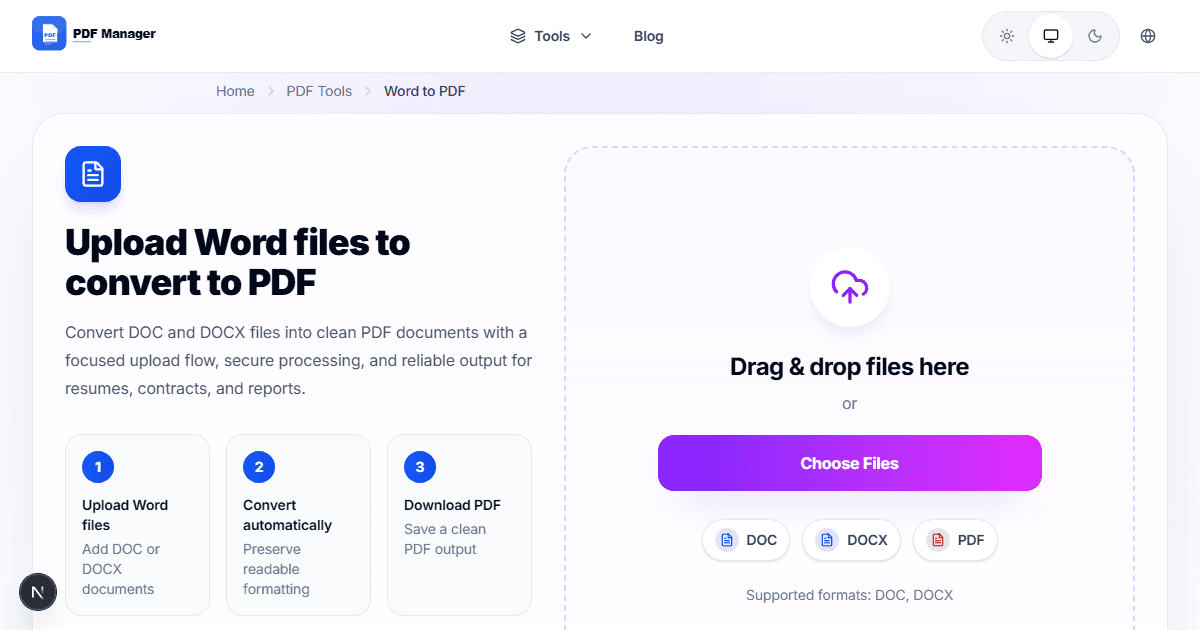
Use a dedicated Word to PDF converter rather than print-to-PDF. These tools are designed to maintain original formatting and layout.
Why Use PDF Manager
Built for speed
Upload to result with minimal friction.
Practical workflows
Move between tools without confusion.
Simple and secure
Clear states and polished result screens.

Written by
Umar Draz
Document Tools Specialist
Software engineer with 5+ years building document processing tools. Created PDF Manager to make PDF tools accessible to everyone. Tests every feature with real-world documents before release.
Ready to use the tool?
Open the tool and follow the same workflow from this guide.
Related Tools
Related Articles
How to Convert PDF to Word Without Losing Formatting
Turn PDFs into editable Word documents while preserving structure, spacing, tables, and readable layout.
How to Convert Word to PDF (Free & Fast)
A clean guide to turning Word documents into PDFs quickly for sharing, printing, and final delivery.