
PDF Manager Guide
How to Combine Multiple PDFs into One File
Combine multiple PDF files into one document with our free online tool. Merge PDFs in any order, rearrange pages, and download a single combined file.
- Why Combine PDFs
- Preparation Tips
- Method 1: Online PDF Merger
- Method 2: Desktop PDF Merger
- Step-by-Step Guide
- Rearranging Pages
- Common Use Cases
- Frequently Asked Questions
Why Combine PDFs
Combining multiple PDFs into one file simplifies document management, sharing, and storage. Instead of sending multiple attachments, you can share a single organized document. This is essential for compiling project reports, combining scanned documents, merging chapters of a book, or consolidating application materials into one package.
Preparation Tips
Before merging, rename your files in the order you want them to appear. Ensure all PDFs are finalized and proofread, as editing individual sections after merging is more difficult. Check that all files are valid PDFs and not corrupted. Consider compressing large files before merging to keep the final file size manageable.
Method 1: Online PDF Merger
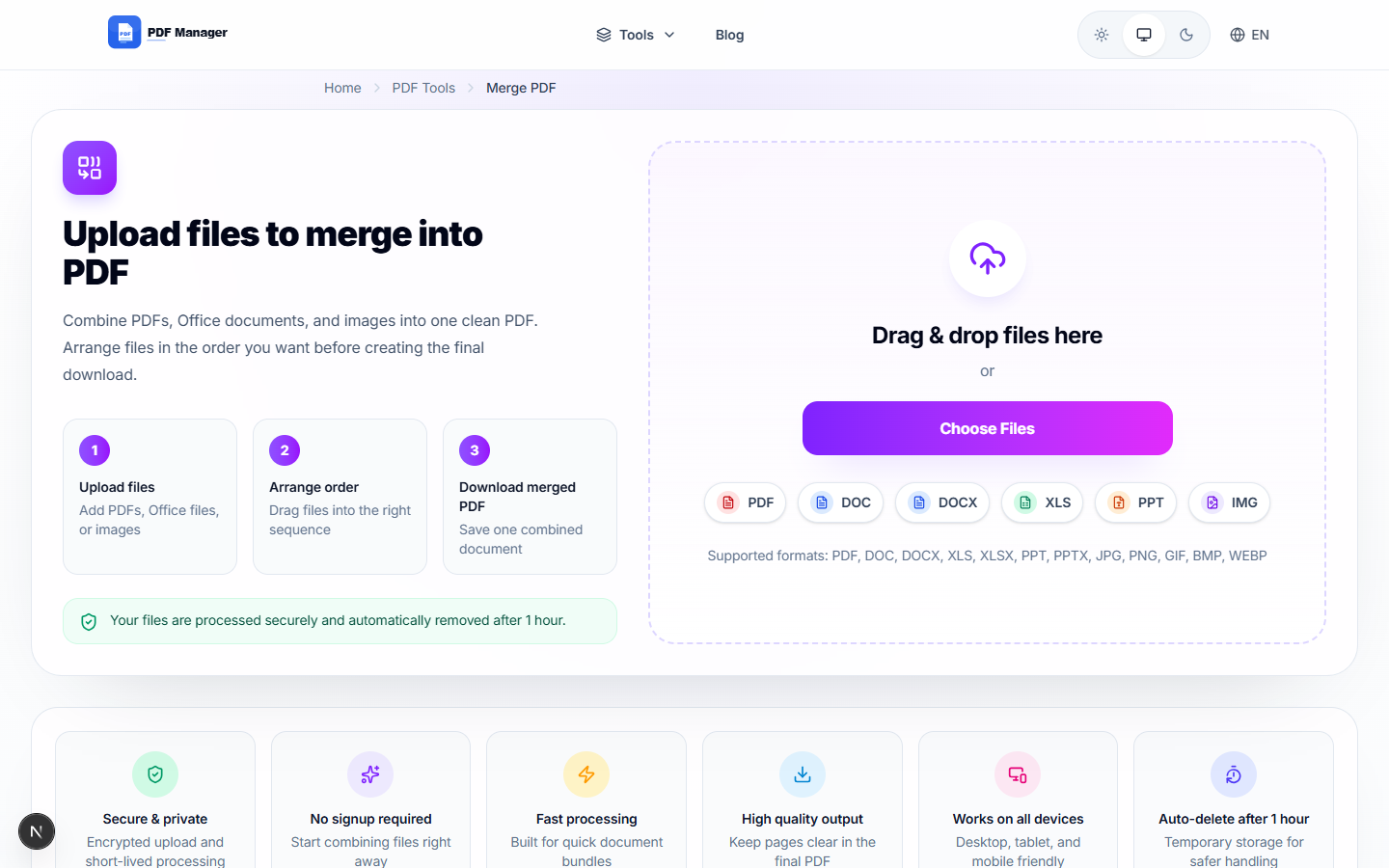
PDF Manager's Merge PDF tool is the easiest way to combine multiple PDFs. Upload up to 20 PDFs at once, drag to rearrange them in the desired order, and click Merge to create a single combined document. The tool works entirely in your browser with no software installation required.
Method 2: Desktop PDF Merger
Adobe Acrobat Pro offers advanced merging capabilities with options for page range selection, bookmarks preservation, and file size optimization. Free desktop alternatives like PDFsam and PDF24 Creator provide robust merging features for offline use, ideal for processing large or sensitive files locally.
Step-by-Step Guide
- Navigate to PDF Manager's Merge PDF page.
- Click Upload Files and select the PDFs you want to combine.
- Drag and drop files to arrange them in your preferred order.
- Use the page view to see thumbnails of each document.
- Click Merge PDF to start combining the files.
- Wait for the merging process to complete.
- Preview the merged document to verify page order.
- Download the combined PDF file to your device.
- Optionally compress the merged file if it is too large.
- Share or store the single combined PDF document.
Rearranging Pages
Most PDF mergers allow you to rearrange pages within individual documents and across merged files. Drag thumbnails to reorder pages, delete unwanted pages, or rotate pages that are in the wrong orientation. This gives you full control over the final document structure before finalizing the merge.
Common Use Cases
Combining multiple scanned pages into a single document, merging separate chapters or sections of a report, consolidating job application materials like resume, cover letter, and portfolio, compiling research papers and references, and merging invoices or receipts for accounting records.
Frequently Asked Questions
How many PDFs can I combine at once?
PDF Manager allows merging up to 20 files in a single session. Desktop tools like Adobe Acrobat can handle hundreds of files depending on available system memory.
Does merging PDFs reduce quality?
No, merging PDFs simply combines the files without recompressing or altering page content. The quality of each individual page remains identical to the original source file.
Can I combine PDFs with different page sizes?
Yes, merged documents can contain pages of different sizes. However, for a professional appearance, consider standardizing page sizes before merging. Some tools offer automatic page size normalization.
Are there file size limits for merging?
PDF Manager supports files up to 100MB total for merging. For larger files, compress individual PDFs before merging or use desktop software that handles larger files locally.
Can I merge PDFs on my phone?
Yes, PDF Manager's online merger works on any device with a browser, including smartphones and tablets. The interface is optimized for touch screens and mobile uploads.
Will bookmarks be preserved when merging PDFs?
When merging with PDF Manager, bookmarks from the original files may be combined or restructured. Advanced desktop tools offer better bookmark preservation with customizable bookmark hierarchy.
Related Tools
After merging, use Compress PDF to reduce the combined file size, Split PDF to extract specific pages from the merged document, or PDF to Word to convert the result to an editable format.
Combine Your PDFs Now
Merge your PDF files online with our free PDF merger. No registration required, and your files are automatically deleted after processing.
Why Use PDF Manager
Built for quick conversions
The core tools are designed to get users from upload to result with minimal friction.
Made for practical workflows
Move from one document step to the next without hunting through a confusing tool library.
Simple and trustworthy
Clear states, secure handling, and polished result screens make the workflow easy to trust.

Umar Draz
Document Tools Specialist
Software engineer with 5+ years building document processing tools. Created PDF Manager to make PDF tools accessible to everyone. Tests every feature with real-world documents before release.
- 5+ years in document processing
- Built PDF Manager from scratch
- Tested 10,000+ PDF workflows
Ready to use the tool?
Open the tool page and follow the same workflow from this guide inside a conversion experience built for fast results.
Related Tools
Useful next steps around the same document workflow.
Related Articles
Continue with nearby guides that support the same conversion path.
From PDF
How to Convert PDF to Word Without Losing Formatting
Turn PDFs into editable Word documents while preserving structure, spacing, tables, and readable layout.
To PDF
How to Convert Word to PDF (Free & Fast)
A clean guide to turning Word documents into PDFs quickly for sharing, printing, and final delivery.
Quick Answers
How many PDFs can I combine at once?
PDF Manager allows merging up to 20 files in a single session. Desktop tools like Adobe Acrobat can handle hundreds of files depending on available system memory.
Does merging PDFs reduce quality?
No, merging PDFs simply combines the files without recompressing or altering page content. The quality of each individual page remains identical to the original source file.
Can I combine PDFs with different page sizes?
Yes, merged documents can contain pages of different sizes. However, for a professional appearance, consider standardizing page sizes before merging. Some tools offer automatic page size normalization.
Are there file size limits for merging?
PDF Manager supports files up to 100MB total for merging. For larger files, compress individual PDFs before merging or use desktop software that handles larger files locally.
Can I merge PDFs on my phone?
Yes, PDF Manager's online merger works on any device with a browser, including smartphones and tablets. The interface is optimized for touch screens and mobile uploads.
Will bookmarks be preserved when merging PDFs?
When merging with PDF Manager, bookmarks from the original files may be combined or restructured. Advanced desktop tools offer better bookmark preservation with customizable bookmark hierarchy.