How to Compress a PDF on Android (Free & No App)
Compress PDF files on your Android phone for free without installing any app. Reduce PDF size directly in your mobile browser using PDF Manager.
Large PDF files are frustrating when you are on the go. You need to email a report but the attachment is too big. You want to upload a document but the portal rejects it. On your Android phone, you might think you need to download an app to fix this. You do not.
In this guide, you will learn how to compress PDF on Android without installing any app, using PDF Manager directly in your mobile browser. PDF Manager is designed for students, businesses, teachers, and professionals who need reliable PDF tools without expensive software.
Table of Contents
- Why Compress PDF on Android?
- Why You Do Not Need an App
- Step-by-Step Guide
- Choosing the Right Compression Level
- Tips for Best Results on Mobile
- Frequently Asked Questions
Why Compress PDF on Android?
Android phones are primary work devices for millions of people. You receive, create, and share PDF documents every day from your phone. Common situations where compression is needed:
- Email attachments - Gmail limits attachments to 25MB. Many corporate servers enforce 10MB or even 5MB limits.
- Upload portals - Job applications, government forms, and school portals often cap uploads at 2MB to 5MB.
- Messaging apps - WhatsApp, Telegram, and other apps have file size restrictions for document sharing.
- Cloud storage - Smaller files use less storage space and sync faster on mobile data.
- Faster sharing - Compressed PDFs upload and download faster on mobile networks.
Why You Do Not Need an App
Most PDF compression apps on the Google Play Store come with problems:
- Ads everywhere - Free apps bombard you with full-screen ads between every action.
- Privacy concerns - Many apps request unnecessary permissions like contacts, location, and phone access.
- Storage waste - Apps take up valuable phone storage space.
- Limited free use - Most apps allow only 1-2 free conversions per day, then demand payment.
- Outdated software - Apps may not be updated for the latest Android versions.
PDF Manager works entirely in your mobile browser. No download, no installation, no ads, no permissions. Just open Chrome, visit the website, and compress your PDF.
Step-by-Step Guide to Compress PDF on Android
- Open Chrome (or any browser) on your Android phone
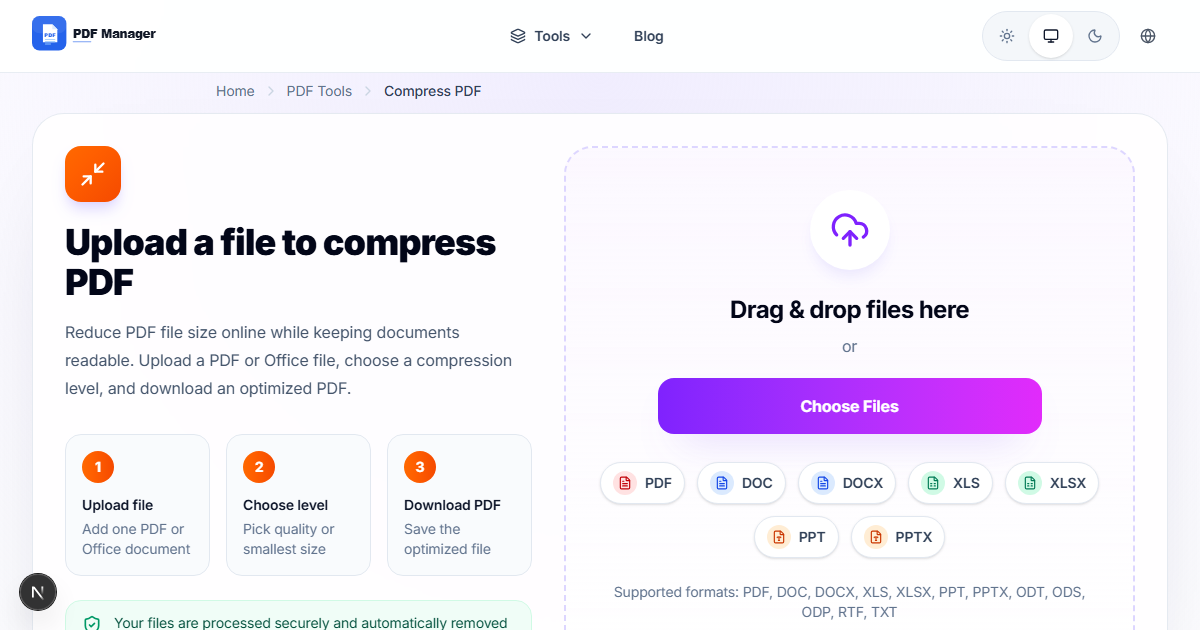
- Go to PDF Manager Compress PDF tool
- Tap the Upload area and select your PDF file from your phone storage
- Choose a compression level: Low, Medium, or Extreme
- Tap Compress and wait a few seconds
- Tap Download to save the compressed PDF to your phone
The entire process takes under 30 seconds. Your compressed file is saved to your Downloads folder, ready to share via email, WhatsApp, or any other app.
Choosing the Right Compression Level
| Level | Size Reduction | Quality | Best For |
|---|---|---|---|
| Low | 20-40% | Excellent | Professional documents, print-ready files |
| Medium | 40-70% | Good | Email attachments, general sharing |
| Extreme | 70-90% | Acceptable | Upload portals with strict size limits |
Tips for Best Results on Mobile
- Use Wi-Fi when possible - Uploading large PDFs on mobile data can be slow and use your data plan.
- Close other browser tabs - Free up memory for smoother processing on older Android phones.
- Check file location - Know where your PDF is stored (Downloads, Google Drive, Files app) before uploading.
- Verify after compression - Open the compressed PDF to make sure text and images look acceptable.
- Try Medium first - Start with Medium compression. If the file is still too large, try Extreme.
- Keep the original - Do not delete your original PDF until you confirm the compressed version meets your needs.
Frequently Asked Questions
Does it work on all Android versions?
Yes. PDF Manager works on Android 8 and above through any modern browser including Chrome, Firefox, Samsung Internet, and Edge.
Is my file safe?
Yes. Files are processed securely and automatically deleted from the server after processing. No one else can access your documents.
Can I compress multiple PDFs at once?
Yes. You can upload and compress multiple PDF files in a single session directly from your Android phone.
Will the quality be good enough?
Medium compression produces files that look nearly identical to the original. Text remains crisp and images stay clear for screen viewing and standard printing.
Related Tools
- Merge PDF - Combine multiple PDFs before compressing
- PDF to Word - Convert PDF to editable format on your phone
- Split PDF - Split large PDFs into smaller files before compressing
Why Use PDF Manager
Built for speed
Upload to result with minimal friction.
Practical workflows
Move between tools without confusion.
Simple and secure
Clear states and polished result screens.

Written by
Umar Draz
Document Tools Specialist
Software engineer with 5+ years building document processing tools. Created PDF Manager to make PDF tools accessible to everyone. Tests every feature with real-world documents before release.
Ready to use the tool?
Open the tool and follow the same workflow from this guide.
Related Tools
Related Articles
How to Convert PDF to Word Without Losing Formatting
Turn PDFs into editable Word documents while preserving structure, spacing, tables, and readable layout.
How to Convert Word to PDF (Free & Fast)
A clean guide to turning Word documents into PDFs quickly for sharing, printing, and final delivery.
Quick Answers
Does it work on all Android versions?
Yes. PDF Manager works on Android 8 and above through any modern browser including Chrome, Firefox, Samsung Internet, and Edge.
Is my file safe?
Yes. Files are processed securely and automatically deleted from the server after processing. No one else can access your documents.
Can I compress multiple PDFs at once?
Yes. You can upload and compress multiple PDF files in a single session directly from your Android phone.
Will the quality be good enough?
Medium compression produces files that look nearly identical to the original. Text remains crisp and images stay clear for screen viewing and standard printing.