
PDF Manager Guide
How to Convert PDF to Excel with Formatting Preserved
Convert PDF tables to Excel spreadsheets with original formatting, cell structure, and data layout preserved. Extract tabular data accurately for analysis.
- Why Convert PDF to Excel
- Challenges of Preserving Formatting
- Method 1: Online PDF to Excel Converter
- Method 2: Adobe Acrobat Export
- Step-by-Step Guide
- Formatting Preservation Tips
- Common Use Cases
- Frequently Asked Questions
Why Convert PDF to Excel
PDF tables are static and difficult to manipulate. Converting to Excel unlocks the ability to sort data, create formulas, build charts, perform analysis, and integrate with other data sources. This is essential for financial analysts, accountants, researchers, and business professionals who work with tabular data.
Challenges of Preserving Formatting
PDF files store visual representations of data rather than structured table information. This makes accurate conversion challenging. Issues include merged cells being split, column alignment errors, text wrapping inconsistencies, and lost formatting such as bold headers, colors, and borders. Advanced converters use AI to detect table structures accurately.
Method 1: Online PDF to Excel Converter
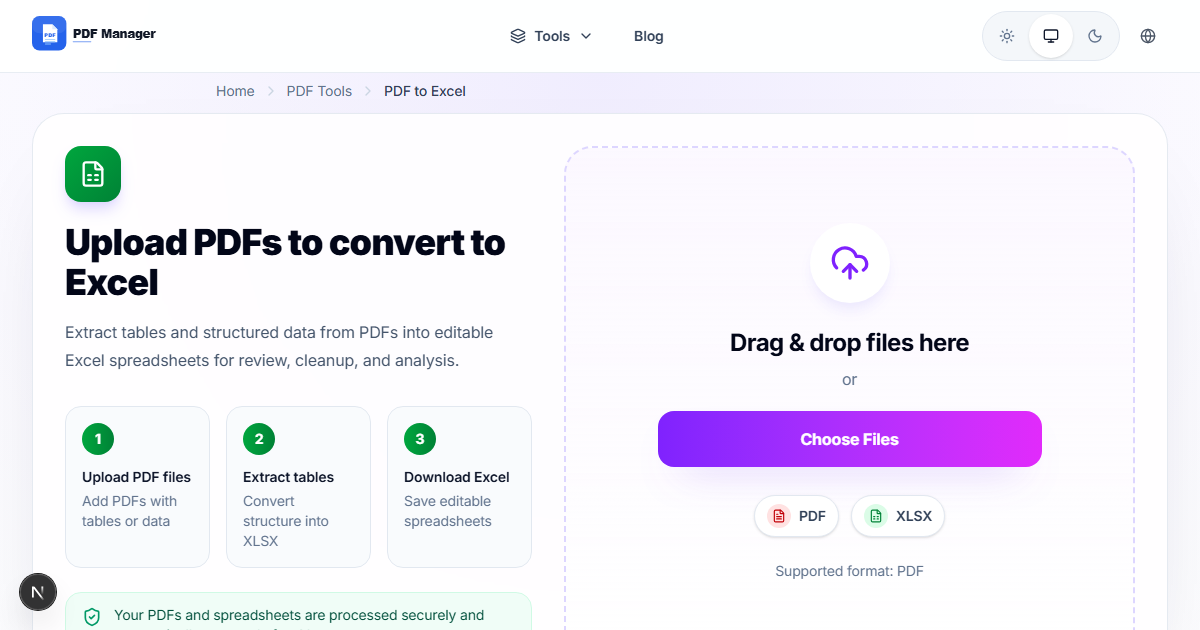
PDF Manager's PDF to Excel converter uses advanced AI to detect table structures, preserve cell formatting, and maintain data integrity. Simply upload your PDF, and the tool extracts tables into a properly formatted Excel spreadsheet with accurate column widths, merged cells, and styling.
Method 2: Adobe Acrobat Export
Adobe Acrobat Pro includes an Export PDF feature that converts PDFs to Excel format. It offers options for preserving formatting and creating separate sheets for different tables. This desktop solution is ideal for users who already have an Acrobat subscription and work with complex documents.
Step-by-Step Guide
- Navigate to PDF Manager's PDF to Excel tool.
- Upload the PDF file containing tables you want to convert.
- Select output format as XLSX.
- Enable formatting preservation options.
- Choose whether to create separate sheets for each table.
- Click Convert and wait for processing.
- Preview the converted Excel file in the built-in viewer.
- Download the XLSX file to your device.
- Open in Excel and verify data accuracy and formatting.
- Make any necessary adjustments to column widths or formulas.
Formatting Preservation Tips
Use PDFs with clear table borders and consistent column alignment for best results. Avoid PDFs with rotated text or complex nested tables. Ensure table headers are clearly distinguishable from data. If the source document was created in Excel, the conversion will be most accurate. For scanned tables, OCR may introduce character errors that need correction.
Common Use Cases
Converting financial reports and balance sheets from PDF to Excel for analysis, extracting survey data for statistical processing, migrating product catalogs from PDF to editable spreadsheets, converting scientific data tables for research, and transforming invoices and receipts into trackable spreadsheets.
Frequently Asked Questions
Can I convert PDF to Excel without losing formatting?
Yes, modern converters like PDF Manager use AI to detect table structures and preserve formatting. Bold headers, merged cells, colors, and borders are maintained with high accuracy.
Does the converter handle multi-page tables?
Yes, PDF Manager can detect tables that span multiple pages and combine them into a single Excel sheet or maintain them as separate pages as you prefer.
Can I convert scanned PDF tables to Excel?
Yes, PDF Manager includes OCR capabilities that can recognize text in scanned tables. Accuracy depends on scan quality and table clarity. Clean scans at 300 DPI produce the best results.
How are merged cells handled during conversion?
AI-powered converters detect merged cells in the original PDF and recreate them in Excel. Simple mergers are preserved reliably, while complex irregular mergers may require manual adjustment.
Is the conversion free?
PDF Manager offers free conversions for files up to a certain size. Larger files or batch conversions may require a subscription. The free tier is suitable for most individual users.
What if the converted data has errors?
Always verify converted data against the original PDF. Most converters provide a preview so you can check accuracy before downloading. Minor alignment or character errors can be corrected manually in Excel.
Related Tools
Use Compress PDF to reduce file size before conversion, PDF to Word for text documents, and Merge PDF to combine multiple PDFs before batch conversion.
Convert Your PDF to Excel
Try our free PDF to Excel converter with AI-powered formatting preservation. No registration required, and your files are automatically deleted.
Why Use PDF Manager
Built for quick conversions
The core tools are designed to get users from upload to result with minimal friction.
Made for practical workflows
Move from one document step to the next without hunting through a confusing tool library.
Simple and trustworthy
Clear states, secure handling, and polished result screens make the workflow easy to trust.

Umar Draz
Document Tools Specialist
Software engineer with 5+ years building document processing tools. Created PDF Manager to make PDF tools accessible to everyone. Tests every feature with real-world documents before release.
- 5+ years in document processing
- Built PDF Manager from scratch
- Tested 10,000+ PDF workflows
Ready to use the tool?
Open the tool page and follow the same workflow from this guide inside a conversion experience built for fast results.
Related Tools
Useful next steps around the same document workflow.
Related Articles
Continue with nearby guides that support the same conversion path.
From PDF
How to Convert PDF to Word Without Losing Formatting
Turn PDFs into editable Word documents while preserving structure, spacing, tables, and readable layout.
To PDF
How to Convert Word to PDF (Free & Fast)
A clean guide to turning Word documents into PDFs quickly for sharing, printing, and final delivery.
Quick Answers
Can I convert PDF to Excel without losing formatting?
Yes, modern converters like PDF Manager use AI to detect table structures and preserve formatting. Bold headers, merged cells, colors, and borders are maintained with high accuracy.
Does the converter handle multi-page tables?
Yes, PDF Manager can detect tables that span multiple pages and combine them into a single Excel sheet or maintain them as separate pages as you prefer.
Can I convert scanned PDF tables to Excel?
Yes, PDF Manager includes OCR capabilities that can recognize text in scanned tables. Accuracy depends on scan quality and table clarity. Clean scans at 300 DPI produce the best results.
How are merged cells handled during conversion?
AI-powered converters detect merged cells in the original PDF and recreate them in Excel. Simple mergers are preserved reliably, while complex irregular mergers may require manual adjustment.
Is the conversion free?
PDF Manager offers free conversions for files up to a certain size. Larger files or batch conversions may require a subscription. The free tier is suitable for most individual users.
What if the converted data has errors?
Always verify converted data against the original PDF. Most converters provide a preview so you can check accuracy before downloading. Minor alignment or character errors can be corrected manually in Excel.