
PDF Manager Guide
How to Convert PDF to JPG | Free PDF to Image Converter
Convert PDF to JPG online for free with PDF Manager.
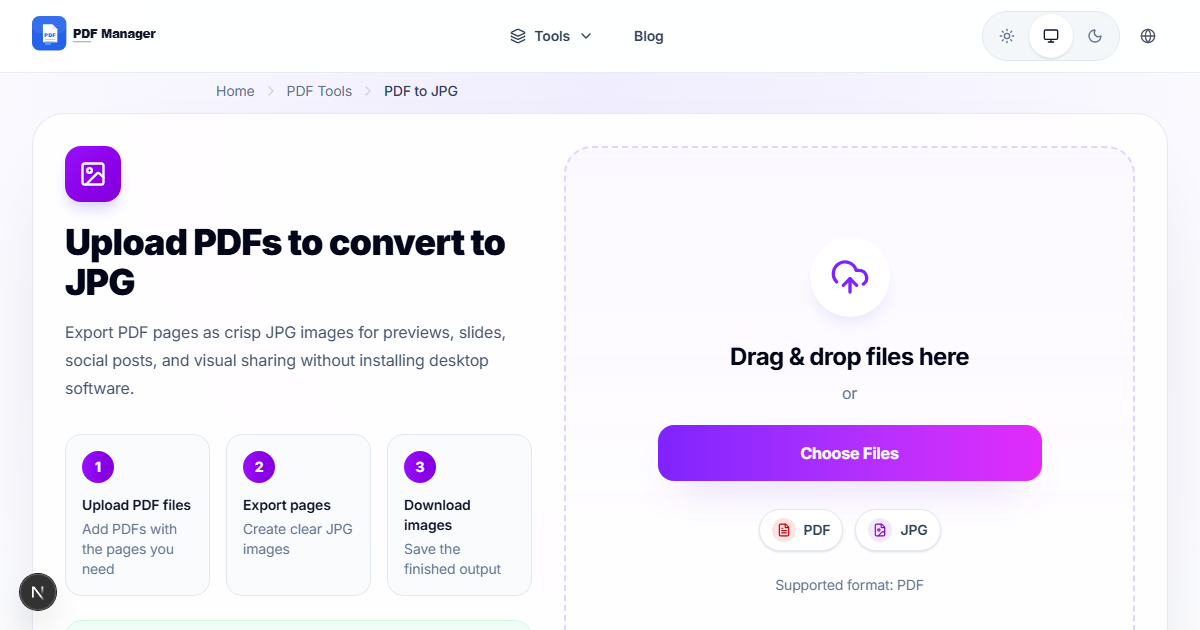
How to Convert PDF to JPG — Free PDF to Image Converter
Converting PDF pages to JPG images is useful for many scenarios — from sharing document previews on social media to inserting PDF content into presentations. PDF Manager's PDF to JPG converter makes this process fast and free.
Instead of sharing an entire PDF, convert specific pages to high-quality JPG images that anyone can view instantly in any app or browser.
Why Convert PDF to JPG?
There are several practical reasons to convert PDFs to images:
- Social media sharing — JPG images can be posted directly on Twitter, Instagram, LinkedIn, and Facebook.
- Presentation inserts — Insert PDF content into PowerPoint or Google Slides without linking to external files.
- Website thumbnails — Use JPG previews of documents on your website or blog.
- Quick previews — Send image previews instead of full PDFs for faster loading.
- Universal viewing — JPG images open on any device without a PDF viewer.
How to Convert PDF to JPG
- Visit the PDF to JPG tool page.
- Upload your PDF file by clicking or dragging it into the upload area.
- Select which pages to convert (all pages or specific pages).
- Click Convert and wait a few seconds.
- Download your JPG images individually or as a ZIP file.
JPG vs PNG — Which Format to Choose?
- JPG — Smaller file size, widely supported, ideal for photos and complex images. Best for social media, email, and web use.
- PNG — Larger file size but supports transparency and lossless compression. Best for screenshots, diagrams, and text-heavy documents.
For most use cases, JPG is the better choice due to its smaller size and universal compatibility.
Tips for Best Results
- Choose the right quality — Higher quality means larger files. Use standard quality for web sharing and high quality for printing.
- Select specific pages — You do not need to convert the entire PDF. Select only the pages you need as images.
- Consider page size — Letter-size PDFs produce images with good resolution for most screen uses.
- Batch convert — Convert multiple pages at once and download as a ZIP for efficiency.
Common Use Cases
- Social media posts — Share infographics, charts, or document excerpts as image posts.
- Blog images — Convert PDF reports into blog-friendly images.
- Email signatures — Convert a PDF logo or banner to JPG for email use.
- Document previews — Create thumbnail previews of documents for catalogs or listings.
Related PDF Tools
- JPG to PDF — Convert images back to PDF format.
- Compress PDF — Reduce PDF file size before converting.
- Extract Pages — Pull specific pages from a PDF before converting.
Frequently Asked Questions
What resolution are the converted JPG images?
PDF Manager converts PDF pages to high-resolution JPG images suitable for both screen display and printing. The output quality matches the original PDF resolution.
Can I convert only specific pages?
Yes, you can select which pages to convert. There is no need to convert the entire PDF if you only need one or two pages as images.
Will text in the PDF be readable in the JPG?
Yes, text is preserved at high resolution in the converted JPG images. The text remains crisp and readable even when zoomed in.
Can I convert scanned PDFs to JPG?
Yes, both digital and scanned PDFs can be converted to JPG. The output quality depends on the quality of the original scan.
Why Use PDF Manager
Built for quick conversions
The core tools are designed to get users from upload to result with minimal friction.
Made for practical workflows
Move from one document step to the next without hunting through a confusing tool library.
Simple and trustworthy
Clear states, secure handling, and polished result screens make the workflow easy to trust.

Umar Draz
Document Tools Specialist
Software engineer with 5+ years building document processing tools. Created PDF Manager to make PDF tools accessible to everyone. Tests every feature with real-world documents before release.
- 5+ years in document processing
- Built PDF Manager from scratch
- Tested 10,000+ PDF workflows
Ready to use the tool?
Open the tool page and follow the same workflow from this guide inside a conversion experience built for fast results.
Related Tools
Useful next steps around the same document workflow.
Related Articles
Continue with nearby guides that support the same conversion path.
From PDF
How to Convert PDF to Word Without Losing Formatting
Turn PDFs into editable Word documents while preserving structure, spacing, tables, and readable layout.
To PDF
How to Convert Word to PDF (Free & Fast)
A clean guide to turning Word documents into PDFs quickly for sharing, printing, and final delivery.
Quick Answers
What resolution are the converted JPG images?
PDF Manager converts PDF pages to high-resolution JPG images suitable for both screen display and printing. The output quality matches the original PDF resolution.
Can I convert only specific pages?
Yes, you can select which pages to convert. There is no need to convert the entire PDF if you only need one or two pages as images.
Will text in the PDF be readable in the JPG?
Yes, text is preserved at high resolution in the converted JPG images. The text remains crisp and readable even when zoomed in.
Can I convert scanned PDFs to JPG?
Yes, both digital and scanned PDFs can be converted to JPG. The output quality depends on the quality of the original scan.