How to Edit a PDF on Chromebook for Free
Edit PDF files on your Chromebook for free. Merge, split, compress, convert, and organize PDF pages directly in Chrome without installing any software.
Chromebooks are lightweight, fast, and affordable. But they have one big limitation: you cannot install traditional desktop software like Adobe Acrobat. This makes editing PDF files challenging if you do not know the right tools.
In this guide, you will learn how to edit PDF on Chromebook using free online tools that work directly in your Chrome browser. No installations, no subscriptions, no workarounds needed. PDF Manager is designed for students, businesses, teachers, and professionals who need reliable PDF tools without expensive software.
Table of Contents
- The Chromebook PDF Challenge
- What You Can Do with PDFs on Chromebook
- Step-by-Step Guide for Each Task
- Chromebook PDF Tools Compared
- Tips for Chromebook Users
- Frequently Asked Questions
The Chromebook PDF Challenge
Chromebooks run ChromeOS, which does not support Windows or Mac applications. This means:
- No Adobe Acrobat - The most popular PDF editor is not available on ChromeOS.
- No desktop software - Traditional PDF tools that require installation will not work.
- Limited offline options - Most Chromebook PDF editing requires an internet connection.
- Android apps are hit-or-miss - Some Android PDF apps work on Chromebooks, but many have poor interfaces for keyboard and mouse.
The solution is simple: use browser-based PDF tools that work entirely in Chrome.
What You Can Do with PDFs on Chromebook
Using PDF Manager in your Chrome browser, you can perform all these PDF tasks on your Chromebook:
- Convert PDF to Word - Use PDF to Word to make PDFs editable
- Convert Word to PDF - Use Word to PDF to create professional documents
- Merge PDFs - Use Merge PDF to combine multiple files
- Split PDFs - Use Split PDF to separate pages
- Compress PDFs - Use Compress PDF to reduce file size
- Rotate pages - Use Rotate PDF to fix page orientation
- Delete pages - Use Delete Pages to remove unwanted content
- Organize pages - Use Organize PDF to reorder pages
- Convert to Excel - Use PDF to Excel to extract table data
- Convert to JPG - Use PDF to JPG to create images from pages
Step-by-Step Guide for Each Task
Editing PDF Text on Chromebook
- Open Chrome and go to PDF to Word
- Upload your PDF file
- Download the converted Word document
- Open it in Google Docs (right-click > Open with > Google Docs)
- Edit the text, images, and formatting
- When done, download as PDF using Word to PDF
Combining PDFs on Chromebook
- Open Chrome and go to Merge PDF
- Upload all PDF files you want to combine
- Drag to arrange them in the correct order
- Click Merge and download the combined file
Reducing PDF Size on Chromebook
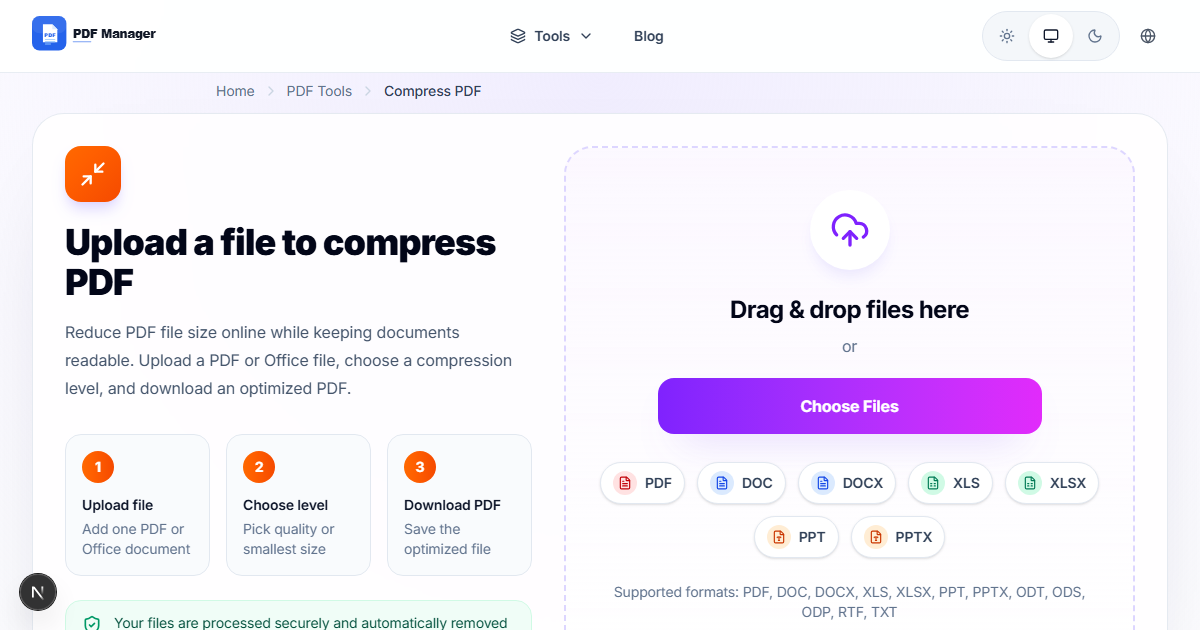
- Open Chrome and go to Compress PDF
- Upload your PDF file
- Choose compression level (Medium is recommended)
- Click Compress and download the smaller file
Chromebook PDF Tools Compared
| Tool | Free? | No Install? | Features | Best For |
|---|---|---|---|---|
| PDF Manager | Yes | Yes | 15+ tools | All PDF tasks |
| Google Docs | Yes | Yes | Basic text editing | Simple text changes |
| Chrome PDF Viewer | Yes | Built-in | View only | Reading PDFs |
| Android apps | Varies | No | Limited | Touch-based editing |
Tips for Chromebook Users
- Bookmark PDF Manager - Add it to your Chrome bookmarks bar for quick access.
- Use Google Drive - Store your PDFs in Google Drive for easy access from any device.
- Google Docs for text editing - For simple text changes, convert PDF to Word, edit in Google Docs, then convert back.
- Keyboard shortcuts - Use Ctrl+S to save, Ctrl+P to print, and Ctrl+D to bookmark in Chrome.
- Offline preparation - Download your PDFs before going offline so you can work on them when you reconnect.
Frequently Asked Questions
Can I install Adobe Acrobat on Chromebook?
No. Adobe Acrobat is not available for ChromeOS. You can use the Adobe Acrobat web version with limited features, or use free alternatives like PDF Manager that work entirely in the browser.
Do Android PDF apps work on Chromebook?
Some do, but the experience is often poor. Android apps are designed for touch screens and may not work well with a keyboard and trackpad. Browser-based tools like PDF Manager provide a better Chromebook experience.
Can I edit PDF text directly on Chromebook?
Not directly. The best approach is to convert PDF to Word using PDF Manager, edit in Google Docs, then convert back to PDF.
Is PDF Manager free on Chromebook?
Yes. PDF Manager is completely free with no sign-up, no watermarks, and no file size limits. It works in any Chrome browser.
Related Tools
- PDF to Word - Convert PDFs for editing in Google Docs
- Word to PDF - Convert edited documents back to PDF
- Compress PDF - Reduce file size for email and uploads
Why Use PDF Manager
Built for speed
Upload to result with minimal friction.
Practical workflows
Move between tools without confusion.
Simple and secure
Clear states and polished result screens.

Written by
Umar Draz
Document Tools Specialist
Software engineer with 5+ years building document processing tools. Created PDF Manager to make PDF tools accessible to everyone. Tests every feature with real-world documents before release.
Ready to use the tool?
Open the tool and follow the same workflow from this guide.
Related Tools
Related Articles
How to Convert PDF to Word Without Losing Formatting
Turn PDFs into editable Word documents while preserving structure, spacing, tables, and readable layout.
How to Convert Word to PDF (Free & Fast)
A clean guide to turning Word documents into PDFs quickly for sharing, printing, and final delivery.
Quick Answers
Can I install Adobe Acrobat on Chromebook?
No. Adobe Acrobat is not available for ChromeOS. You can use the Adobe Acrobat web version with limited features, or use free alternatives like PDF Manager that work entirely in the browser.
Do Android PDF apps work on Chromebook?
Some do, but the experience is often poor. Android apps are designed for touch screens and may not work well with a keyboard and trackpad. Browser-based tools like PDF Manager provide a better Chromebook experience.
Can I edit PDF text directly on Chromebook?
Not directly. The best approach is to convert PDF to Word using PDF Manager, edit in Google Docs, then convert back to PDF.
Is PDF Manager free on Chromebook?
Yes. PDF Manager is completely free with no sign-up, no watermarks, and no file size limits. It works in any Chrome browser.