
PDF Manager Guide
How to Extract PDF Pages Online | Free PDF Page Extractor
Extract specific pages from a PDF online for free with PDF Manager.
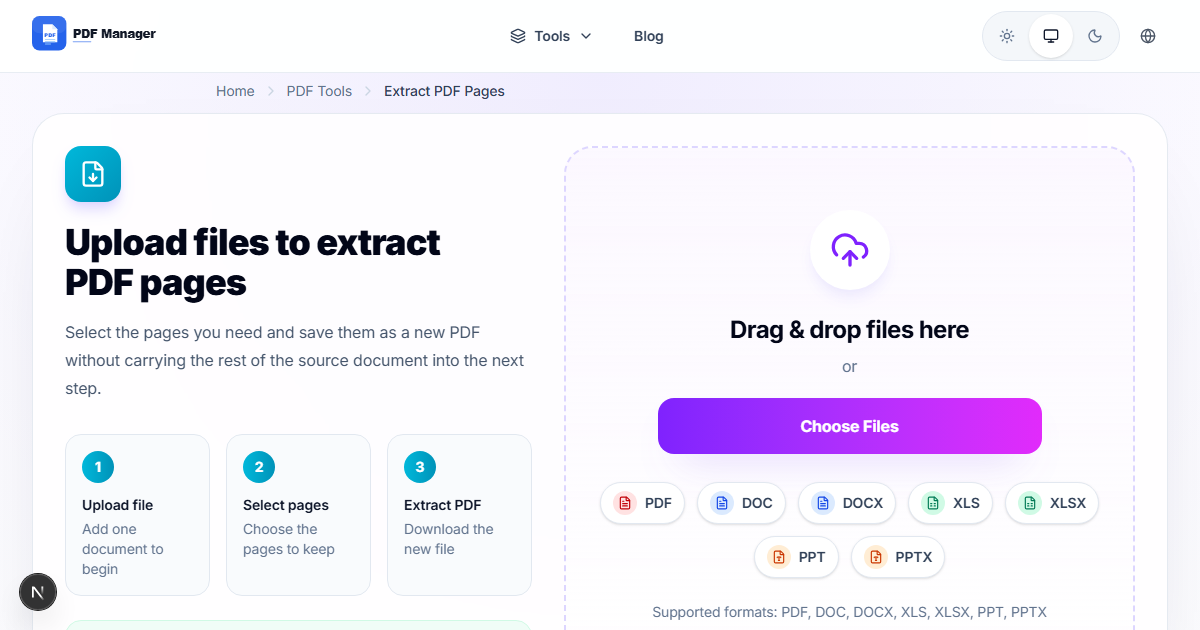
How to Extract PDF Pages Online — Free PDF Page Extractor
Need to pull specific pages from a PDF file? Whether you need a single page from a 100-page report or want to extract a chapter from an ebook, PDF Manager's Extract PDF Pages tool makes it quick and easy — completely free.
Instead of sharing an entire document, extract only the pages you need and share just the relevant content. This saves time, reduces file size, and keeps your communications focused.
Why Extract Pages from a PDF?
- Share specific sections — Send only the relevant chapter, clause, or section instead of the entire document.
- Reduce file size — Smaller files are faster to email and easier to store.
- Create focused documents — Combine extracted pages from different PDFs into a new document.
- Organize archives — Split large reports into individual sections for better organization.

How to Extract PDF Pages
- Visit the Extract PDF Pages tool.
- Upload your PDF file by clicking or dragging it into the upload area.
- Browse the page thumbnails and select the pages you want to extract.
- Click Extract to create a new PDF with only the selected pages.
- Download your extracted PDF file.
Tips for Extracting PDF Pages
- Use page ranges — Select consecutive pages quickly using range inputs like 1-5 or 10-15.
- Preview first — Use the thumbnail view to verify you are selecting the right pages.
- Extract from multiple files — Extract pages from different PDFs and then merge them into one document.
- Keep the original — Your original PDF is not modified. The extraction creates a new file.
Common Use Cases
- Chapter extraction — Pull a specific chapter from an ebook or textbook.
- Invoice separation — Extract individual invoices from a monthly statement.
- Contract clauses — Extract specific sections of legal documents for review.
- Report sections — Share only the executive summary or specific data pages.
Related PDF Tools
- Merge PDF — Combine extracted pages with other PDFs.
- Split PDF — Split a PDF into multiple smaller files.
- Delete PDF Pages — Remove unwanted pages from a PDF.
Extract vs Split: What Is the Difference?
Many people confuse extracting and splitting PDFs, but they serve different purposes:
- Extract — Pull specific pages from a PDF to create a new document. The original PDF remains unchanged. Use when you need selected pages from a larger document.
- Split — Divide a PDF into multiple smaller files, usually at specific page boundaries. Use when you want to break a large document into separate sections.
Both tools are available free on PDF Manager. Choose Extract Pages when you need specific pages, and Split PDF when you want to divide the entire document.
Frequently Asked Questions
Can I extract non-consecutive pages?
Yes, you can select any combination of pages. Click individual pages or use comma-separated ranges like 1-3, 7, 10-12.
Does extracting pages affect the original PDF?
No, the original PDF remains unchanged. A new PDF file is created with only the extracted pages.
Is there a limit to how many pages I can extract?
PDF Manager supports PDFs with hundreds of pages. You can extract as many pages as you need from any size document.
Will the extracted pages keep their quality?
Yes, extracted pages maintain the exact same quality, formatting, and resolution as the original PDF.
Why Use PDF Manager
Built for quick conversions
The core tools are designed to get users from upload to result with minimal friction.
Made for practical workflows
Move from one document step to the next without hunting through a confusing tool library.
Simple and trustworthy
Clear states, secure handling, and polished result screens make the workflow easy to trust.

Umar Draz
Document Tools Specialist
Software engineer with 5+ years building document processing tools. Created PDF Manager to make PDF tools accessible to everyone. Tests every feature with real-world documents before release.
- 5+ years in document processing
- Built PDF Manager from scratch
- Tested 10,000+ PDF workflows
Ready to use the tool?
Open the tool page and follow the same workflow from this guide inside a conversion experience built for fast results.
Related Tools
Useful next steps around the same document workflow.
Related Articles
Continue with nearby guides that support the same conversion path.
From PDF
How to Convert PDF to Word Without Losing Formatting
Turn PDFs into editable Word documents while preserving structure, spacing, tables, and readable layout.
To PDF
How to Convert Word to PDF (Free & Fast)
A clean guide to turning Word documents into PDFs quickly for sharing, printing, and final delivery.
Quick Answers
Can I extract non-consecutive pages?
Yes, you can select any combination of pages. Click individual pages or use comma-separated ranges like 1-3, 7, 10-12.
Does extracting pages affect the original PDF?
No, the original PDF remains unchanged. A new PDF file is created with only the extracted pages.
Is there a limit to how many pages I can extract?
PDF Manager supports PDFs with hundreds of pages. You can extract as many pages as you need from any size document.
Will the extracted pages keep their quality?
Yes, extracted pages maintain the exact same quality, formatting, and resolution as the original PDF.