
PDF Manager Guide
How to Merge PDF on iPhone | Combine Files on iOS
Learn how to merge PDF files on iPhone using free built-in tools and online services. Combine multiple PDFs into one document directly from your iOS device.
- Why Merge PDFs on iPhone
- Method 1: Using the Files App
- Method 2: Using PDF Manager Online
- Method 3: Using Apple Shortcuts
- Step-by-Step Guide
- Tips for Best Results
- Common Use Cases
- Frequently Asked Questions
Why Merge PDFs on iPhone
Merging PDFs on iPhone allows you to combine multiple documents into one seamless file for easier sharing, storage, and organization. Whether you need to merge scanned receipts, combine work reports, or compile reading materials, iOS offers several ways to accomplish this without a desktop computer.
Method 1: Using the Files App
The built-in Files app on iPhone provides a quick way to merge PDFs without installing any third-party software. Simply locate your PDFs in the Files app, select them, and use the built-in action menu to create a combined document. This method is ideal for quick merges when you have a few files to combine.
Method 2: Using PDF Manager Online
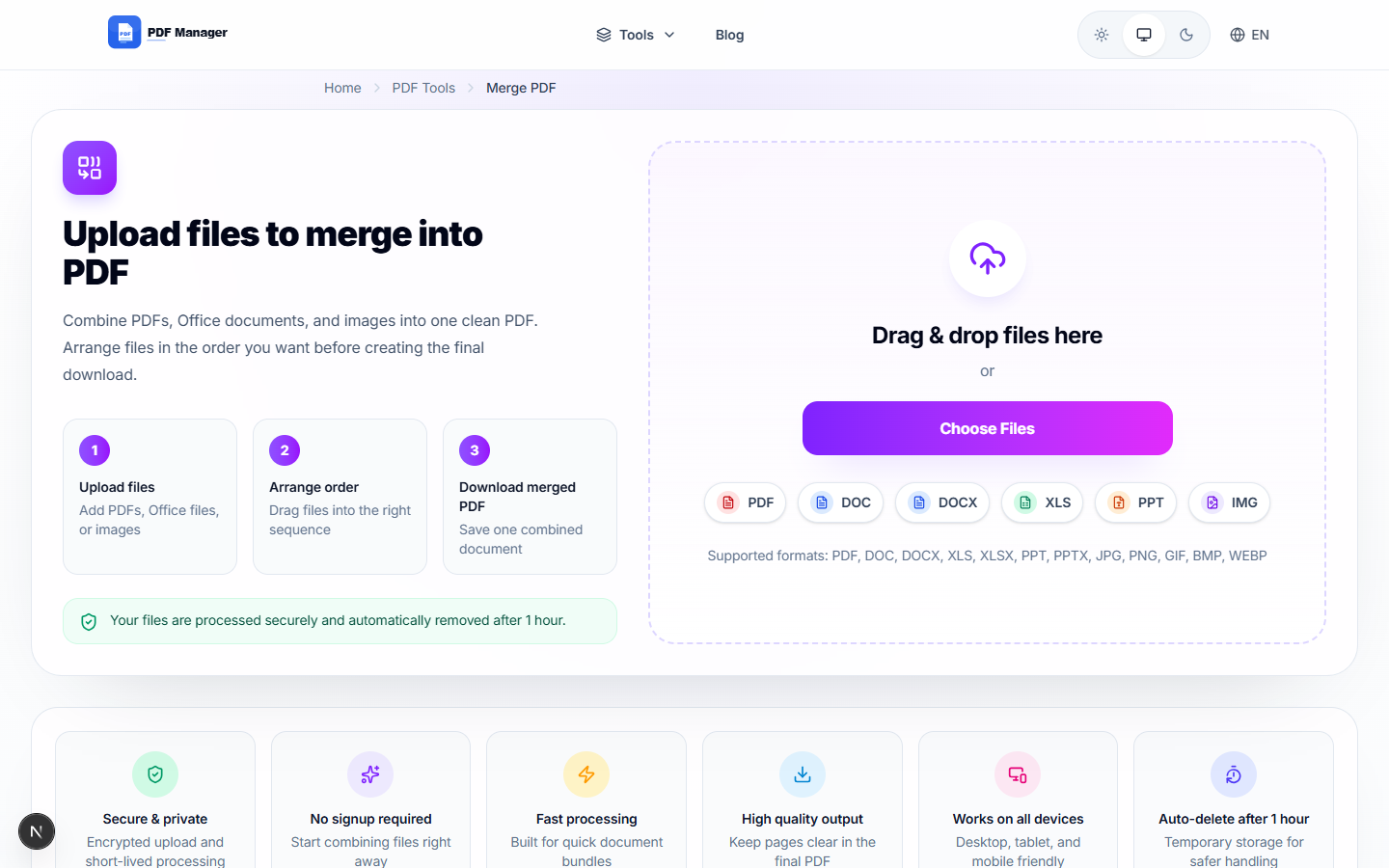
For more control over the merging process, you can use a free online tool like PDF Manager. This web-based solution works directly from Safari or any iOS browser. Upload your PDFs, arrange them in the desired order, and download the merged result. No app installation is required, and your files are processed securely.
Method 3: Using Apple Shortcuts
Power users can create an Apple Shortcut to automate PDF merging on iPhone. The Shortcuts app includes a Combine PDF action that can merge multiple files with a single tap. This approach is perfect for repetitive tasks where you regularly need to combine PDFs from specific folders or apps.
Step-by-Step Guide
- Open the Files app on your iPhone and navigate to the folder containing your PDFs.
- Tap Select in the top-right corner, then tap each PDF you want to merge.
- Tap the three-dot menu at the bottom and select Create PDF from the action sheet.
- The Files app will combine all selected PDFs into a single document.
- Tap Save to store the merged PDF in your desired location.
- Alternatively, open Safari and navigate to PDF Manager's merge tool.
- Upload your PDFs by tapping the upload area and selecting files from Files or Photos.
- Drag to rearrange pages in the correct order.
- Tap Merge PDF and wait for the processing to complete.
- Download the combined file and save it to Files or share it directly.
Tips for Best Results
Ensure all PDFs are in the correct order before merging. Rename files with numbers or dates to maintain sequence. For large files, use a Wi-Fi connection to speed up uploads and downloads. Check the final merged document to verify all pages are present and properly aligned.
Common Use Cases
Merging PDFs on iPhone is useful for combining scanned handwritten notes into a single study guide, merging multiple pages of signed contracts, compiling travel documents like boarding passes and itineraries, and combining photo scans into a single photo book PDF.
Frequently Asked Questions
Can I merge PDFs on iPhone without installing an app?
Yes, you can use the built-in Files app or a web-based tool like PDF Manager directly from Safari. No additional app installation is required for either method.
Does merging PDFs on iPhone reduce quality?
No, merging PDFs using the Files app or PDF Manager preserves the original quality of each page. The files are combined without recompression or quality loss.
How many PDFs can I merge at once on iPhone?
There is no strict limit, but performance may vary with very large files. Most users can merge 10-20 PDFs in a single session without issues. For larger batches, consider merging in groups.
Can I rearrange pages before merging on iPhone?
Yes, when using PDF Manager online, you can drag and drop pages to rearrange them before merging. The Files app combines files in the order you select them.
Is it safe to merge PDFs online from my iPhone?
Reputable online tools like PDF Manager use encrypted connections and automatically delete uploaded files after processing. Always check the privacy policy and avoid uploading sensitive documents to unknown services.
Can I merge PDFs with other file types on iPhone?
The Files app can combine images with PDFs by converting them first. PDF Manager supports merging PDFs with images, Word documents, and other formats by converting them to PDF before merging.
Related Tools
Check out Split PDF to divide merged documents, Compress PDF to reduce file size after merging, and PDF to Word for converting the final result.
Ready to Merge Your PDFs?
Try our free online PDF merger directly from your iPhone browser. No signup required, and your files are deleted automatically after processing.
Why Use PDF Manager
Built for quick conversions
The core tools are designed to get users from upload to result with minimal friction.
Made for practical workflows
Move from one document step to the next without hunting through a confusing tool library.
Simple and trustworthy
Clear states, secure handling, and polished result screens make the workflow easy to trust.

Umar Draz
Document Tools Specialist
Software engineer with 5+ years building document processing tools. Created PDF Manager to make PDF tools accessible to everyone. Tests every feature with real-world documents before release.
- 5+ years in document processing
- Built PDF Manager from scratch
- Tested 10,000+ PDF workflows
Ready to use the tool?
Open the tool page and follow the same workflow from this guide inside a conversion experience built for fast results.
Related Tools
Useful next steps around the same document workflow.
Related Articles
Continue with nearby guides that support the same conversion path.
From PDF
How to Convert PDF to Word Without Losing Formatting
Turn PDFs into editable Word documents while preserving structure, spacing, tables, and readable layout.
To PDF
How to Convert Word to PDF (Free & Fast)
A clean guide to turning Word documents into PDFs quickly for sharing, printing, and final delivery.
Quick Answers
Can I merge PDFs on iPhone without installing an app?
Yes, you can use the built-in Files app or a web-based tool like PDF Manager directly from Safari. No additional app installation is required for either method.
Does merging PDFs on iPhone reduce quality?
No, merging PDFs using the Files app or PDF Manager preserves the original quality of each page. The files are combined without recompression or quality loss.
How many PDFs can I merge at once on iPhone?
There is no strict limit, but performance may vary with very large files. Most users can merge 10-20 PDFs in a single session without issues. For larger batches, consider merging in groups.
Can I rearrange pages before merging on iPhone?
Yes, when using PDF Manager online, you can drag and drop pages to rearrange them before merging. The Files app combines files in the order you select them.
Is it safe to merge PDFs online from my iPhone?
Reputable online tools like PDF Manager use encrypted connections and automatically delete uploaded files after processing. Always check the privacy policy and avoid uploading sensitive documents to unknown services.
Can I merge PDFs with other file types on iPhone?
The Files app can combine images with PDFs by converting them first. PDF Manager supports merging PDFs with images, Word documents, and other formats by converting them to PDF before merging.