
PDF Manager Guide
How to Split PDF into Separate Files | Divide Large PDFs
Learn how to split a PDF into separate files by page ranges or individual pages. Divide large PDFs into smaller documents for easier management and sharing online.
- Why Split a PDF
- Splitting Methods Overview
- Method 1: Online PDF Splitter
- Method 2: Split by Page Ranges
- Method 3: Extract Every Page
- Step-by-Step Guide
- Common Use Cases
- Frequently Asked Questions
Why Split a PDF
Splitting a PDF into separate files helps manage large documents by breaking them into smaller, more focused files. This is useful for extracting specific chapters from ebooks, separating invoices from a batch, dividing a scanned book into chapters, or creating individual pages for distribution.
Splitting Methods Overview
There are three main approaches to splitting PDFs: splitting by page ranges to extract specific sections, extracting every page into individual files, and splitting at specified page markers. Each method serves different purposes depending on your needs.
Method 1: Online PDF Splitter
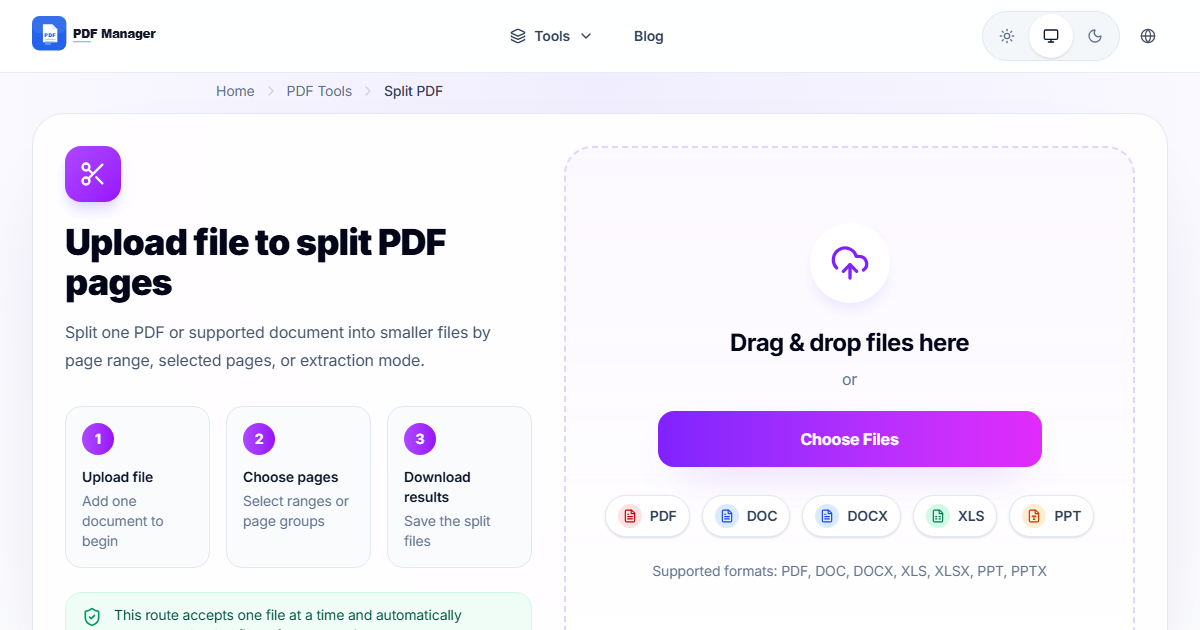
PDF Manager offers a free Split PDF tool that works entirely in your browser. Upload your PDF, choose your splitting method, and download the resulting files as a ZIP archive. No software installation or account creation is needed.
Method 2: Split by Page Ranges
This method allows you to extract specific page ranges into separate PDF files. For example, you can split a 50-page document into ranges 1-10, 11-25, and 26-50. This is ideal for dividing a document into logical sections like chapters or report segments.
Method 3: Extract Every Page
This creates a separate PDF file for each individual page in the original document. A 20-page PDF becomes 20 separate PDF files. This is useful when you need to distribute pages individually or process each page separately.
Step-by-Step Guide
- Navigate to PDF Manager's Split PDF tool.
- Upload the PDF file you want to split.
- Select your splitting method: by page range, extract all pages, or split at markers.
- For page range splitting, enter the start and end pages for each segment.
- Click Split to begin processing.
- Review the preview of each split segment.
- Click Download All as ZIP to save all segments at once.
- Extract the ZIP file to access your individual PDFs.
Common Use Cases
Splitting a multi-page contract to send only the signature page, extracting a specific chapter from an ebook for study purposes, separating individual invoices from a monthly batch report, dividing a scanned magazine into articles, and creating single-page PDFs from a photo album document.
Frequently Asked Questions
Can I split a PDF without losing quality?
Yes, splitting a PDF preserves the original quality of every page. The process simply copies pages into new documents without recompressing or altering the content.
How many times can I split a PDF?
There is no limit to how many times you can split a PDF. You can split a document into as many segments as needed, including creating individual files for each page.
Can I split a password-protected PDF?
You must first remove the password protection from the PDF before splitting. PDF Manager provides tools for unlocking protected PDFs if you have the password.
Does the split tool preserve bookmarks and metadata?
When splitting by page ranges, bookmarks associated with the extracted pages are preserved. Metadata such as author and title may only apply to the first segment.
Can I split a PDF on my phone?
Yes, PDF Manager's online splitter works on any device with a browser, including smartphones and tablets. The interface is fully responsive and optimized for touch input.
What is the maximum file size for splitting?
PDF Manager supports files up to 100MB for splitting. For larger files, consider compressing the PDF first or splitting it in stages.
Related Tools
Use Merge PDF to combine split files back together, Compress PDF to reduce size before splitting, and PDF to Word to edit extracted content.
Split Your PDF Now
Try our free PDF splitter online. No registration required, and your files are automatically deleted after processing.
Why Use PDF Manager
Built for quick conversions
The core tools are designed to get users from upload to result with minimal friction.
Made for practical workflows
Move from one document step to the next without hunting through a confusing tool library.
Simple and trustworthy
Clear states, secure handling, and polished result screens make the workflow easy to trust.

Umar Draz
Document Tools Specialist
Software engineer with 5+ years building document processing tools. Created PDF Manager to make PDF tools accessible to everyone. Tests every feature with real-world documents before release.
- 5+ years in document processing
- Built PDF Manager from scratch
- Tested 10,000+ PDF workflows
Ready to use the tool?
Open the tool page and follow the same workflow from this guide inside a conversion experience built for fast results.
Related Tools
Useful next steps around the same document workflow.
Related Articles
Continue with nearby guides that support the same conversion path.
From PDF
How to Convert PDF to Word Without Losing Formatting
Turn PDFs into editable Word documents while preserving structure, spacing, tables, and readable layout.
To PDF
How to Convert Word to PDF (Free & Fast)
A clean guide to turning Word documents into PDFs quickly for sharing, printing, and final delivery.
Quick Answers
Can I split a PDF without losing quality?
Yes, splitting a PDF preserves the original quality of every page. The process simply copies pages into new documents without recompressing or altering the content.
How many times can I split a PDF?
There is no limit to how many times you can split a PDF. You can split a document into as many segments as needed, including creating individual files for each page.
Can I split a password-protected PDF?
You must first remove the password protection from the PDF before splitting. PDF Manager provides tools for unlocking protected PDFs if you have the password.
Does the split tool preserve bookmarks and metadata?
When splitting by page ranges, bookmarks associated with the extracted pages are preserved. Metadata such as author and title may only apply to the first segment.
Can I split a PDF on my phone?
Yes, PDF Manager's online splitter works on any device with a browser, including smartphones and tablets. The interface is fully responsive and optimized for touch input.
What is the maximum file size for splitting?
PDF Manager supports files up to 100MB for splitting. For larger files, consider compressing the PDF first or splitting it in stages.