How to Split a PDF on Mac Without Adobe
Split PDF files on Mac without Adobe Acrobat. Use free built-in tools and online options to separate PDF pages on macOS in seconds.
Mac users often need to split PDF files into smaller documents or extract specific pages. While Adobe Acrobat can do this, it costs $20 per month. Fortunately, there are free alternatives that work just as well on macOS.
In this guide, you will learn how to split PDF on Mac without Adobe, using free built-in tools and online options. PDF Manager is designed for students, businesses, teachers, and professionals who need reliable PDF tools without expensive software.
Table of Contents
- Why Split PDF on Mac?
- Method 1: Using Preview (Built-in)
- Method 2: Using PDF Manager Online
- Method 3: Using Shortcuts App
- Methods Compared
- Tips for Mac Users
- Frequently Asked Questions
Why Split PDF on Mac?
- Extract specific pages - Pull out a chapter from a textbook or a section from a report.
- Reduce file size - Split a large PDF into smaller, more manageable files.
- Separate documents - Break apart a merged PDF into its original individual files.
- Share specific content - Send only relevant pages instead of an entire document.
- Organize archives - Split scanned batches into individual documents.
Method 1: Using Preview (Built-in)
macOS includes Preview, a built-in PDF viewer with basic editing capabilities. Here is how to split a PDF using Preview:
- Open your PDF in Preview (double-click the file)
- Go to View > Thumbnails to see all pages in the sidebar
- Select the pages you want to extract (hold Cmd to select multiple)
- Drag the selected pages to your Desktop or a Finder window
- A new PDF is created with only the selected pages
Limitations of Preview:
- Can only extract pages by dragging, not by page range input
- No batch splitting capability
- Cannot split into equal-sized sections automatically
- Large PDFs may cause Preview to slow down
Method 2: Using PDF Manager Online (Recommended)
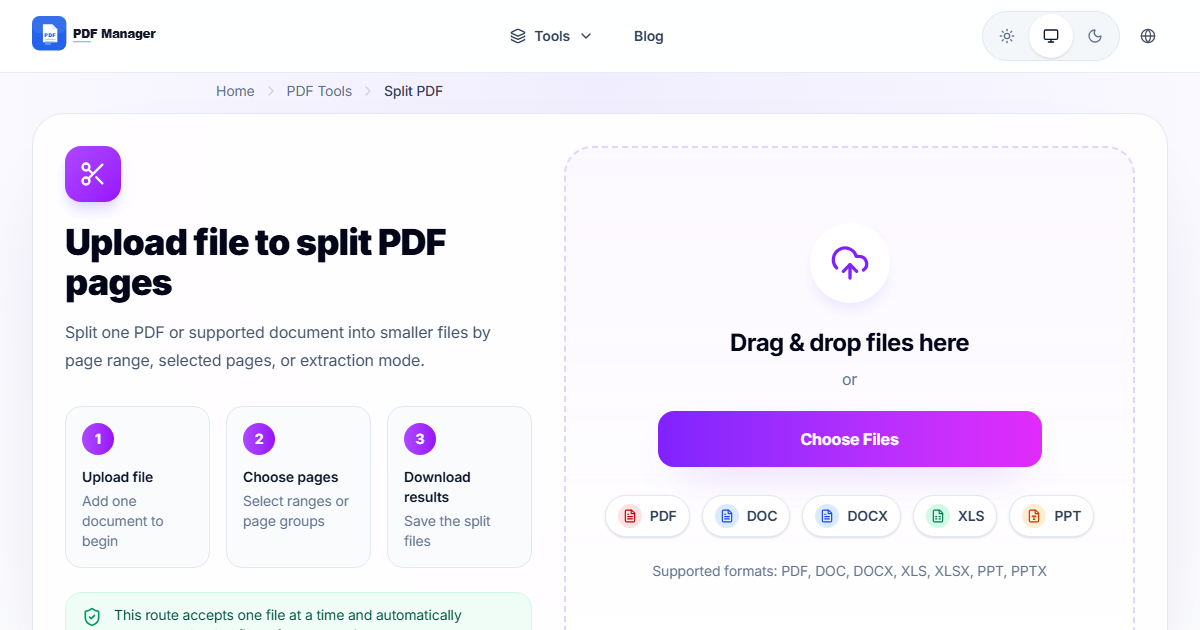
For more control and features, use PDF Manager Split PDF directly in Safari, Chrome, or Firefox on your Mac:
- Open your browser and go to Split PDF tool
- Upload your PDF file by clicking or dragging it
- View all pages as thumbnails
- Select pages to extract or choose split points
- Click Split and download the result
Advantages over Preview:
- Split by page ranges (e.g., pages 1-5, 10-15, 20-25)
- Split into individual pages automatically
- Batch processing for multiple PDFs
- Works on any Mac regardless of macOS version
- No software installation required
Method 3: Using Shortcuts App
macOS Monterey and later include the Shortcuts app, which can automate PDF splitting:
- Open the Shortcuts app on your Mac
- Create a new shortcut
- Add the Split PDF action
- Configure the split options (by page count or page ranges)
- Run the shortcut on your PDF file
This method is useful for repetitive splitting tasks but requires some setup knowledge.
Methods Compared
| Feature | Preview | PDF Manager | Shortcuts |
|---|---|---|---|
| Cost | Free | Free | Free |
| Page range input | No | Yes | Limited |
| Batch splitting | No | Yes | Yes |
| Individual pages | Manual | Automatic | Yes |
| Setup required | No | No | Yes |
| Works offline | Yes | No | Yes |
Tips for Mac Users
- Use Safari for best performance - Safari is optimized for macOS and handles file uploads smoothly.
- Drag and drop from Finder - You can drag PDF files directly from Finder into the PDF Manager upload area.
- Check Downloads folder - Split PDF files are saved to your Downloads folder by default.
- Use Quick Look - Press Space on any PDF in Finder to preview it before splitting.
- Combine tools - Split your PDF first, then use Compress PDF on individual files for smaller sizes.
Frequently Asked Questions
Is Preview good enough for splitting PDFs?
For simple tasks like extracting a few pages, Preview works fine. For complex splitting with page ranges, batch processing, or splitting into individual pages, PDF Manager is much more efficient.
Do I need to install anything?
No. Preview is built into macOS. PDF Manager works in your browser. Neither requires installation.
Will splitting affect PDF quality?
No. Splitting is a lossless operation. The pages in the split files are identical to the original PDF.
Can I split password-protected PDFs?
You need to remove the password first. Use Unlock PDF to remove protection, then split the file.
Related Tools
- Merge PDF - Combine split files back together
- Compress PDF - Reduce file size after splitting
- Extract PDF Pages - Pull specific pages from a PDF
Why Use PDF Manager
Built for speed
Upload to result with minimal friction.
Practical workflows
Move between tools without confusion.
Simple and secure
Clear states and polished result screens.

Written by
Umar Draz
Document Tools Specialist
Software engineer with 5+ years building document processing tools. Created PDF Manager to make PDF tools accessible to everyone. Tests every feature with real-world documents before release.
Ready to use the tool?
Open the tool and follow the same workflow from this guide.
Related Tools
Related Articles
How to Convert PDF to Word Without Losing Formatting
Turn PDFs into editable Word documents while preserving structure, spacing, tables, and readable layout.
How to Convert Word to PDF (Free & Fast)
A clean guide to turning Word documents into PDFs quickly for sharing, printing, and final delivery.
Quick Answers
Is Preview good enough for splitting PDFs?
For simple tasks like extracting a few pages, Preview works fine. For complex splitting with page ranges, batch processing, or splitting into individual pages, PDF Manager is much more efficient.
Do I need to install anything?
No. Preview is built into macOS. PDF Manager works in your browser. Neither requires installation.
Will splitting affect PDF quality?
No. Splitting is a lossless operation. The pages in the split files are identical to the original PDF.
Can I split password-protected PDFs?
You need to remove the password first. Use Unlock PDF to remove protection, then split the file.