
PDF Manager Guide
How to Use PDF Tools on Mobile | Mobile PDF Guide
Learn how to use PDF tools on your phone.
How to Use PDF Tools on Mobile — Complete Mobile PDF Guide
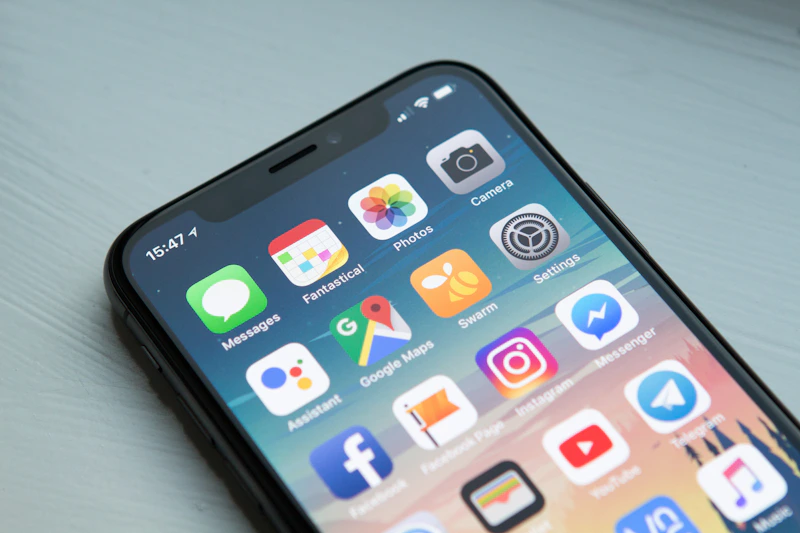
You do not need a desktop computer to work with PDFs. Whether you are on Android or iPhone, you can merge, compress, convert, and edit PDF files right from your mobile browser.
PDF Manager is fully optimized for mobile devices, giving you the same powerful tools on your phone as on your desktop — completely free.
Why Use PDF Tools on Mobile?
p>Mobile PDF editing is essential for many scenarios:
- On-the-go work — Review and sign documents while traveling or commuting.
- Quick conversions — Convert photos of receipts or documents to PDF instantly.
- Email emergencies — Compress a PDF before sending when you are away from your desk.
- Student life — Scan homework, convert to PDF, and submit from your phone.
- Business trips — Merge, organize, and share documents without a laptop.
How to Use PDF Manager on Mobile
Using PDF Manager on your phone is simple:
- Open your mobile browser (Chrome, Safari, or any browser).
- Visit pdffly.com in your browser.
- Select the tool you need (merge, compress, convert, etc.).
- Tap the upload area to select files from your phone or take a new photo.
- Process your file and download the result.
No app installation is required. Everything works directly in your mobile browser.
Common Mobile Workflows
Scan to PDF
Take a photo of a document with your phone camera, then use JPG to PDF to convert the image into a clean PDF file.
Compress for Email
Receive a large PDF on your phone? Use Compress PDF to reduce the file size, then share it directly via email or messaging apps.
Extract Pages
Need just one page from a long document? Use Extract Pages to pull out the specific pages you need.
Convert Documents
Convert between formats on the go:
- Word to PDF — Convert documents for sharing
- PDF to Word — Make PDFs editable
- PDF to JPG — Create image screenshots of PDF pages
Mobile PDF Tips
- Use Wi-Fi for large files — Upload and download speeds are faster on Wi-Fi for large PDFs.
- Pin the website — Add PDF Manager to your home screen for quick access (tap Share, then Add to Home Screen).
- Use landscape mode — Some tools work better in landscape orientation on small screens.
- Check file location — Downloaded files usually go to your Downloads folder or Files app.
Frequently Asked Questions
Do I need to download an app?
No, PDF Manager works entirely in your mobile browser. There is no app to download or install. Just visit the website and start using the tools.
What file formats can I upload from my phone?
You can upload PDF, DOCX, XLSX, PPTX, JPG, PNG, and other common document and image formats from your phone.
Is it safe to upload files from my phone?
Yes, PDF Manager uses secure HTTPS connections and automatically deletes all uploaded files after processing. Your documents are never stored permanently.
Does it work on both iPhone and Android?
Yes, PDF Manager works on all mobile devices with a modern browser, including iPhones, iPads, and Android phones and tablets.
Why Use PDF Manager
Built for quick conversions
The core tools are designed to get users from upload to result with minimal friction.
Made for practical workflows
Move from one document step to the next without hunting through a confusing tool library.
Simple and trustworthy
Clear states, secure handling, and polished result screens make the workflow easy to trust.

Umar Draz
Document Tools Specialist
Software engineer with 5+ years building document processing tools. Created PDF Manager to make PDF tools accessible to everyone. Tests every feature with real-world documents before release.
- 5+ years in document processing
- Built PDF Manager from scratch
- Tested 10,000+ PDF workflows
Ready to use the tool?
Open the tool page and follow the same workflow from this guide inside a conversion experience built for fast results.
Related Tools
Useful next steps around the same document workflow.
Related Articles
Continue with nearby guides that support the same conversion path.
From PDF
How to Convert PDF to Word Without Losing Formatting
Turn PDFs into editable Word documents while preserving structure, spacing, tables, and readable layout.
To PDF
How to Convert Word to PDF (Free & Fast)
A clean guide to turning Word documents into PDFs quickly for sharing, printing, and final delivery.
Quick Answers
Do I need to download an app?
No, PDF Manager works entirely in your mobile browser. There is no app to download or install. Just visit the website and start using the tools.
What file formats can I upload from my phone?
You can upload PDF, DOCX, XLSX, PPTX, JPG, PNG, and other common document and image formats from your phone.
Is it safe to upload files from my phone?
Yes, PDF Manager uses secure HTTPS connections and automatically deletes all uploaded files after processing. Your documents are never stored permanently.
Does it work on both iPhone and Android?
Yes, PDF Manager works on all mobile devices with a modern browser, including iPhones, iPads, and Android phones and tablets.