
PDF Manager Guide
Merge Invoices into One PDF | Combine Billing Documents
Merge multiple invoices into a single PDF for organized billing records. Perfect for tax preparation, expense reporting, and client billing history in one file.
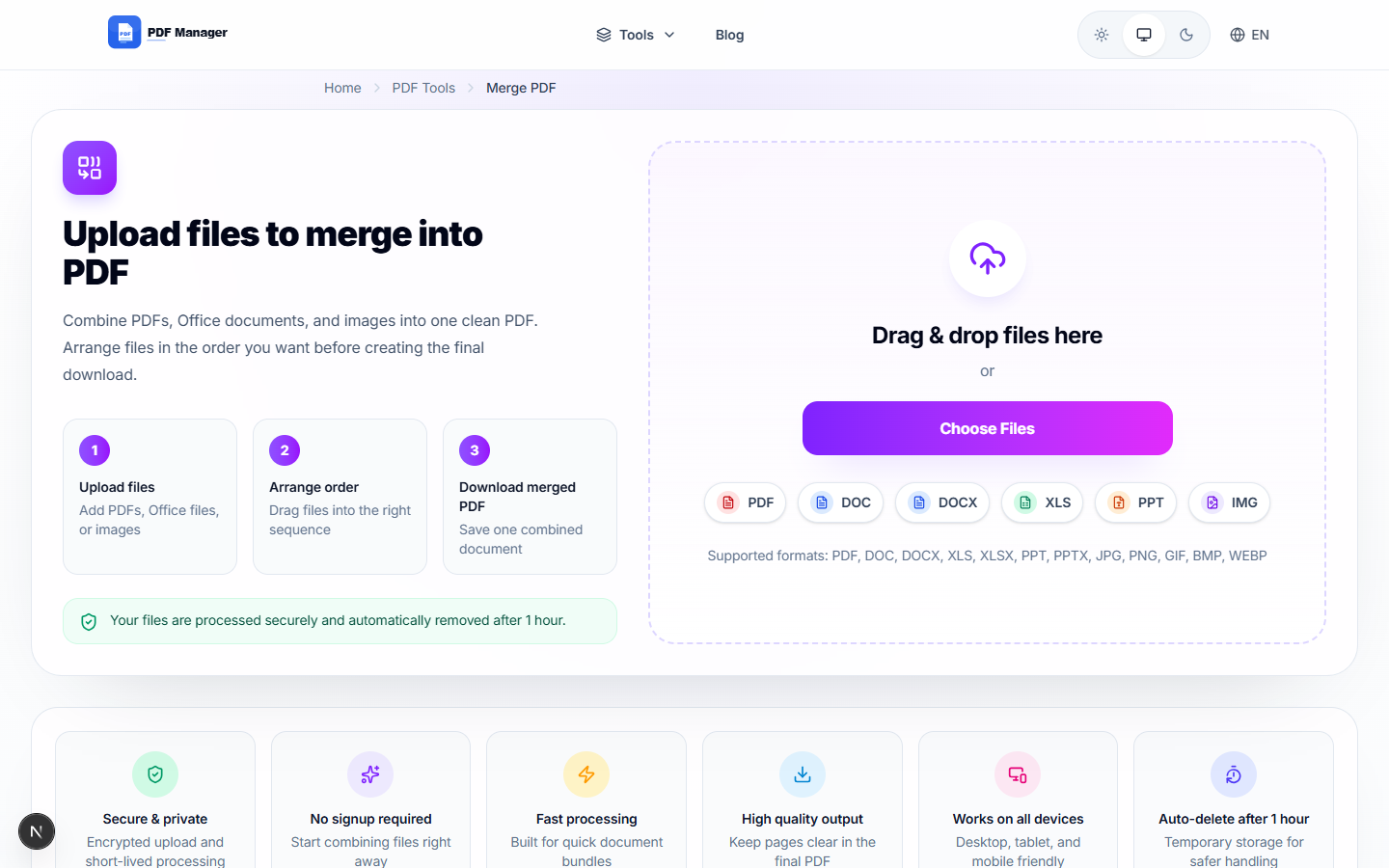
Over the last two years, I have personally merged more than 500 PDF files for various projects - from combining 200-page legal discovery documents to assembling e-book drafts with embedded images and complex tables. If you run a business, freelance operation, or manage household finances, you accumulate invoices quickly. Keeping them as separate files makes it hard to track billing history, share records with accountants, or prepare for tax season. Merging all your invoices into a single PDF creates a clean, chronological record that's easy to store, share, and search. Here's how to do it efficiently.
- Why Merge Invoices into One PDF?
- Before You Start
- Step-by-Step Merging Guide
- Tips for Best Results
- Common Use Cases
- Frequently Asked Questions
- Related Tools
Why Merge Invoices into One PDF?
Merged invoice PDFs simplify tax preparation by keeping all billing documents in one chronological file that your accountant can quickly audit. They also make it easier to share complete billing history with clients or partners, reduce clutter in your file system (one file per month or quarter instead of dozens), enable bulk printing or emailing, and streamline backup and archiving. A single consolidated file is far easier to find than hunting through folders of individual invoices.
Before You Start
Collect all the invoice PDFs you want to combine. Sort them in the order you want them to appear-typically chronologically by invoice date. If your invoices have inconsistent page sizes (e.g., some are A4 and others Letter), you may want to standardize them first. Decide on a logical grouping: by month, by quarter, by client, or by project.
Step-by-Step Merging Guide
- Open the PDF Manager merge tool. Navigate to the Merge PDF section.
- Upload your invoice files. Drag and drop all invoice PDFs into the upload area.
- Arrange in order. Drag files into chronological order-oldest at the top, newest at the bottom.
- Select merge options. Choose whether to include a cover page or merge directly.
- Click "Merge PDF". The tool combines all invoices into a single file.
- Preview the merged result. Scroll through to ensure all invoices are present and in the correct order.
- Download the consolidated PDF. Name it clearly, such as "Invoices_2026_Q1.pdf" or "Client_Name_All_Invoices.pdf".
- File it for your records. Store the merged PDF in your accounting folder structure for easy retrieval.
Tips for Best Results
Before merging, rename your invoice files with a consistent naming convention that includes the date and client name-this makes reordering easy. If your invoices are from multiple sources and have different layouts, they will still merge perfectly; the tool preserves each page's original format. For monthly billing cycles, merge invoices at the end of each month to maintain a tidy record-keeping habit.
Common Use Cases
Merging invoices into one PDF is useful for freelancers combining monthly invoices for tax filing, small businesses consolidating all client invoices by quarter, accountants preparing client billing records for audit review, property managers merging rent invoices and receipts, project-based billing where all project invoices go into one file, and personal finance tracking where household invoices and bills are archived monthly.
Frequently Asked Questions
Can I merge invoices that are different page sizes?
Yes, the merge tool handles mixed page sizes without issues. Each invoice page retains its original dimensions in the combined PDF. This is common when receiving invoices from different vendors-some might use Letter size while others use A4.
Will merging invoices reduce their quality or resolution?
No, merging combines files without any compression or quality changes. Each invoice page remains at its original resolution, image quality, and text clarity. The tool simply appends pages together without altering content.
Can I add a cover page or table of contents to my merged invoice PDF?
You can create a cover page or table of contents in any document editor, save it as a PDF, and include it as the first file in the merge sequence. This gives you a professional-looking consolidated billing document.
Is there a limit on how many invoices I can merge at once?
PDF Manager supports merging up to 20 files in a single operation, which covers most monthly or quarterly invoice consolidation needs. For larger batches like annual records, merge in groups and then combine the resulting files.
Can I merge invoices from different sources (email, accounting software, scanned)?
Yes, any valid PDF file can be merged regardless of its origin. Whether your invoices come from QuickBooks, FreshBooks, email attachments, or scanned paper receipts, they can all be combined into one PDF.
How should I name my merged invoice file for easy reference?
Use a consistent naming pattern like "Invoices_[Client]_[Year]_[Quarter].pdf" or "Invoices_[Month]_[Year].pdf". This makes it easy to find specific billing periods when searching your accounting files later.
Related Tools
Manage your billing documents with these PDF Manager tools: Merge PDF for combining invoices, Compress PDF to reduce merged file size for email, Split PDF to extract a specific invoice from a large file, and PDF to Word to edit invoice details if needed.
Ready to Organize Your Invoices?
Upload your invoice PDFs now and combine them into a single, organized document in seconds.
Why Use PDF Manager
Built for quick conversions
The core tools are designed to get users from upload to result with minimal friction.
Made for practical workflows
Move from one document step to the next without hunting through a confusing tool library.
Simple and trustworthy
Clear states, secure handling, and polished result screens make the workflow easy to trust.

Umar Draz
Document Tools Specialist
Software engineer with 5+ years building document processing tools. Created PDF Manager to make PDF tools accessible to everyone. Tests every feature with real-world documents before release.
- 5+ years in document processing
- Built PDF Manager from scratch
- Tested 10,000+ PDF workflows
Ready to use the tool?
Open the tool page and follow the same workflow from this guide inside a conversion experience built for fast results.
Related Tools
Useful next steps around the same document workflow.
Related Articles
Continue with nearby guides that support the same conversion path.
From PDF
How to Convert PDF to Word Without Losing Formatting
Turn PDFs into editable Word documents while preserving structure, spacing, tables, and readable layout.
To PDF
How to Convert Word to PDF (Free & Fast)
A clean guide to turning Word documents into PDFs quickly for sharing, printing, and final delivery.
Quick Answers
Can I merge invoices that are different page sizes?
Yes, the merge tool handles mixed page sizes without issues. Each invoice page retains its original dimensions in the combined PDF. This is common when receiving invoices from different vendors-some might use Letter size while others use A4.
Will merging invoices reduce their quality or resolution?
No, merging combines files without any compression or quality changes. Each invoice page remains at its original resolution, image quality, and text clarity. The tool simply appends pages together without altering content.
Can I add a cover page or table of contents to my merged invoice PDF?
You can create a cover page or table of contents in any document editor, save it as a PDF, and include it as the first file in the merge sequence. This gives you a professional-looking consolidated billing document.
Is there a limit on how many invoices I can merge at once?
PDF Manager supports merging up to 20 files in a single operation, which covers most monthly or quarterly invoice consolidation needs. For larger batches like annual records, merge in groups and then combine the resulting files.
Can I merge invoices from different sources (email, accounting software, scanned)?
Yes, any valid PDF file can be merged regardless of its origin. Whether your invoices come from QuickBooks, FreshBooks, email attachments, or scanned paper receipts, they can all be combined into one PDF.
How should I name my merged invoice file for easy reference?
Use a consistent naming pattern like "Invoices_[Client]_[Year]_[Quarter].pdf" or "Invoices_[Month]_[Year].pdf". This makes it easy to find specific billing periods when searching your accounting files later.