
PDF Manager Guide
Merge PDF for Thesis Submission | Combine All Sections
Merge your thesis chapters, appendices, and bibliography into a single PDF for graduate school submission. Step-by-step guide with tips for a polished final document.
Over the last two years, I have personally merged more than 500 PDF files for various projects - from combining 200-page legal discovery documents to assembling e-book drafts with embedded images and complex tables. Completing a thesis or dissertation is one of the biggest academic milestones. When it comes time to submit, most graduate schools require a single PDF file containing every section-title page, abstract, table of contents, all chapters, appendices, and bibliography. If you've been writing each chapter in separate files, merging them into one polished PDF is essential. This guide shows you exactly how to do it.
- Why Merge Your Thesis PDF?
- Before You Start
- Step-by-Step Merging Guide
- Tips for Best Results
- Common Use Cases
- Frequently Asked Questions
- Related Tools
Why Merge Your Thesis PDF?
Graduate schools mandate a single PDF for several important reasons: it simplifies the review process for committee members, ensures page numbering is consistent across the entire document, makes the file easier to archive in digital repositories like ProQuest, and prevents any chance of missing pages or sections during submission. A merged PDF also makes printing the entire thesis straightforward.
Before You Start
Gather all the PDF files that make up your thesis. Common files include the title page, copyright page, abstract, acknowledgments, table of contents, list of figures and tables, each chapter as a separate PDF, appendices, and the bibliography or references section. Ensure each file is in its final, proofread version and that page numbers are correct within each section.
Step-by-Step Merging Guide
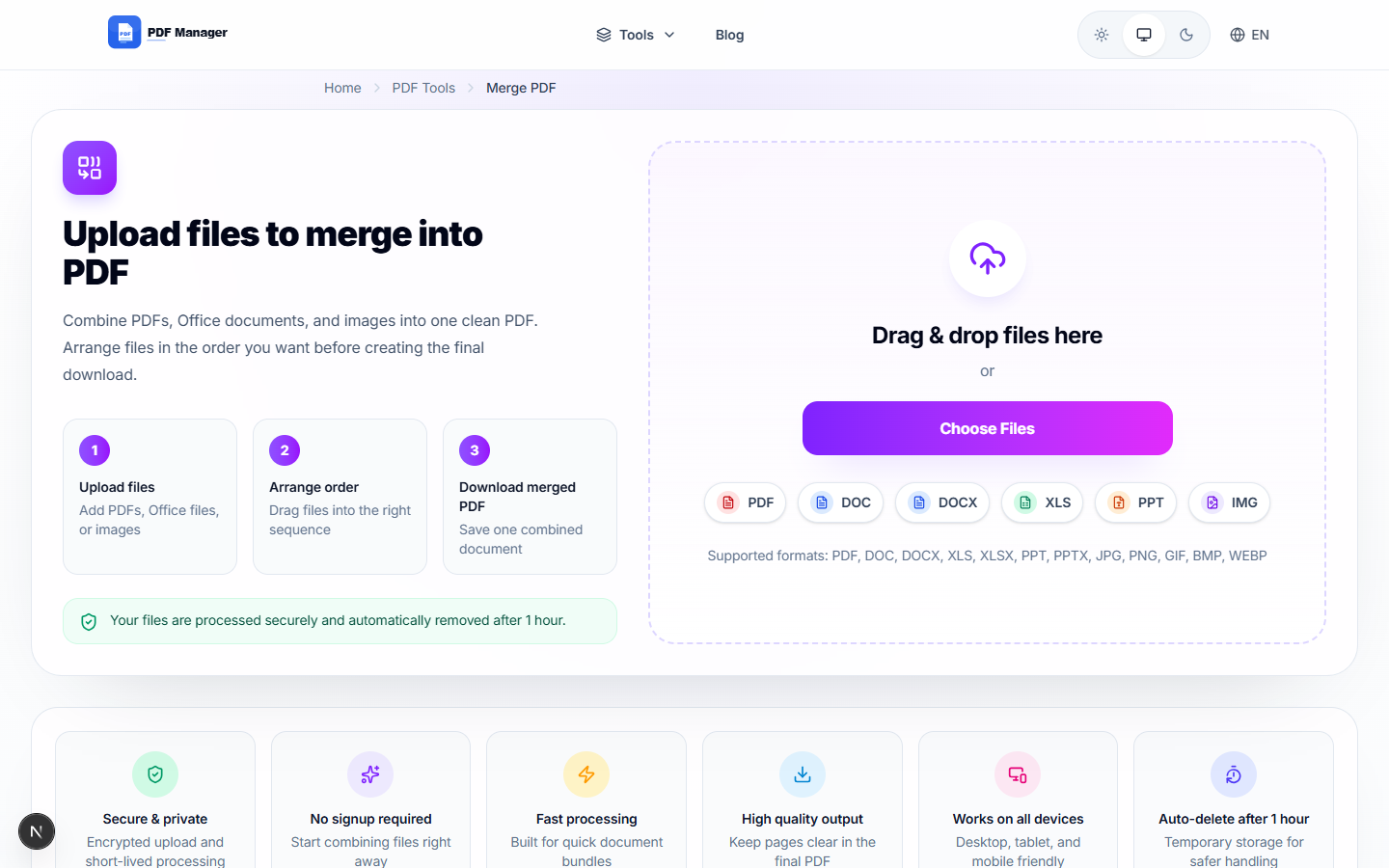
- Open the PDF Manager merge tool. Navigate to the Merge PDF section on our website.
- Upload all thesis files in order. Drag and drop files into the correct sequence-title page first, then abstract, table of contents, chapters, appendices, and bibliography last.
- Reorder if needed. Use the drag handles to rearrange any files that ended up in the wrong position.
- Click "Merge PDF". The tool combines all files into a single document while preserving original formatting.
- Preview the merged file. Scroll through to verify the order is correct and no pages are missing between sections.
- Download your complete thesis PDF. Save it with a name like "Thesis_Final_Submission.pdf".
- Check page numbers. Ensure the PDF page numbering matches your university's formatting requirements.
- Run a final review. Open the file and check each chapter transition carefully before submitting.
Tips for Best Results
Before merging, make sure all individual chapter PDFs are set to the same page size (e.g., all A4 or all Letter). Mismatched page sizes can cause layout issues in the final document. If your university requires a specific page numbering scheme (Roman numerals for front matter, Arabic for body), add those in your word processor before converting to PDF. Always keep copies of the individual chapter files so you can make edits and re-merge if needed.
Common Use Cases
Merging PDFs for thesis submission covers PhD dissertations requiring a single unified document, master's theses with multiple chapters written separately, undergraduate honors theses combining research papers, capstone project reports with appendices and exhibits, portfolio-based theses in fine arts programs, and journal article-style dissertations where each chapter is a standalone paper.
Frequently Asked Questions
Will merging PDFs change the formatting of my thesis chapters?
No, the merge tool combines files without altering their internal formatting. Fonts, margins, images, and tables within each chapter remain exactly as they were. The only change is that all files become consecutive pages within a single document.
Can I merge PDF files with different page sizes (Letter vs. A4)?
Yes, the tool can merge files of different page sizes. Each page retains its original dimensions within the merged PDF. However, for a professional thesis, we recommend standardizing all files to the same page size before merging to avoid an inconsistent appearance.
How do I ensure page numbers are continuous across merged chapters?
Page numbering should be set in your original document files before converting to PDF. Most word processors allow you to start page numbering at a specific number for each section. Plan your page count in advance so the numbering flows continuously from the title page through the bibliography.
What is the maximum number of files I can merge for my thesis?
PDF Manager supports merging up to 20 files in a single operation, which is sufficient for even the longest dissertations. If your thesis has more than 20 individual files, you can merge them in batches and then merge the resulting files together.
Is there a file size limit for thesis PDF merging?
Individual files up to 100 MB each are supported. A full thesis including high-resolution images can be quite large, so this generous limit covers most academic submissions. If your thesis includes many large images, consider compressing them before merging.
Can I add a table of contents page to my merged thesis PDF?
The merge tool combines existing PDFs as-is. If you want a table of contents, create it in your word processor, convert it to PDF, and include it as one of the files in the merge sequence, placed after the abstract and before the first chapter.
Related Tools
These PDF Manager tools can help complete your thesis preparation: Compress PDF to reduce the final file size for submission portals, Split PDF to extract specific chapters or pages, PDF to Word for last-minute text edits, and Merge PDF to combine all the pieces.
Ready to Merge Your Thesis PDF?
Upload your chapters and sections now and combine them into a single submission-ready file in seconds.
Why Use PDF Manager
Built for quick conversions
The core tools are designed to get users from upload to result with minimal friction.
Made for practical workflows
Move from one document step to the next without hunting through a confusing tool library.
Simple and trustworthy
Clear states, secure handling, and polished result screens make the workflow easy to trust.

Umar Draz
Document Tools Specialist
Software engineer with 5+ years building document processing tools. Created PDF Manager to make PDF tools accessible to everyone. Tests every feature with real-world documents before release.
- 5+ years in document processing
- Built PDF Manager from scratch
- Tested 10,000+ PDF workflows
Ready to use the tool?
Open the tool page and follow the same workflow from this guide inside a conversion experience built for fast results.
Related Tools
Useful next steps around the same document workflow.
Related Articles
Continue with nearby guides that support the same conversion path.
From PDF
How to Convert PDF to Word Without Losing Formatting
Turn PDFs into editable Word documents while preserving structure, spacing, tables, and readable layout.
To PDF
How to Convert Word to PDF (Free & Fast)
A clean guide to turning Word documents into PDFs quickly for sharing, printing, and final delivery.
Quick Answers
Will merging PDFs change the formatting of my thesis chapters?
No, the merge tool combines files without altering their internal formatting. Fonts, margins, images, and tables within each chapter remain exactly as they were. The only change is that all files become consecutive pages within a single document.
Can I merge PDF files with different page sizes (Letter vs. A4)?
Yes, the tool can merge files of different page sizes. Each page retains its original dimensions within the merged PDF. However, for a professional thesis, we recommend standardizing all files to the same page size before merging to avoid an inconsistent appearance.
How do I ensure page numbers are continuous across merged chapters?
Page numbering should be set in your original document files before converting to PDF. Most word processors allow you to start page numbering at a specific number for each section. Plan your page count in advance so the numbering flows continuously from the title page through the bibliography.
What is the maximum number of files I can merge for my thesis?
PDF Manager supports merging up to 20 files in a single operation, which is sufficient for even the longest dissertations. If your thesis has more than 20 individual files, you can merge them in batches and then merge the resulting files together.
Is there a file size limit for thesis PDF merging?
Individual files up to 100 MB each are supported. A full thesis including high-resolution images can be quite large, so this generous limit covers most academic submissions. If your thesis includes many large images, consider compressing them before merging.
Can I add a table of contents page to my merged thesis PDF?
The merge tool combines existing PDFs as-is. If you want a table of contents, create it in your word processor, convert it to PDF, and include it as one of the files in the merge sequence, placed after the abstract and before the first chapter.