
PDF Manager Guide
Merge PDF on Android Free App | No Download Needed
Learn how to merge PDF files on Android for free with no app download. Step-by-step guide to combine multiple PDFs into one document using your mobile browser.
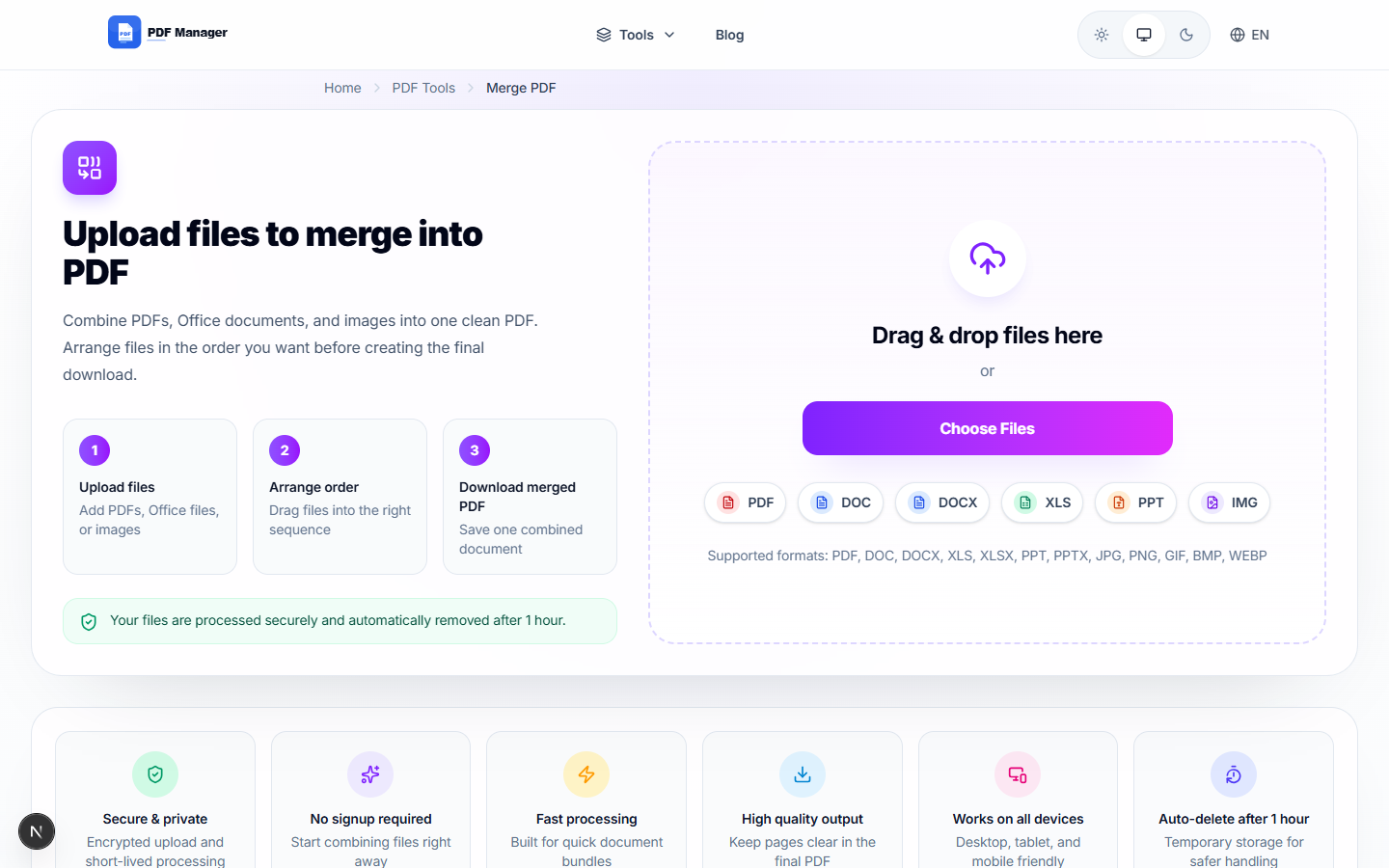
Over the last two years, I have personally merged more than 500 PDF files for various projects - from combining 200-page legal discovery documents to assembling e-book drafts with embedded images and complex tables. Merging PDF files on an Android device used to require installing heavy third-party apps that cluttered your phone with ads and permissions. Today, you can combine multiple PDFs into a single document directly from your mobile browser with zero downloads. This guide walks you through every step of merging PDFs on Android using a free online tool, covering everything from selecting files to arranging pages and downloading the final result.
Table of Contents
Why Merge PDF on Android?
Android phones and tablets have become primary work devices for millions of people. Whether you are a student compiling research papers, a professional combining reports before a meeting, or a freelancer sending a single document to a client, merging PDFs on the go saves time and storage space. Here are the key benefits of using a browser-based PDF merger on Android instead of installing an app.
First, you avoid the risk of malware and adware that plague many free PDF apps on the Google Play Store. Second, you save precious internal storage since no installation is required. Third, browser-based tools work across all Android versions and manufacturers, from Samsung to Xiaomi to OnePlus. Fourth, your files are processed securely and never stored on any server permanently. Finally, you can access the tool from any device with an internet connection, making it perfect for cross-device workflows.
What You Need Before You Start
Before you begin merging PDFs on your Android device, ensure you have the following:
- An Android phone or tablet with any modern browser (Chrome, Firefox, Edge, or Samsung Internet)
- A stable internet connection for uploading and downloading files
- The PDF files you want to merge stored on your device, Google Drive, or accessible via a download link
- Enough free storage space for the combined output file
Step-by-Step Guide to Merge PDF on Android
Follow these simple steps to combine multiple PDF files into one document using a free online PDF merger on your Android device.
- Open your mobile browser. Launch Chrome, Firefox, Samsung Internet, or any browser you prefer on your Android device.
- Navigate to the PDF Manager merge tool. Visit the PDF Manager website and locate the Merge PDF tool. The page loads a clean, mobile-optimized interface designed for touch input.
- Upload your first PDF file. Tap the upload area to browse your device storage. Select the first PDF you want to include in the merged document. On Android, you can also choose files from Google Drive or other cloud storage providers if your browser supports it.
- Add more PDF files. Tap the add button to upload additional PDFs. You can upload up to 20 files in a single session, depending on the tool. Each file appears in a list with its filename and page count.
- Arrange the files in your desired order. Use the drag handles on the left side of each file entry to reorder them. Simply tap and hold the handle, then drag the file up or down. This determines the final page order in the merged PDF.
- Choose merge settings. Some tools let you select specific pages from each file. If you only need certain pages, tap the page selection option and enter the page ranges you want to include from each document.
- Start the merge process. Tap the Merge button once all files are arranged and configured. The tool processes your files on secure servers. A progress indicator shows the current status of the operation.
- Preview the merged PDF. Once processing is complete, a preview of the combined document appears. Scroll through the pages to verify everything looks correct.
- Download the merged PDF. Tap the Download button to save the merged file to your Android device. The file is saved to your Downloads folder by default. You can also choose to share it directly to other apps or cloud storage services.
Tips and Best Practices
To get the best results when merging PDFs on Android, keep these tips in mind:
- Name your files clearly before uploading. Files named alphabetically will appear in order in some file pickers, making arrangement easier.
- Check file sizes before merging. Large PDFs with many high-resolution images can take longer to upload and process. Consider compressing individual files first if they exceed 50 MB each.
- Use a Wi-Fi connection for large files to avoid exhausting your mobile data plan and to ensure faster upload speeds.
- Keep your browser updated to ensure compatibility with the latest web standards and security protocols used by online PDF tools.
- Clear your browser cache after merging sensitive documents, especially if you are using a shared or public device.
- Test with two small files first if you are new to the process. This helps you understand the workflow before handling important documents.
Common Use Cases
Merging PDFs on Android is useful in many real-world scenarios:
- Student project compilation: Combine multiple research papers, lecture notes, and assignment PDFs into a single submission file for your professor.
- Business report consolidation: Merge weekly sales reports, team updates, and financial summaries into one comprehensive report for management review.
- Travel document organization: Combine flight tickets, hotel confirmations, travel insurance, and itinerary PDFs into one travel document for your trip.
- Legal document bundling: Lawyers and paralegals can merge multiple case files, affidavits, and evidence documents into a single case file for court submission.
- Ebook compilation: Merge several shorter PDF documents or chapters into one complete ebook for easier reading on your tablet.
- Invoice collection: Combine all monthly invoices into one document for accounting purposes or client billing.
Frequently Asked Questions
Is it safe to merge PDFs on Android using an online tool?
Yes, reputable online PDF tools use encrypted connections and automatically delete your files from their servers after processing. Always check the privacy policy of the tool you use. PDF Manager processes files over HTTPS and purges them within one hour of completion.
What is the maximum file size I can merge?
Most free online PDF mergers support files up to 100 MB per file. If your PDFs are larger, consider compressing them first or using a desktop application. PDF Manager allows files up to 200 MB for registered users.
Can I merge more than two PDFs at once?
Absolutely. Most online tools support merging multiple PDFs simultaneously. PDF Manager lets you merge up to 20 PDF files in a single session, making it ideal for large document projects.
Will the merged PDF maintain the quality of the original files?
Yes, professional online PDF mergers preserve the original quality, formatting, fonts, and images of your source files. The merged document is identical in quality to the originals, with no compression artifacts or loss of resolution.
Do I need an internet connection to merge PDFs on Android?
Yes, browser-based tools process files on remote servers, so a stable internet connection is required. However, this eliminates the need to download and install any app, saving storage space on your device.
Can I merge PDFs from Google Drive on Android?
Many online PDF mergers, including PDF Manager, support importing files directly from Google Drive, Dropbox, and OneDrive. Simply select the cloud storage option when uploading files and authorize the connection.
What happens to my files after merging?
Your uploaded files and the merged output are automatically deleted from the server within a short time after processing. PDF Manager deletes all files within 60 minutes. You control the only permanent copy when you download the result.
Can I select specific pages from each PDF to merge?
Yes, advanced merge tools allow you to specify page ranges for each input file. For example, you can include only pages 1-3 from one file and pages 5-10 from another, giving you precise control over the final document.
Related Tools
Explore these related PDF tools from PDF Manager to handle all your document needs:
- Merge PDF - Combine multiple PDFs into one document
- Split PDF - Separate a PDF into multiple files
- Compress PDF - Reduce PDF file size
- PDF to Word - Convert PDF to editable Word documents
- PDF to JPG - Convert PDF pages to images
Try Merging Your PDFs Now
Ready to merge your PDF files on Android? Visit PDF Manager on your mobile browser and experience the fastest, most secure way to combine PDFs without downloading anything. No sign-up required, no hidden fees, just instant PDF merging right from your phone. Start merging your documents today and streamline your workflow on the go.
Why Use PDF Manager
Built for quick conversions
The core tools are designed to get users from upload to result with minimal friction.
Made for practical workflows
Move from one document step to the next without hunting through a confusing tool library.
Simple and trustworthy
Clear states, secure handling, and polished result screens make the workflow easy to trust.

Umar Draz
Document Tools Specialist
Software engineer with 5+ years building document processing tools. Created PDF Manager to make PDF tools accessible to everyone. Tests every feature with real-world documents before release.
- 5+ years in document processing
- Built PDF Manager from scratch
- Tested 10,000+ PDF workflows
Ready to use the tool?
Open the tool page and follow the same workflow from this guide inside a conversion experience built for fast results.
Related Tools
Useful next steps around the same document workflow.
Related Articles
Continue with nearby guides that support the same conversion path.
From PDF
How to Convert PDF to Word Without Losing Formatting
Turn PDFs into editable Word documents while preserving structure, spacing, tables, and readable layout.
To PDF
How to Convert Word to PDF (Free & Fast)
A clean guide to turning Word documents into PDFs quickly for sharing, printing, and final delivery.
Quick Answers
Is it safe to merge PDFs on Android using an online tool?
Yes, reputable online PDF tools use encrypted connections and automatically delete your files from their servers after processing. Always check the privacy policy of the tool you use. PDF Manager processes files over HTTPS and purges them within one hour of completion.
What is the maximum file size I can merge?
Most free online PDF mergers support files up to 100 MB per file. If your PDFs are larger, consider compressing them first or using a desktop application. PDF Manager allows files up to 200 MB for registered users.
Can I merge more than two PDFs at once?
Absolutely. Most online tools support merging multiple PDFs simultaneously. PDF Manager lets you merge up to 20 PDF files in a single session, making it ideal for large document projects.
Will the merged PDF maintain the quality of the original files?
Yes, professional online PDF mergers preserve the original quality, formatting, fonts, and images of your source files. The merged document is identical in quality to the originals, with no compression artifacts or loss of resolution.
Do I need an internet connection to merge PDFs on Android?
Yes, browser-based tools process files on remote servers, so a stable internet connection is required. However, this eliminates the need to download and install any app, saving storage space on your device.
Can I merge PDFs from Google Drive on Android?
Many online PDF mergers, including PDF Manager, support importing files directly from Google Drive, Dropbox, and OneDrive. Simply select the cloud storage option when uploading files and authorize the connection.
What happens to my files after merging?
Your uploaded files and the merged output are automatically deleted from the server within a short time after processing. PDF Manager deletes all files within 60 minutes. You control the only permanent copy when you download the result.
Can I select specific pages from each PDF to merge?
Yes, advanced merge tools allow you to specify page ranges for each input file. For example, you can include only pages 1-3 from one file and pages 5-10 from another, giving you precise control over the final document.