
PDF Manager Guide
Merge PDF on Chromebook | Free Online PDF Merger
Learn how to merge PDF files on a Chromebook for free. Combine multiple PDFs into one document using an online tool that works in Chrome browser on ChromeOS.
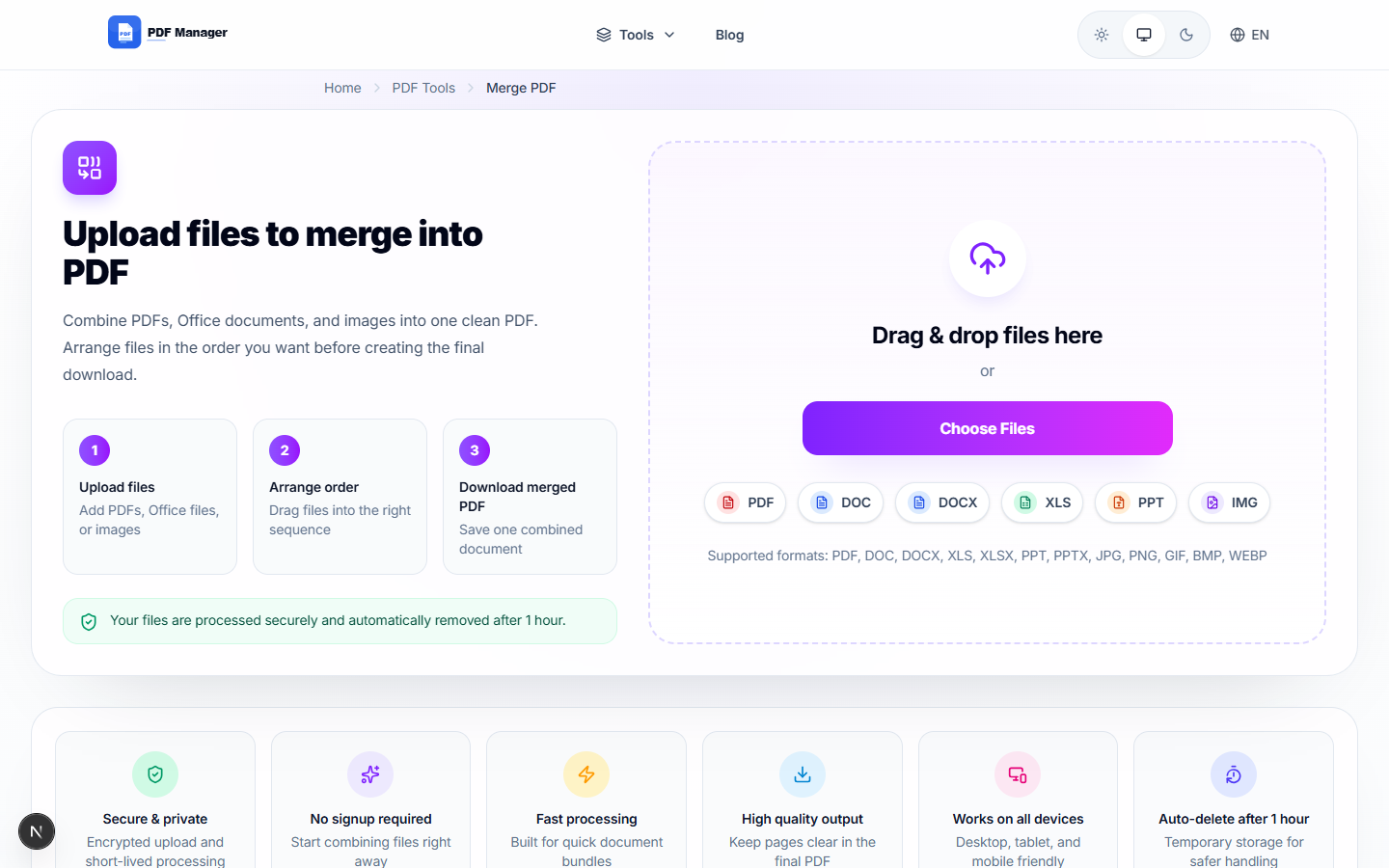
Over the last two years, I have personally merged more than 500 PDF files for various projects - from combining 200-page legal discovery documents to assembling e-book drafts with embedded images and complex tables. Chromebooks have become popular devices for education, business, and personal use, but their ChromeOS environment limits traditional software installation. Merging PDFs on a Chromebook requires a web-based solution that works entirely within the Chrome browser. This guide explains how to combine multiple PDF files into one document using a free online PDF merger that is fully compatible with ChromeOS.
Table of Contents
Why Merge PDF on Chromebook?
Chromebooks run ChromeOS, a lightweight operating system centered around the Chrome browser. While Chromebooks excel at web-based tasks, they lack native PDF editing capabilities. Merging PDFs on a Chromebook traditionally required Android apps from the Google Play Store, which often come with ads, permissions concerns, and performance issues. A browser-based PDF merger solves these problems by working entirely within Chrome, requiring no installations, using minimal system resources, and providing a consistent experience across all Chromebook models from Acer, ASUS, Lenovo, HP, Dell, and Google.
Online PDF mergers are particularly well-suited for Chromebooks because they integrate seamlessly with Google Drive, allow direct downloads to the local filesystem, and work with the touchscreen interfaces found on many modern Chromebooks.
Requirements
- A Chromebook running ChromeOS 89 or later
- The Chrome browser updated to the latest version
- A stable internet connection
- The PDF files you want to merge, stored locally or on Google Drive
Step-by-Step Guide to Merge PDF on Chromebook
- Open Chrome on your Chromebook. Click the Chrome icon in the shelf at the bottom of your screen. Ensure you are signed into Chrome for the best experience.
- Navigate to the PDF Manager merge tool. Visit the PDF Manager website and select the Merge PDF tool. The page loads quickly and adapts to your Chromebook screen size.
- Upload your first PDF. Click the upload button or drag a PDF file from the Files app into the upload area. ChromeOS file picker opens, letting you browse local storage or Google Drive.
- Add more PDF files. Click the Add More button to upload additional PDFs. You can merge up to 20 files in a single session. Each uploaded file shows its name and total page count.
- Reorder the files. Drag and drop files into your preferred order using the handle icons. The final merged document will follow this sequence.
- Configure page selection (optional). If you only need specific pages from certain files, click the page selection option and enter the page ranges you want to include from each document.
- Merge the PDFs. Click the Merge PDF button. The tool processes your files on secure servers. A progress indicator shows the current operation status.
- Preview the result. After merging, a preview of the combined document is displayed. Scroll through the pages using touch or trackpad to verify the content.
- Download the merged PDF. Click Download to save the file to your Chromebook. ChromeOS saves it to the Downloads folder by default. You can also save it directly to Google Drive for access across devices.
Tips and Best Practices
- Name your files consistently before uploading to make identification easier when arranging the merge order.
- Check file sizes before merging. Large PDFs can slow down the upload process. Compress individual files first if they exceed 50 MB.
- Use Google Drive integration to import files directly from your Drive storage without downloading them to your Chromebook first.
- Close unnecessary tabs to free up memory for processing large PDF merges. Chromebooks perform better with fewer tabs open.
- Verify the merged document by opening it in Chrome's built-in PDF viewer before sharing it with others.
Common Use Cases
- Student projects: Combine multiple assignment PDFs, research articles, and presentation handouts into one document for submission.
- Teacher resources: Merge lesson plans, worksheets, and answer keys into a single teaching resource PDF.
- Business reports: Consolidate weekly status reports, meeting notes, and data summaries into one comprehensive report.
- Travel itineraries: Combine flight confirmations, hotel bookings, and attraction tickets into one travel document.
- Ebook creation: Merge several short PDF documents or chapters to create a complete ebook for reading or distribution.
Frequently Asked Questions
Can I merge PDFs on a Chromebook without Android apps?
Yes, online PDF mergers work entirely within the Chrome browser and do not require any Android app installation. Simply visit the PDF Manager website and use the Merge PDF tool directly in your browser.
Does the tool work with touchscreen Chromebooks?
Yes, the PDF Manager merge tool is fully optimized for touch input. You can tap to upload files, use touch to drag and reorder documents, and tap buttons to start the merge and download the result.
Can I merge PDFs from Google Drive on my Chromebook?
Yes, you can import files directly from Google Drive when uploading. The tool integrates with Google Drive's API to let you select files from your Drive storage without downloading them first.
What is the maximum number of PDFs I can merge?
PDF Manager allows merging up to 20 PDF files in a single session. This is sufficient for most educational, business, and personal use cases.
Will the merged PDF maintain the original formatting?
Yes, the merger preserves all original formatting, including fonts, images, tables, and page layouts. Each page in the merged document is identical to the original source pages.
Is it safe to merge PDFs online from a school Chromebook?
Yes, PDF Manager uses encrypted connections and does not store your files permanently. The tool is suitable for use on school-managed Chromebooks. Check your school's acceptable use policy if you have concerns.
Do I need to sign up for an account to merge PDFs?
No, PDF Manager does not require any account registration or sign-up. You can upload, merge, and download your PDFs completely anonymously with no personal information required.
Related Tools
- Merge PDF - Combine multiple PDFs into one
- Split PDF - Separate a PDF into multiple files
- Compress PDF - Reduce PDF file size
- PDF to Word - Convert PDF to editable Word documents
- Rotate PDF - Rotate and fix PDF page orientation
Try Merging Your PDFs Now
Ready to combine your PDF files on your Chromebook? Visit PDF Manager and use our free online PDF merger. Works perfectly with ChromeOS, Google Drive, and all Chromebook models. No app download, no sign-up, completely free. Merge your PDFs in seconds and keep your documents organized. Try it now and experience the easiest way to manage PDFs on your Chromebook.
Why Use PDF Manager
Built for quick conversions
The core tools are designed to get users from upload to result with minimal friction.
Made for practical workflows
Move from one document step to the next without hunting through a confusing tool library.
Simple and trustworthy
Clear states, secure handling, and polished result screens make the workflow easy to trust.

Umar Draz
Document Tools Specialist
Software engineer with 5+ years building document processing tools. Created PDF Manager to make PDF tools accessible to everyone. Tests every feature with real-world documents before release.
- 5+ years in document processing
- Built PDF Manager from scratch
- Tested 10,000+ PDF workflows
Ready to use the tool?
Open the tool page and follow the same workflow from this guide inside a conversion experience built for fast results.
Related Tools
Useful next steps around the same document workflow.
Related Articles
Continue with nearby guides that support the same conversion path.
From PDF
How to Convert PDF to Word Without Losing Formatting
Turn PDFs into editable Word documents while preserving structure, spacing, tables, and readable layout.
To PDF
How to Convert Word to PDF (Free & Fast)
A clean guide to turning Word documents into PDFs quickly for sharing, printing, and final delivery.
Quick Answers
Can I merge PDFs on a Chromebook without Android apps?
Yes, online PDF mergers work entirely within the Chrome browser and do not require any Android app installation. Simply visit the PDF Manager website and use the Merge PDF tool directly in your browser.
Does the tool work with touchscreen Chromebooks?
Yes, the PDF Manager merge tool is fully optimized for touch input. You can tap to upload files, use touch to drag and reorder documents, and tap buttons to start the merge and download the result.
Can I merge PDFs from Google Drive on my Chromebook?
Yes, you can import files directly from Google Drive when uploading. The tool integrates with Google Drive's API to let you select files from your Drive storage without downloading them first.
What is the maximum number of PDFs I can merge?
PDF Manager allows merging up to 20 PDF files in a single session. This is sufficient for most educational, business, and personal use cases.
Will the merged PDF maintain the original formatting?
Yes, the merger preserves all original formatting, including fonts, images, tables, and page layouts. Each page in the merged document is identical to the original source pages.
Is it safe to merge PDFs online from a school Chromebook?
Yes, PDF Manager uses encrypted connections and does not store your files permanently. The tool is suitable for use on school-managed Chromebooks. Check your school's acceptable use policy if you have concerns.
Do I need to sign up for an account to merge PDFs?
No, PDF Manager does not require any account registration or sign-up. You can upload, merge, and download your PDFs completely anonymously with no personal information required.