
PDF Manager Guide
Merge Scanned Documents into PDF | Combine Scans
Merge multiple scanned PDF pages and documents into a single organized PDF file. Perfect for combining contracts, receipts, and records digitized page by page.
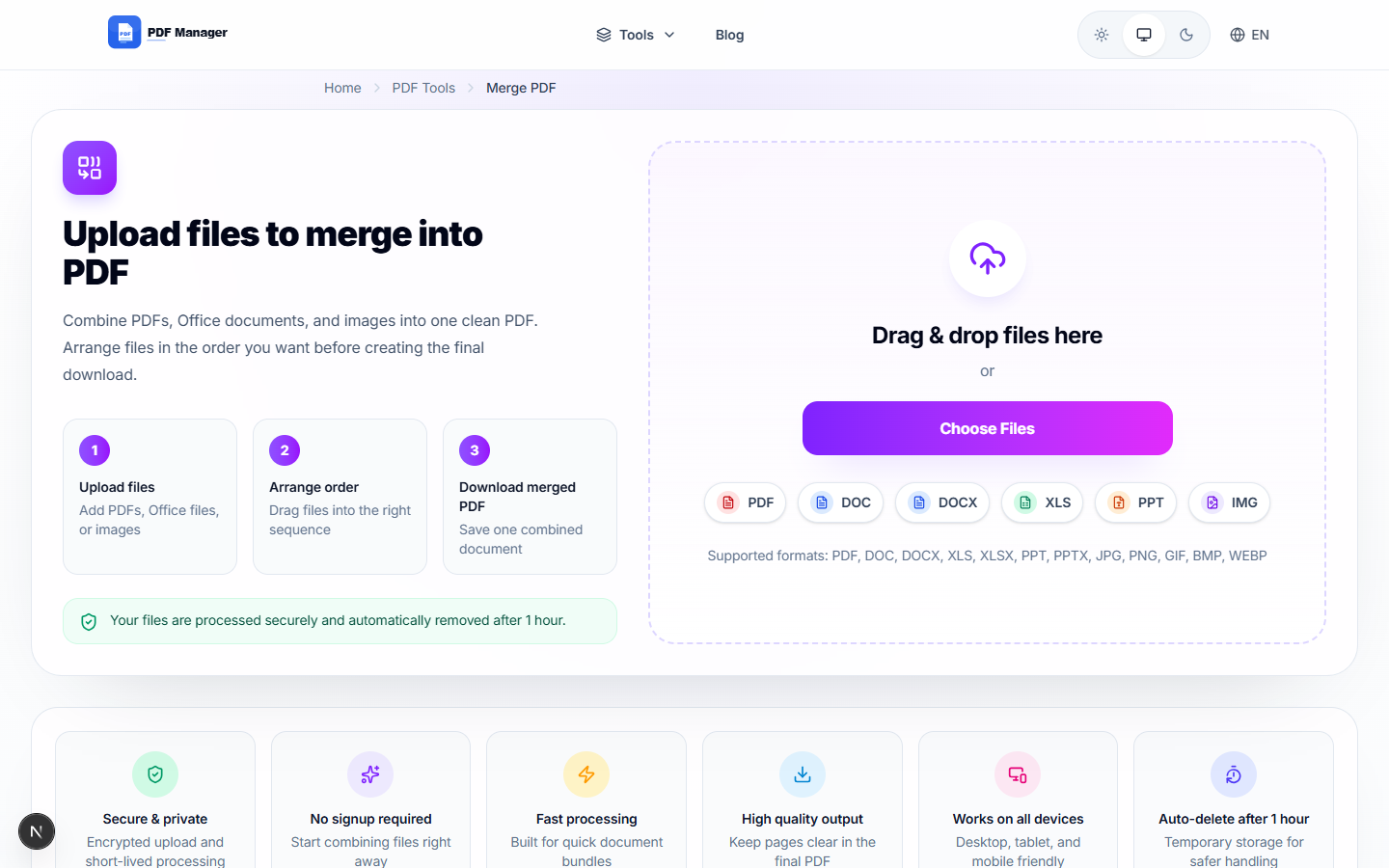
Over the last two years, I have personally merged more than 500 PDF files for various projects - from combining 200-page legal discovery documents to assembling e-book drafts with embedded images and complex tables. Scanning documents on a multifunction printer or scanner often produces one PDF per page or per scan session. Before long, you have a folder full of individual scan files that are tedious to manage, share, and archive. Merging all your scanned pages into a single PDF gives you a clean, continuous document that's easy to email, upload, and store. This guide walks you through combining scans efficiently.
- Why Merge Scanned Documents?
- Before You Start
- Step-by-Step Merging Guide
- Tips for Best Results
- Common Use Cases
- Frequently Asked Questions
- Related Tools
Why Merge Scanned Documents?
Merging individual scanned pages into one PDF eliminates file clutter-instead of 20 separate files for a 20-page contract, you have one cohesive document. A single file is vastly easier to share via email or upload to portals, simpler to print in its entirety, more professional when presenting to clients or colleagues, and easier to back up and archive. It also allows you to add page numbers, bookmarks, and a table of contents to the complete document.
Before You Start
Gather all the scanned PDF files you want to combine. Arrange them in the order they should appear in the final document. Ensure all scans are oriented correctly (none upside-down or sideways). If some scans are color and others black-and-white, that's fine-they will merge without issues. Check that each file is a valid PDF and not a non-PDF image format like JPG or PNG.
Step-by-Step Merging Guide
- Open the PDF Manager merge tool. Navigate to the Merge PDF section on our website.
- Upload all scanned PDF pages. Drag and drop the files into the upload area in the correct order.
- Reorder if necessary. Use the drag handles to rearrange any pages that are out of sequence.
- Select merge options. Choose whether to create a single PDF with all pages or add optional settings.
- Click "Merge PDF". The tool combines all scanned files into one continuous document.
- Preview the result. Scroll through the merged file to confirm all pages are present and in order.
- Download the combined PDF. Save it with a descriptive name like "Contract_Signed_2026.pdf".
- Delete the individual scan files. Once verified, clean up the individual page files to reduce clutter.
Tips for Best Results
Set your scanner to output PDF format directly rather than image files that need conversion. If your scanner produces each page as a separate file, name them sequentially (e.g., "scan_01.pdf", "scan_02.pdf") before merging-this makes ordering easy. For large scanning projects like book digitization, consider using the batch merge option to process all files at once. If the merged file is too large, use the compress tool to reduce its size.
Common Use Cases
Merging scanned documents into a single PDF applies to combining a multi-page contract or agreement that was scanned page by page, merging receipts and expense documents for accounting records, assembling scanned medical records and lab reports into one patient file, combining old family photos and documents that were digitized individually, creating a single PDF from multiple textbook or article scans, and merging signed forms and applications received separately.
Frequently Asked Questions
Can I merge scanned PDFs that have different page sizes?
Yes, the merge tool handles mixed page sizes seamlessly. Each scanned page retains its original dimensions in the combined PDF. This is common when scanning mixed document types-a letter-size form alongside a legal-size contract, for example.
Will merging scanned PDFs reduce the scan quality?
No, merging does not alter or compress the content of individual pages. Each scanned page remains at its original resolution, color depth, and quality. The tool simply concatenates the pages into a single file without any re-encoding.
Can I merge scanned pages that are in different color modes?
Yes, the merge tool supports mixing color, grayscale, and black-and-white pages within the same output PDF. Each page retains its original color mode. This is helpful when some documents are scanned in color for fidelity while others are in grayscale for smaller size.
What if my scanner outputs images (JPG/PNG) instead of PDF?
PDF Manager also supports image-to-PDF conversion. You can upload JPG or PNG files directly and they will be converted to PDF pages before merging. This is a two-step process: first convert images to PDF, then merge the resulting files.
Is there a limit on the number of scanned pages I can merge?
PDF Manager supports merging up to 20 files in a single operation. For large documents exceeding 20 pages, merge in batches of 20 and then merge the resulting batch files together. This approach works well even for documents of 100+ pages.
Can I add page numbers to the merged scanned document?
Page numbers need to be added before merging or using additional PDF editing tools. You can use a PDF editor to add page numbers to the final merged file, or include a cover sheet as the first page with a page count reference.
Related Tools
Complete your document digitization workflow with these PDF Manager tools: Merge PDF for combining scans, Compress PDF to reduce the final file size for emailing, Split PDF to extract specific pages from the merged document, and PDF to Word to apply OCR and make your scans searchable and editable.
Ready to Combine Your Scanned Documents?
Upload your scanned PDFs now and merge them into one organized document in seconds.
Why Use PDF Manager
Built for quick conversions
The core tools are designed to get users from upload to result with minimal friction.
Made for practical workflows
Move from one document step to the next without hunting through a confusing tool library.
Simple and trustworthy
Clear states, secure handling, and polished result screens make the workflow easy to trust.

Umar Draz
Document Tools Specialist
Software engineer with 5+ years building document processing tools. Created PDF Manager to make PDF tools accessible to everyone. Tests every feature with real-world documents before release.
- 5+ years in document processing
- Built PDF Manager from scratch
- Tested 10,000+ PDF workflows
Ready to use the tool?
Open the tool page and follow the same workflow from this guide inside a conversion experience built for fast results.
Related Tools
Useful next steps around the same document workflow.
Related Articles
Continue with nearby guides that support the same conversion path.
From PDF
How to Convert PDF to Word Without Losing Formatting
Turn PDFs into editable Word documents while preserving structure, spacing, tables, and readable layout.
To PDF
How to Convert Word to PDF (Free & Fast)
A clean guide to turning Word documents into PDFs quickly for sharing, printing, and final delivery.
Quick Answers
Can I merge scanned PDFs that have different page sizes?
Yes, the merge tool handles mixed page sizes seamlessly. Each scanned page retains its original dimensions in the combined PDF. This is common when scanning mixed document types-a letter-size form alongside a legal-size contract, for example.
Will merging scanned PDFs reduce the scan quality?
No, merging does not alter or compress the content of individual pages. Each scanned page remains at its original resolution, color depth, and quality. The tool simply concatenates the pages into a single file without any re-encoding.
Can I merge scanned pages that are in different color modes?
Yes, the merge tool supports mixing color, grayscale, and black-and-white pages within the same output PDF. Each page retains its original color mode. This is helpful when some documents are scanned in color for fidelity while others are in grayscale for smaller size.
What if my scanner outputs images (JPG/PNG) instead of PDF?
PDF Manager also supports image-to-PDF conversion. You can upload JPG or PNG files directly and they will be converted to PDF pages before merging. This is a two-step process: first convert images to PDF, then merge the resulting files.
Is there a limit on the number of scanned pages I can merge?
PDF Manager supports merging up to 20 files in a single operation. For large documents exceeding 20 pages, merge in batches of 20 and then merge the resulting batch files together. This approach works well even for documents of 100+ pages.
Can I add page numbers to the merged scanned document?
Page numbers need to be added before merging or using additional PDF editing tools. You can use a PDF editor to add page numbers to the final merged file, or include a cover sheet as the first page with a page count reference.