Why Your PDF Looks Blurry After Converting From Word
PDF blurry after converting from Word? Learn the causes including image resolution and compression settings, and how to get crisp, clear PDFs.
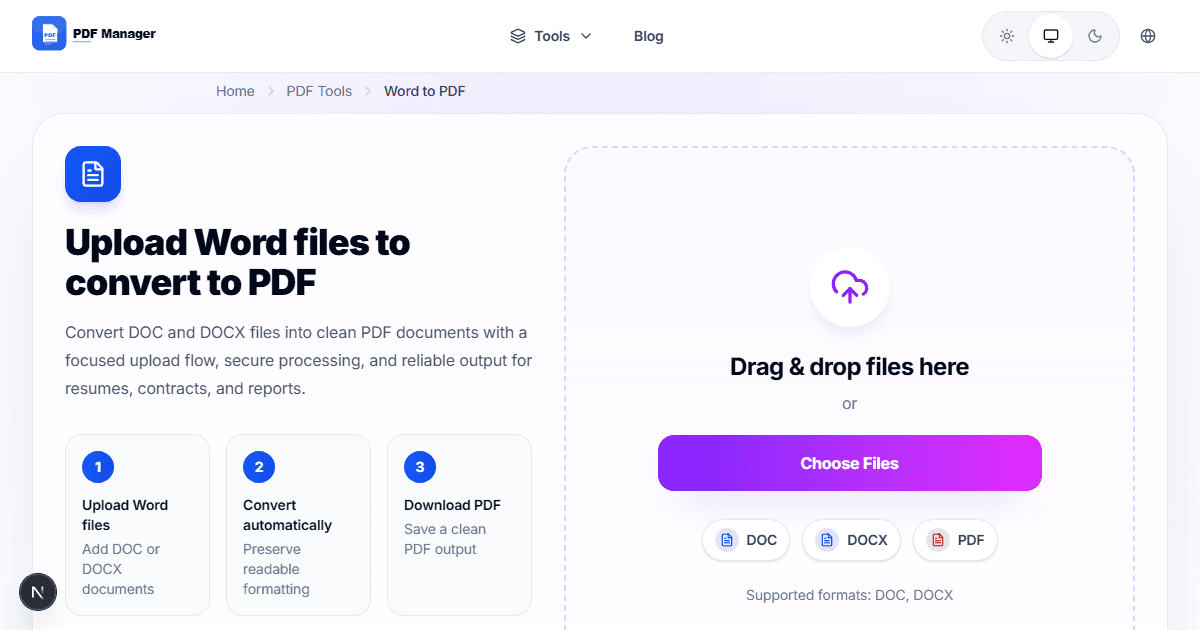
Image Resolution Settings in Word
Word defaults to 150 DPI for images, which can look fine on screen but blurry when printed or viewed at full size. Increase image resolution to 300 DPI before converting.
Compression Applied During Export
Word's PDF export applies compression to reduce file size. This can degrade image quality. Check the export settings and choose high quality if available.
How to Convert Without Quality Loss
Use a dedicated Word to PDF converter that preserves original resolution. Avoid using print-to-PDF as it often reduces quality.
Best Settings for Print-Quality PDFs
Set images to 300 DPI, use standard fonts, and choose the highest quality export option. This ensures crisp output for both screen and print.
Why Use PDF Manager
Built for speed
Upload to result with minimal friction.
Practical workflows
Move between tools without confusion.
Simple and secure
Clear states and polished result screens.

Written by
Umar Draz
Document Tools Specialist
Software engineer with 5+ years building document processing tools. Created PDF Manager to make PDF tools accessible to everyone. Tests every feature with real-world documents before release.
Ready to use the tool?
Open the tool and follow the same workflow from this guide.
Related Tools
Related Articles
How to Convert PDF to Word Without Losing Formatting
Turn PDFs into editable Word documents while preserving structure, spacing, tables, and readable layout.
How to Convert Word to PDF (Free & Fast)
A clean guide to turning Word documents into PDFs quickly for sharing, printing, and final delivery.