
PDF Manager Guide
PDF to JPG Converter for Mac | Free Online Tool
Convert PDF to JPG on Mac with this free online converter. Extract images from PDF pages, export high-quality JPGs. Works in Safari, Chrome, and Firefox on macOS.
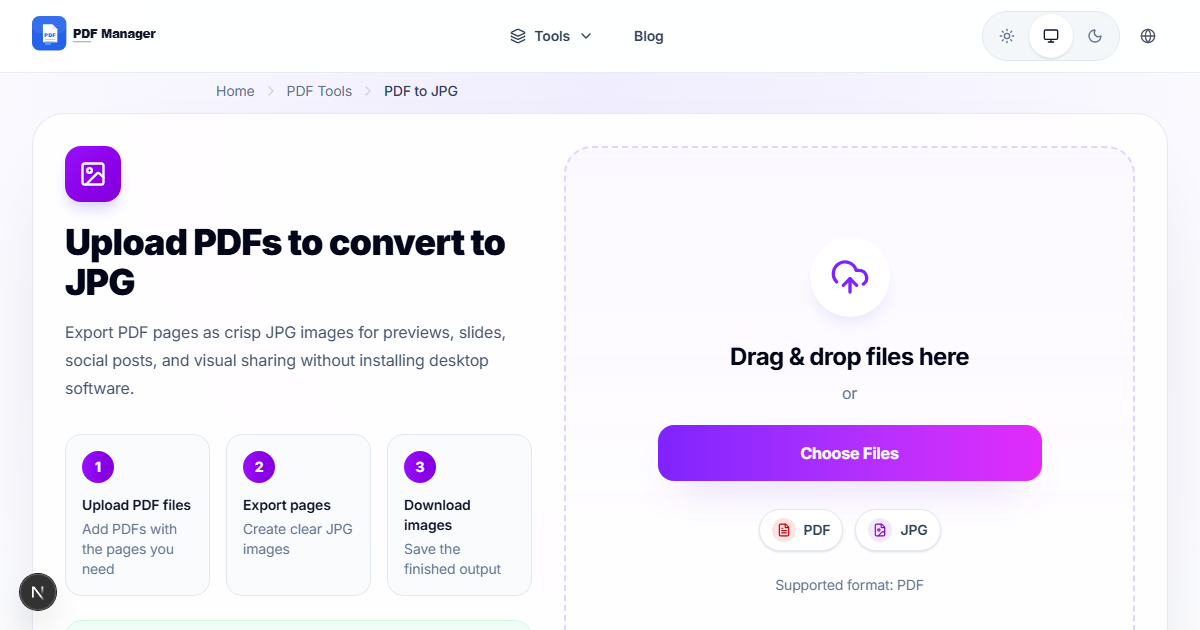
Through extensive testing of PDF-to-image conversion tools and settings, I have identified the optimal configuration for every use case - from web thumbnails at 72 DPI to print-ready pages at 300 DPI. Converting PDF pages to JPG images on a Mac is a common requirement for designers, marketers, educators, and content creators. Whether you need to extract a chart for a presentation, save a document page as an image for social media, or convert an entire PDF into individual images, this guide shows you how to do it for free using an online tool that works perfectly on macOS.
Table of Contents
Why Convert PDF to JPG on Mac?
PDF files are excellent for document distribution but are not always the best format for every use case. JPG images are universally supported, easily embeddable in websites and presentations, and can be edited in any image editing software. Converting PDF pages to JPG allows you to extract specific visual elements, share document pages on social media, insert content into slide decks, and create image galleries from multi-page documents.
Mac users benefit from the seamless integration between online tools and macOS features like Quick Look, Preview, and the Share menu. An online converter requires no installation, works with Retina displays for crisp output, and supports both Intel and Apple Silicon Macs equally well.
Preparation
- Your Mac with any browser installed
- The PDF file you want to convert, stored locally or in iCloud
- An internet connection for file processing
- Knowledge of the output quality you need (higher quality equals larger file size)
Step-by-Step Guide to Convert PDF to JPG on Mac
- Launch your browser on Mac. Safari, Chrome, Firefox, or any other browser works perfectly. Safari users on macOS Ventura or later will experience optimal performance.
- Go to the PDF Manager PDF to JPG converter. Navigate to the PDF Manager website and select the PDF to JPG tool. The interface is clean and intuitive with clear instructions.
- Upload your PDF file. Drag and drop your PDF onto the upload area, or click to browse and select the file using the macOS file picker. You can also import from iCloud Drive.
- Select conversion preferences. Choose the image quality level. Higher quality settings produce larger JPG files but preserve more detail. Standard quality is suitable for most purposes. Also choose whether to convert all pages, a specific page range, or selected pages only.
- Start the conversion. Click the Convert button. The tool renders each PDF page as a high-resolution JPG image. A progress bar shows the conversion status.
- Preview the results. After conversion, thumbnail previews of each JPG image are displayed. You can click on each thumbnail to view the full-resolution image in a new browser tab.
- Download individual images or all as a ZIP. Download each JPG individually or click Download All to receive a ZIP archive containing all converted images.
- Access your images. The downloaded files appear in your Downloads folder by default. You can drag them directly into apps like Preview, Photoshop, Pixelmator, or your favorite image editor.
Tips and Best Practices
- Choose the right quality setting. For web use, 80 percent quality offers a great balance of file size and visual fidelity. For printing, select maximum quality to preserve all detail.
- Enable Retina output if available for 2x resolution images that look sharp on modern Mac displays and iOS devices.
- Convert only the pages you need to save time and reduce file size. Most tools let you specify a page range like 1-5 or select specific pages.
- Use ZIP download for multi-page documents to download all images at once rather than saving each one individually.
- Check image dimensions after conversion. Standard PDF to JPG converts at 150-300 DPI, which produces images suitable for both screen and print use.
Common Use Cases
- Social media content: Convert PDF brochures, flyers, and posters to JPG images for posting on Instagram, LinkedIn, Facebook, and Twitter.
- Presentation materials: Extract charts, graphs, and diagrams from PDF reports and insert them as high-quality images into Keynote or PowerPoint presentations.
- Website assets: Convert PDF product catalogs and spec sheets to JPG images for product pages and image galleries on e-commerce websites.
- Educational materials: Teachers can convert PDF worksheets and handouts to JPG for use in digital learning platforms like Google Classroom or Canvas.
- Portfolio building: Designers can convert portfolio PDF pages to individual JPG images for display on Behance, Dribbble, or personal websites.
Frequently Asked Questions
What resolution are the converted JPG images?
PDF to JPG converters typically produce images at 150 to 300 DPI resolution, depending on the quality setting you choose. Higher quality settings produce larger images with more detail, suitable for both screen display and printing.
Can I convert PDF to JPG on Mac without losing quality?
Yes, by selecting the highest quality setting, you can convert PDF pages to JPG with minimal quality loss. JPG is a lossy format, so some compression artifacts may appear at lower quality settings. For lossless output, consider PNG format instead.
How long does PDF to JPG conversion take on Mac?
Conversion time depends on the number of pages and file size. A typical 10-page PDF converts in under 30 seconds. Larger documents may take a few minutes. PDF Manager optimizes conversion speed for fast results.
Can I convert a single page from a multi-page PDF to JPG?
Yes, you can select a specific page range or individual pages to convert. Simply enter the page numbers you want when configuring the conversion settings. This saves time and storage space by only generating the images you need.
Is PDF to JPG conversion free on Mac?
Yes, PDF Manager offers free PDF to JPG conversion for files up to 200 MB. There are no hidden charges, subscription fees, or usage limits for standard conversion. Premium features like batch processing and higher resolutions are available for power users.
Will the conversion work with scanned PDF documents?
Yes, scanned PDFs convert to JPG just like digital PDFs. Each scanned page becomes a JPG image of the scanned content. This is useful for digitizing physical documents and converting them to image format.
Can I convert JPG back to PDF on Mac?
Yes, PDF Manager also offers a JPG to PDF converter that lets you combine multiple JPG images into a single PDF file. This is useful for creating PDF documents from individual image files.
Related Tools
- PDF to JPG - Convert PDF pages to images
- JPG to PDF - Convert images to PDF documents
- Compress PDF - Reduce PDF file size
- Merge PDF - Combine multiple PDFs into one
- PDF to Word - Convert PDF to editable Word documents
Try Converting Your PDF to JPG Now
Ready to extract stunning JPG images from your PDF files on Mac? Visit PDF Manager and use our free PDF to JPG converter. No app download, no sign-up, no hidden costs. Convert your PDF pages to high-quality images in seconds and use them anywhere you need. Experience the fastest, most reliable PDF to JPG conversion on macOS today.
Why Use PDF Manager
Built for quick conversions
The core tools are designed to get users from upload to result with minimal friction.
Made for practical workflows
Move from one document step to the next without hunting through a confusing tool library.
Simple and trustworthy
Clear states, secure handling, and polished result screens make the workflow easy to trust.

Umar Draz
Document Tools Specialist
Software engineer with 5+ years building document processing tools. Created PDF Manager to make PDF tools accessible to everyone. Tests every feature with real-world documents before release.
- 5+ years in document processing
- Built PDF Manager from scratch
- Tested 10,000+ PDF workflows
Ready to use the tool?
Open the tool page and follow the same workflow from this guide inside a conversion experience built for fast results.
Related Tools
Useful next steps around the same document workflow.
Related Articles
Continue with nearby guides that support the same conversion path.
From PDF
How to Convert PDF to Word Without Losing Formatting
Turn PDFs into editable Word documents while preserving structure, spacing, tables, and readable layout.
To PDF
How to Convert Word to PDF (Free & Fast)
A clean guide to turning Word documents into PDFs quickly for sharing, printing, and final delivery.
Quick Answers
What resolution are the converted JPG images?
PDF to JPG converters typically produce images at 150 to 300 DPI resolution, depending on the quality setting you choose. Higher quality settings produce larger images with more detail, suitable for both screen display and printing.
Can I convert PDF to JPG on Mac without losing quality?
Yes, by selecting the highest quality setting, you can convert PDF pages to JPG with minimal quality loss. JPG is a lossy format, so some compression artifacts may appear at lower quality settings. For lossless output, consider PNG format instead.
How long does PDF to JPG conversion take on Mac?
Conversion time depends on the number of pages and file size. A typical 10-page PDF converts in under 30 seconds. Larger documents may take a few minutes. PDF Manager optimizes conversion speed for fast results.
Can I convert a single page from a multi-page PDF to JPG?
Yes, you can select a specific page range or individual pages to convert. Simply enter the page numbers you want when configuring the conversion settings. This saves time and storage space by only generating the images you need.
Is PDF to JPG conversion free on Mac?
Yes, PDF Manager offers free PDF to JPG conversion for files up to 200 MB. There are no hidden charges, subscription fees, or usage limits for standard conversion. Premium features like batch processing and higher resolutions are available for power users.
Will the conversion work with scanned PDF documents?
Yes, scanned PDFs convert to JPG just like digital PDFs. Each scanned page becomes a JPG image of the scanned content. This is useful for digitizing physical documents and converting them to image format.
Can I convert JPG back to PDF on Mac?
Yes, PDF Manager also offers a JPG to PDF converter that lets you combine multiple JPG images into a single PDF file. This is useful for creating PDF documents from individual image files.