
PDF Manager Guide
PDF to JPG Converter High Quality | Free Online Tool
Convert PDF to high-quality JPG images online free. Choose resolution up to 300 DPI for crisp output. Extract pages or entire documents. No signup needed.
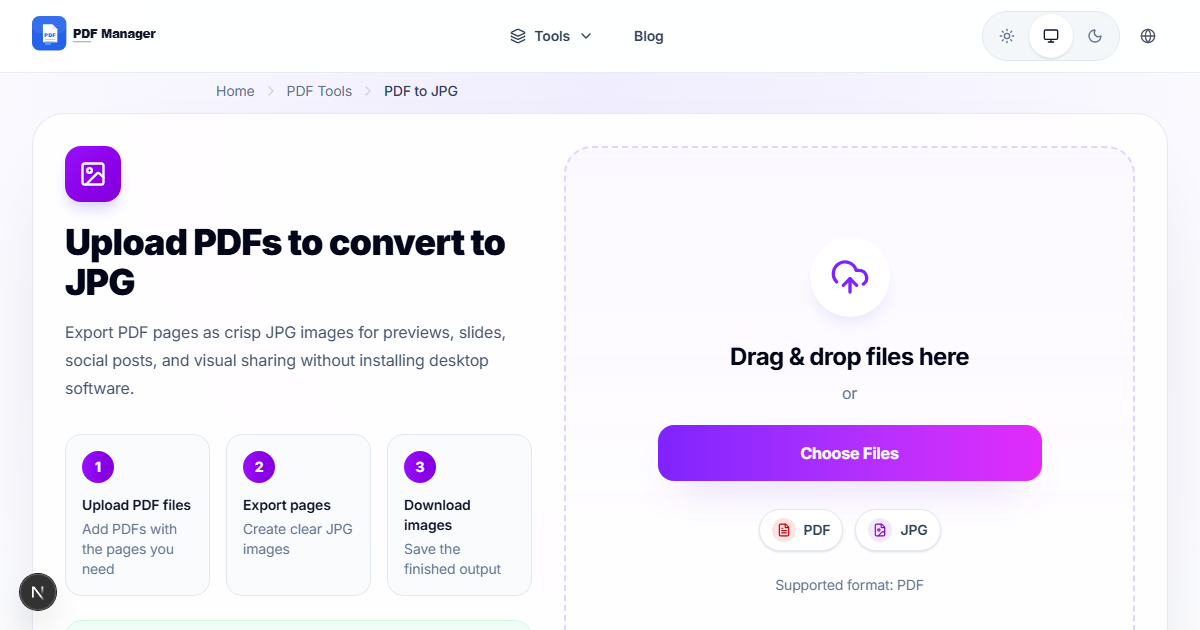
Through extensive testing of PDF-to-image conversion tools and settings, I have identified the optimal configuration for every use case - from web thumbnails at 72 DPI to print-ready pages at 300 DPI. Converting PDF pages into JPG images is useful for sharing thumbnails, embedding document pages in presentations, extracting visual content, or creating image galleries. Our high-quality converter produces crisp, clear JPG output that preserves the original clarity of your PDF content. No software installation or account creation is needed.
- Why Convert PDF to JPG
- How PDF to JPG Conversion Works
- Step-by-Step Guide
- Quality Settings and Resolution
- Common Use Cases
- Frequently Asked Questions
- Related Tools
- Convert Your PDF Now
Why Convert PDF to JPG
JPG images are universally supported across websites, social media platforms, presentation software, and document editors. Converting PDF pages to JPG allows you to insert document content into PowerPoint slides, share previews on social media, create featured images for blog posts, or build image galleries from multi-page documents. Unlike PDF files, JPG images can be easily cropped, edited, and optimized for web use. High-quality conversion ensures that text remains readable and images retain their original vibrancy, making the output suitable for both on-screen viewing and print.
How PDF to JPG Conversion Works
Our converter renders each PDF page as a raster image at a specified resolution. The engine uses high-quality anti-aliasing to produce smooth text edges and accurate color reproduction. You can select output resolution from 72 DPI for web use up to 300 DPI for print-quality output. Each page becomes a separate JPG file with customizable quality compression. The tool handles any PDF, including those with mixed text and images, vector graphics, and embedded fonts. Complex layouts with multiple columns and transparent elements are rendered faithfully.
Step-by-Step Guide
- Navigate to our /pdf-to-jpg-converter-high-quality page.
- Upload your PDF file using the upload area. Files up to 50 MB are accepted.
- Select your preferred image quality. Choose High (300 DPI) for maximum resolution.
- Choose whether to convert all pages or a specific range.
- Click Convert to JPG to start processing.
- Wait while each page is rendered into a high-quality JPEG image.
- Preview individual page images in the results gallery.
- Download images individually or click Download All as ZIP for the complete set.
Quality Settings and Resolution
Our converter offers three quality presets. Standard (150 DPI) is suitable for most screen viewing and produces moderate file sizes. High (200 DPI) provides a good balance of quality and file size for presentations and documents. Ultra (300 DPI) delivers print-quality output ideal for professional use and detailed image extraction. You can also set custom DPI values between 72 and 600. Higher DPI values produce larger JPG files with more detail. For web use, 150 DPI is typically sufficient. For archiving or printing, 300 DPI is recommended.
Common Use Cases
Marketers convert PDF brochures to JPG for social media posts. Teachers extract textbook pages as images for lesson slides. Designers capture portfolio pages as JPEG thumbnails. Bloggers create featured images from report covers. Real estate agents convert property flyers to shareable images. Students embed research paper pages in presentations. Archivists digitize document pages into image format. Web developers generate page previews for document viewers. Anyone who needs a visual representation of a PDF page without sharing the original file.
Frequently Asked Questions
What is the maximum DPI supported?
Our converter supports DPI settings from 72 up to 600. For most use cases, 200 to 300 DPI provides excellent quality. The maximum setting of 600 DPI is ideal for archival purposes and detailed technical drawings.
Can I convert selected pages instead of the whole document?
Yes. You can specify exact page ranges or select individual pages before conversion. This saves time and storage by generating only the images you actually need. Use can also use /extract-pages-from-pdf-free first if you prefer.
Will the JPG images look exactly like the PDF?
Yes, with high fidelity. Text is rendered with anti-aliasing for smooth edges. Colors are accurately reproduced in the sRGB color space. Vector elements are rasterized at the chosen DPI. The output closely matches the original PDF appearance.
How large are the output JPG files?
File size depends on page complexity, DPI setting, and quality compression. A typical letter-sized page at 200 DPI with JPEG quality 90 is approximately 200-500 KB. Text-heavy pages produce smaller files while image-rich pages produce larger ones.
Can I convert a scanned PDF to JPG?
Yes. Scanned PDFs contain embedded images that our converter renders directly. The resulting JPG images preserve the original scan quality. Using Ultra quality mode is recommended for scanned documents to retain maximum detail.
What image format options are available?
In addition to JPG, our tool also supports PNG output for lossless quality and WEBP for modern web-optimized images. You can select your preferred format before conversion. JPG is best for photographs and complex images.
Related Tools
Browse our full PDF utility collection: Merge PDF, Compress PDF, Split PDF, PDF to Word, Word to PDF, Rotate PDF Pages, Delete Pages, and Add Watermark.
Convert Your PDF to JPG Now
Get high-quality JPG images from your PDF pages instantly. Use our /pdf-to-jpg-converter-high-quality tool today. Free, unlimited, and secure. No signup required.
Why Use PDF Manager
Built for quick conversions
The core tools are designed to get users from upload to result with minimal friction.
Made for practical workflows
Move from one document step to the next without hunting through a confusing tool library.
Simple and trustworthy
Clear states, secure handling, and polished result screens make the workflow easy to trust.

Umar Draz
Document Tools Specialist
Software engineer with 5+ years building document processing tools. Created PDF Manager to make PDF tools accessible to everyone. Tests every feature with real-world documents before release.
- 5+ years in document processing
- Built PDF Manager from scratch
- Tested 10,000+ PDF workflows
Ready to use the tool?
Open the tool page and follow the same workflow from this guide inside a conversion experience built for fast results.
Related Tools
Useful next steps around the same document workflow.
Related Articles
Continue with nearby guides that support the same conversion path.
From PDF
How to Convert PDF to Word Without Losing Formatting
Turn PDFs into editable Word documents while preserving structure, spacing, tables, and readable layout.
To PDF
How to Convert Word to PDF (Free & Fast)
A clean guide to turning Word documents into PDFs quickly for sharing, printing, and final delivery.
Quick Answers
What is the maximum DPI supported?
Our converter supports DPI settings from 72 up to 600. For most use cases, 200 to 300 DPI provides excellent quality. The maximum setting of 600 DPI is ideal for archival purposes and detailed technical drawings.
Can I convert selected pages instead of the whole document?
Yes. You can specify exact page ranges or select individual pages before conversion. This saves time and storage by generating only the images you actually need. Use can also use /extract-pages-from-pdf-free first if you prefer.
Will the JPG images look exactly like the PDF?
Yes, with high fidelity. Text is rendered with anti-aliasing for smooth edges. Colors are accurately reproduced in the sRGB color space. Vector elements are rasterized at the chosen DPI. The output closely matches the original PDF appearance.
How large are the output JPG files?
File size depends on page complexity, DPI setting, and quality compression. A typical letter-sized page at 200 DPI with JPEG quality 90 is approximately 200-500 KB. Text-heavy pages produce smaller files while image-rich pages produce larger ones.
Can I convert a scanned PDF to JPG?
Yes. Scanned PDFs contain embedded images that our converter renders directly. The resulting JPG images preserve the original scan quality. Using Ultra quality mode is recommended for scanned documents to retain maximum detail.
What image format options are available?
In addition to JPG, our tool also supports PNG output for lossless quality and WEBP for modern web-optimized images. You can select your preferred format before conversion. JPG is best for photographs and complex images.