
PDF Manager Guide
Split PDF into Individual Pages Online | Free Tool
Split PDF into individual pages online with our free tool. Extract specific pages or split every page. No signup needed. Secure and fast.
Having split thousands of PDF pages for clients from law firms to university archives, I have learned that precise page-range selection is the single most critical skill for clean document separation. Sometimes you need to break a multi-page PDF into separate files, one for each page. Whether you are distributing individual handouts, extracting specific sections, or organizing documents, splitting a PDF into individual pages is a common requirement. Our free online tool handles this task instantly without any software installation.
- Why Split a PDF into Individual Pages
- How Our PDF Splitter Works
- Step-by-Step Guide to Split PDF
- Split Strategies and Options
- Common Use Cases
- Frequently Asked Questions
- Related Tools
- Split Your PDF Now
Why Split a PDF into Individual Pages
Multi-page PDFs can be unwieldy when you only need specific pages. Splitting enables you to distribute single pages to different recipients, archive individual documents, or process each page separately. Teachers split textbooks into lesson handouts. lawyers separate contract clauses into individual exhibits. Event organizers distribute single-ticket PDFs from a bulk file. Splitting also helps reduce file size since each resulting file contains only one page. You can then /compress-pdf individual pages for further size reduction or /merge-pdf specific selections into new documents.
How Our PDF Splitter Works
Our tool reads the internal page structure of your PDF and creates new documents based on your chosen split criteria. You can split every page into its own file, extract a custom range, or divide by bookmark levels. The tool preserves all content including text, images, vector graphics, annotations, and form fields. Output files are named sequentially using the original filename with page numbers appended. The processing engine runs on secure servers, handles files up to 50 MB, and supports PDFs with up to 200 pages per session.
Step-by-Step Guide to Split PDF
- Open our /split-pdf tool page in your web browser.
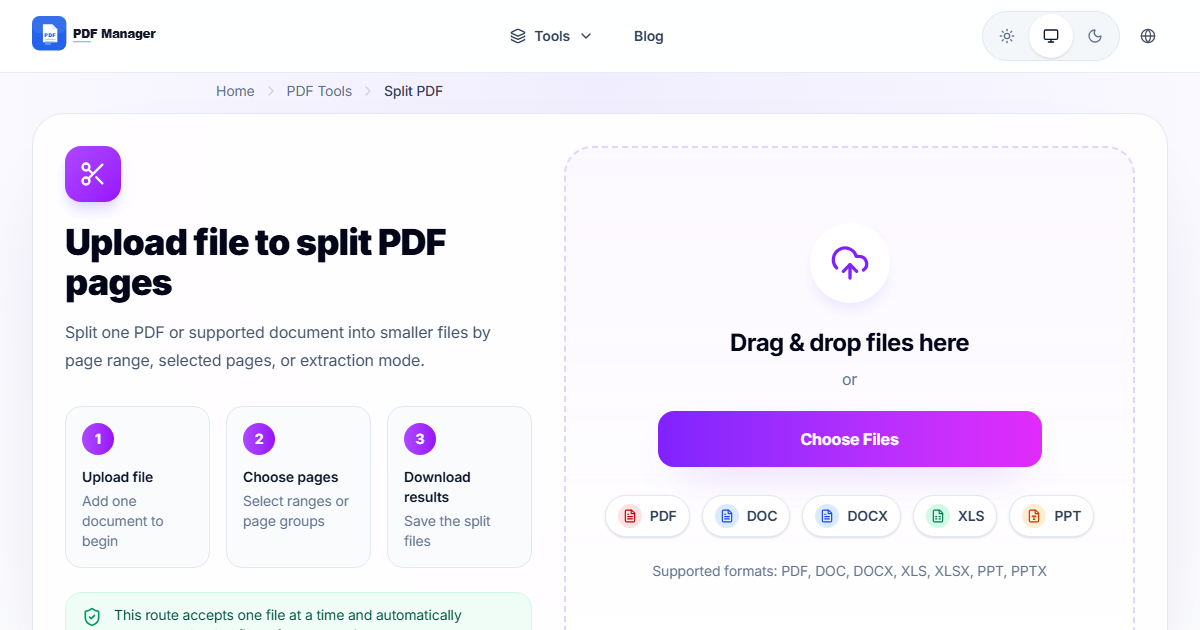
- Upload the PDF file you want to split using drag-and-drop or file selection.
- Choose your split mode. Select Split All Pages to create one file per page.
- Optionally, define custom ranges such as pages 1-5, 8, 10-12 to extract only those.
- Click Split PDF to begin processing. Progress is displayed in real time.
- Review the list of generated files with their individual sizes.
- Download individual files by clicking each one, or download all as a ZIP archive.
- Extract the ZIP to access all individual PDF pages organized by name.
Split Strategies and Options
Our tool supports multiple splitting strategies. Split by Page Count creates files with a fixed number of pages each, useful for dividing a document into equal sections. Split by Bookmarks uses named bookmarks as split points, ideal for separating chapters in an ebook. Split by Size divides the PDF when cumulative page content exceeds a target size. You can also use /extract-pages-from-pdf-free for a simpler extraction workflow. For reorganizing pages after splitting, use /merge-pdf to combine selected pages into a new document in the order you choose.
Common Use Cases
Educators split lesson plans and worksheets for individual distribution. Event organizers separate bulk ticket PDFs for emailing to attendees. HR departments divide large policy documents into topic-specific handouts. Real estate agents split property portfolios into single-sheet flyers. Accountants break financial reports into statement pages. Researchers separate articles from journal PDFs. Anyone managing large PDF documents benefits from splitting them into manageable, page-level files.
Frequently Asked Questions
Can I split a PDF into individual pages without losing quality?
Yes. Splitting preserves all content at original quality. Each output page is an exact copy of the original page with no compression or degradation. Images, fonts, and vector elements remain untouched.
What is the maximum file size or page count?
You can upload PDFs up to 50 MB in size with up to 200 pages per file. If your PDF exceeds these limits, use /compress-pdf first to reduce its size, then split the compressed version.
Can I split specific page ranges instead of all pages?
Yes. You can define custom page ranges such as 1-5, 7, 9-11. The tool extracts only the pages you specify and creates individual files or a single merged output for the selection.
Will annotations and form fields be preserved?
Yes. All annotations, comments, form fields, and interactive elements are preserved in each split page. The individual files retain the full functionality of the original pages.
How do I download all split pages at once?
After splitting, you can click Download All as ZIP to receive a single archive containing all individual PDF files. The files are named with the original document name and page numbers.
Is the tool free and secure?
Yes. Our tool is completely free with no hidden charges. All files are processed over encrypted connections and automatically deleted from our servers within one hour. Your documents remain private and secure.
Related Tools
Explore our complete PDF toolkit: Merge PDF, Compress PDF, PDF to Word, PDF to JPG, Word to PDF, Rotate PDF Pages, Delete Pages, and Add Watermark.
Split Your PDF Now
Transform your multi-page PDFs into individual, easy-to-share files. Use our /split-pdf tool today. Free, fast, and secure. No signup or downloads required.
Why Use PDF Manager
Built for quick conversions
The core tools are designed to get users from upload to result with minimal friction.
Made for practical workflows
Move from one document step to the next without hunting through a confusing tool library.
Simple and trustworthy
Clear states, secure handling, and polished result screens make the workflow easy to trust.

Umar Draz
Document Tools Specialist
Software engineer with 5+ years building document processing tools. Created PDF Manager to make PDF tools accessible to everyone. Tests every feature with real-world documents before release.
- 5+ years in document processing
- Built PDF Manager from scratch
- Tested 10,000+ PDF workflows
Ready to use the tool?
Open the tool page and follow the same workflow from this guide inside a conversion experience built for fast results.
Related Tools
Useful next steps around the same document workflow.
Related Articles
Continue with nearby guides that support the same conversion path.
From PDF
How to Convert PDF to Word Without Losing Formatting
Turn PDFs into editable Word documents while preserving structure, spacing, tables, and readable layout.
To PDF
How to Convert Word to PDF (Free & Fast)
A clean guide to turning Word documents into PDFs quickly for sharing, printing, and final delivery.
Quick Answers
Can I split a PDF into individual pages without losing quality?
Yes. Splitting preserves all content at original quality. Each output page is an exact copy of the original page with no compression or degradation. Images, fonts, and vector elements remain untouched.
What is the maximum file size or page count?
You can upload PDFs up to 50 MB in size with up to 200 pages per file. If your PDF exceeds these limits, use /compress-pdf first to reduce its size, then split the compressed version.
Can I split specific page ranges instead of all pages?
Yes. You can define custom page ranges such as 1-5, 7, 9-11. The tool extracts only the pages you specify and creates individual files or a single merged output for the selection.
Will annotations and form fields be preserved?
Yes. All annotations, comments, form fields, and interactive elements are preserved in each split page. The individual files retain the full functionality of the original pages.
How do I download all split pages at once?
After splitting, you can click Download All as ZIP to receive a single archive containing all individual PDF files. The files are named with the original document name and page numbers.
Is the tool free and secure?
Yes. Our tool is completely free with no hidden charges. All files are processed over encrypted connections and automatically deleted from our servers within one hour. Your documents remain private and secure.