
PDF Manager Guide
Split PDF on Mobile Browser | No App Required
Split PDF files directly on your mobile browser without downloading any app. Extract pages from PDFs on your phone using a free online tool for Android and iPhone.
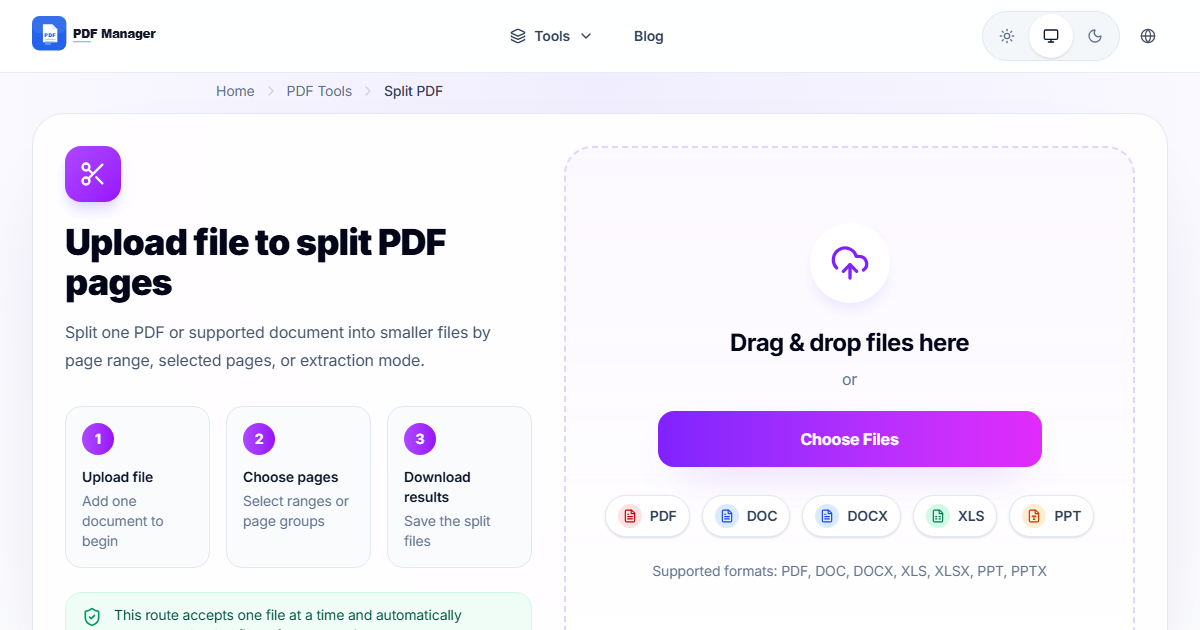
Having split thousands of PDF pages for clients from law firms to university archives, I have learned that precise page-range selection is the single most critical skill for clean document separation. Mobile devices have become primary computing tools for millions of people, yet many PDF editing tasks still seem to require desktop software. Splitting a PDF on your phone or tablet is now possible directly through your mobile browser without installing any app. This guide covers everything you need to know about splitting PDFs on mobile devices, including Android phones, iPhones, iPads, and tablets, using a free online tool designed for mobile browsers.
Table of Contents
Why Split PDF on Mobile Browser?
Receiving a large multi-page PDF on your phone is a common scenario. It might be a lengthy contract, a scanned book, a comprehensive report, or a presentation with dozens of slides. Often, you only need specific pages or want to divide the document into smaller files for easier sharing. Splitting PDFs directly on your mobile browser offers several advantages over traditional methods.
First, it eliminates the need to transfer files to a computer for processing. Second, it saves storage space on your phone since you do not need to install another app. Third, it works consistently across both Android and iOS devices. Fourth, the tools are designed with touch interfaces in mind, making them easy to use with fingers rather than a mouse. Fifth, your files are processed securely and automatically deleted after use.
Browser and Device Compatibility
The PDF Manager split tool is compatible with virtually all modern mobile browsers on all platforms:
- Android: Chrome, Firefox, Samsung Internet, Opera, Edge, Brave
- iOS: Safari, Chrome for iOS, Firefox for iOS, Edge for iOS
- Tablets: iPadOS Safari, Android tablets, Amazon Fire tablets
The tool automatically detects your screen size and optimizes the interface accordingly. On smaller phone screens, buttons are larger and spaced for touch interaction. On tablets, the interface expands to use the additional screen real estate for preview thumbnails and settings panels.
Step-by-Step Guide to Split PDF on Mobile Browser
- Open your mobile browser. Launch Chrome on Android or Safari on iPhone. Ensure you have a stable internet connection.
- Navigate to the PDF Manager split tool. Go to the PDF Manager website and select the Split PDF tool. The mobile-responsive interface loads instantly.
- Upload your PDF file. Tap the upload button. On Android, the file picker shows local storage and Google Drive. On iPhone, it shows local files, iCloud Drive, and other providers. Select the PDF you want to split.
- Choose your splitting method. Select how you want to divide the PDF. Most tools offer multiple methods: extract specific page ranges into a new PDF, split every page into individual PDF files, or split by page ranges to create multiple multi-page documents.
- Enter page selections. If extracting specific pages, type the page numbers or ranges. For example, 1-5 extracts pages 1 through 5. Separate multiple ranges with commas like 1-3, 7, 10-12. If splitting all pages, the tool automatically creates one file per page.
- Preview your selection. The tool highlights the selected pages in the thumbnail view, allowing you to verify your selection before processing.
- Start splitting. Tap the Split button. The tool processes your request and creates the output files. Processing time depends on the file size and number of pages.
- Download the split files. After processing, you can download files individually or as a ZIP archive. On mobile, the ZIP option is convenient for downloading multiple files at once.
- Save or share the results. Use your browser download manager to track downloaded files, or use the Share button to send files directly to email, messaging apps, or cloud storage.
Tips and Best Practices
- Use Wi-Fi for large files. PDFs over 50 MB can consume significant mobile data. Connect to Wi-Fi before uploading large documents.
- Check your storage space before splitting. Each split file takes storage space, and a 100-page document split into individual pages creates 100 separate files.
- Name files clearly by using the page range or content description in the filename when downloading individual files.
- Use the ZIP download option to download all split files at once as a single compressed archive, saving time and keeping files organized.
- Clear your browser cache after splitting sensitive documents to ensure no residual data remains on your device.
Common Use Cases
- Extract contract pages: Split a multi-page contract and extract only the signature page for quick review and signing on your phone.
- Share specific chapters: Extract relevant chapters from a large ebook or manual to share with colleagues who only need specific sections.
- Separate invoice batches: Split a combined PDF containing multiple invoices into individual invoice files for each client.
- Remove unwanted sections: Extract only the pages you need from a large PDF, discarding irrelevant content like appendices or blank pages.
- Create page samples: Split a PDF and share only a few representative pages as a preview or sample of a larger document.
Frequently Asked Questions
Can I split a PDF on my phone without downloading an app?
Yes, online PDF splitters work entirely in your mobile browser. No app installation is required. Simply visit the PDF Manager website, upload your PDF, and split it directly in Safari, Chrome, or any mobile browser.
Will splitting a PDF on mobile affect the document quality?
No, splitting a PDF does not alter the content or quality of the pages. Each split file is an exact copy of the original pages with identical resolution, fonts, images, and formatting.
How do I download multiple split files on my phone?
Use the ZIP download option to download all split files as a single compressed archive. This is much more convenient than downloading each file individually, especially when splitting a document into many separate pages.
Can I split a password-protected PDF on mobile?
Some online splitters support password-protected PDFs if you provide the password. PDF Manager requires you to remove password protection first or enter the password during upload to process the file.
What is the maximum PDF size I can split on mobile?
Most online tools support PDFs up to 100 MB on mobile devices. PDF Manager handles files up to 200 MB. File upload speed depends on your internet connection, so larger files may take longer to upload.
Can I split a PDF by bookmarks on mobile?
Some advanced splitters offer bookmark-based splitting, which divides a PDF at each bookmark location. This is useful for documents with named chapters or sections. Check if your chosen tool supports this feature.
Is it safe to split PDFs on a mobile browser?
Yes, reputable online PDF tools use encrypted SSL connections for all file transfers. PDF Manager automatically deletes your files from its servers within 60 minutes of processing. Your documents remain private and secure.
Related Tools
- Split PDF - Separate a PDF into multiple files
- Merge PDF - Combine multiple PDFs into one
- Compress PDF - Reduce PDF file size
- Rotate PDF - Rotate and fix PDF page orientation
- PDF to Word - Convert PDF to editable Word documents
Try Splitting Your PDF Now
No computer? No problem. Split your PDF files directly on your phone using PDF Manager free online tool. Works on Android, iPhone, iPad, and any mobile browser. No app download, no sign-up, completely free. Extract the pages you need and share them instantly. Visit PDF Manager on your mobile browser and experience the easiest way to split PDFs on the go.
Why Use PDF Manager
Built for quick conversions
The core tools are designed to get users from upload to result with minimal friction.
Made for practical workflows
Move from one document step to the next without hunting through a confusing tool library.
Simple and trustworthy
Clear states, secure handling, and polished result screens make the workflow easy to trust.

Umar Draz
Document Tools Specialist
Software engineer with 5+ years building document processing tools. Created PDF Manager to make PDF tools accessible to everyone. Tests every feature with real-world documents before release.
- 5+ years in document processing
- Built PDF Manager from scratch
- Tested 10,000+ PDF workflows
Ready to use the tool?
Open the tool page and follow the same workflow from this guide inside a conversion experience built for fast results.
Related Tools
Useful next steps around the same document workflow.
Related Articles
Continue with nearby guides that support the same conversion path.
From PDF
How to Convert PDF to Word Without Losing Formatting
Turn PDFs into editable Word documents while preserving structure, spacing, tables, and readable layout.
To PDF
How to Convert Word to PDF (Free & Fast)
A clean guide to turning Word documents into PDFs quickly for sharing, printing, and final delivery.
Quick Answers
Can I split a PDF on my phone without downloading an app?
Yes, online PDF splitters work entirely in your mobile browser. No app installation is required. Simply visit the PDF Manager website, upload your PDF, and split it directly in Safari, Chrome, or any mobile browser.
Will splitting a PDF on mobile affect the document quality?
No, splitting a PDF does not alter the content or quality of the pages. Each split file is an exact copy of the original pages with identical resolution, fonts, images, and formatting.
How do I download multiple split files on my phone?
Use the ZIP download option to download all split files as a single compressed archive. This is much more convenient than downloading each file individually, especially when splitting a document into many separate pages.
Can I split a password-protected PDF on mobile?
Some online splitters support password-protected PDFs if you provide the password. PDF Manager requires you to remove password protection first or enter the password during upload to process the file.
What is the maximum PDF size I can split on mobile?
Most online tools support PDFs up to 100 MB on mobile devices. PDF Manager handles files up to 200 MB. File upload speed depends on your internet connection, so larger files may take longer to upload.
Can I split a PDF by bookmarks on mobile?
Some advanced splitters offer bookmark-based splitting, which divides a PDF at each bookmark location. This is useful for documents with named chapters or sections. Check if your chosen tool supports this feature.
Is it safe to split PDFs on a mobile browser?
Yes, reputable online PDF tools use encrypted SSL connections for all file transfers. PDF Manager automatically deletes your files from its servers within 60 minutes of processing. Your documents remain private and secure.