
PDF Manager Guide
Split PDF on Windows 10 Free | No Software Needed
Split PDF files on Windows 10 for free with no software installation. Extract pages from PDFs using your browser. Works with Edge, Chrome, and Firefox on Windows.
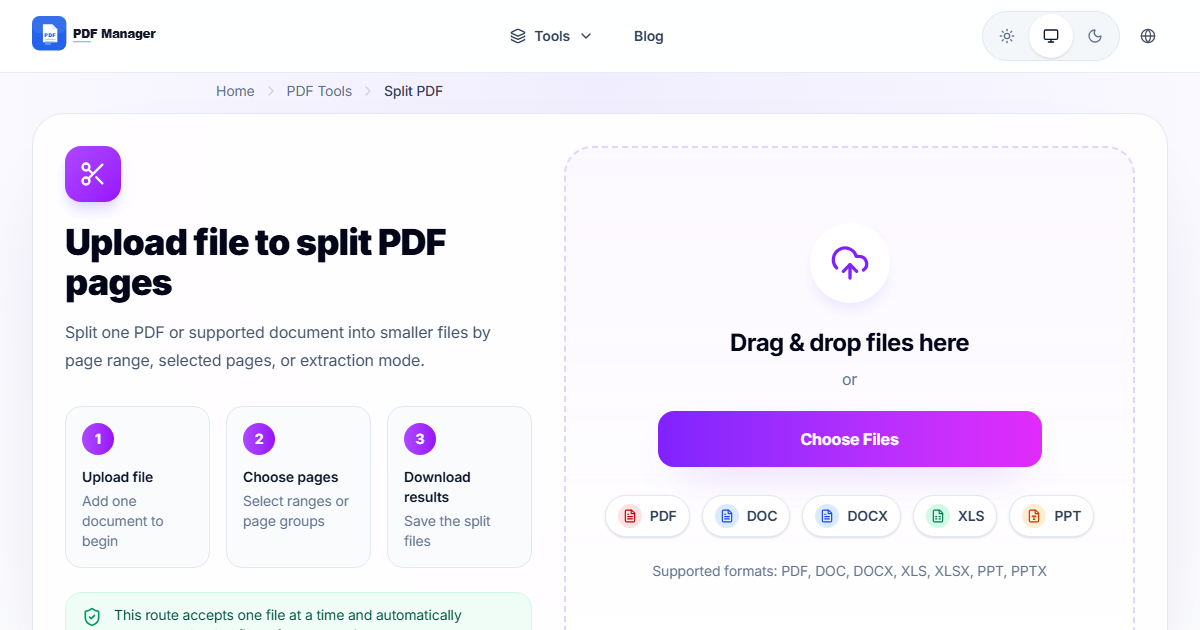
Having split thousands of PDF pages for clients from law firms to university archives, I have learned that precise page-range selection is the single most critical skill for clean document separation. Splitting PDF files on Windows 10 traditionally required installing desktop software like Adobe Acrobat or using complex PowerShell scripts. This guide presents a simpler approach: splitting PDFs directly in your browser using a free online tool. Whether you need to extract a single page, separate a multi-page document into individual files, or divide a PDF by page ranges, this method works without installing anything on your Windows 10 PC.
Table of Contents
Why Split PDF on Windows 10?
Windows 10 users frequently encounter large PDF documents that need to be divided into smaller, more manageable files. Perhaps you received a 100-page contract but only need to review a specific section. Maybe you have a scanned book and want to extract individual chapters. Or you might need to separate a multi-page invoice into single-page files for individual client distribution. Splitting PDFs allows you to work with exactly the pages you need, reducing file sizes and improving organization.
Using an online splitter eliminates the need to purchase Adobe Acrobat Pro, which costs hundreds of dollars. It also avoids the security risks of downloading freeware from unverified sources. Browser-based tools work seamlessly with Microsoft Edge, which is built on Chromium and fully supports modern PDF processing.
Preparation and Requirements
- A Windows 10 PC with any modern browser installed
- The PDF file you want to split, saved locally or accessible via cloud storage
- An internet connection for file upload and download
- Basic knowledge of which pages or ranges you need to extract
Step-by-Step Guide to Split PDF on Windows 10
- Open your browser. Launch Microsoft Edge, Google Chrome, Mozilla Firefox, or any other browser on your Windows 10 computer.
- Navigate to the PDF Manager split tool. Go to the PDF Manager website and select the Split PDF tool. The interface is clean and optimized for desktop use.
- Upload your PDF file. Click the upload button or drag and drop your PDF into the designated area. You can also use the browse option to navigate through Windows File Explorer.
- Choose your splitting method. Select how you want to split the PDF. Common options include: split by page range to extract specific pages as a new PDF, split into individual pages where each page becomes its own PDF file, and split by bookmarks if your PDF contains named bookmarks for chapters or sections.
- Configure the split settings. If splitting by page range, enter the page numbers or ranges. For example, 1-5, 8, 11-15 extracts pages 1 through 5, page 8, and pages 11 through 15. If splitting into individual pages, the tool automatically generates one file per page.
- Start the splitting process. Click the Split button. The tool processes your PDF and extracts the specified pages into new PDF files.
- Preview and download. Once splitting is complete, you can preview each extracted file. Download individual files or download them all as a ZIP archive for convenience.
- Save to your Windows PC. Choose a destination folder for your split PDFs. Windows 10 suggests the Downloads folder by default, but you can select any location.
Tips and Best Practices
- Plan your splits before uploading by reviewing the PDF in Edge or any PDF viewer. Note down the page numbers you want to extract.
- Use descriptive filenames for split files. The tool typically uses the original filename plus page numbers. Rename files immediately after downloading for better organization.
- Check the total page count before splitting. Large PDFs with hundreds of pages may take longer to process. Consider splitting in batches for very large documents.
- Leverage Microsoft Edge which has a built-in PDF viewer that lets you quickly open and review your split files without additional software.
- Keep the original intact. The split tool does not modify your original PDF. It creates new files from the extracted pages, leaving the source file unchanged.
Common Use Cases
- Extract specific chapters from an ebook or manual to share with team members who only need relevant sections.
- Separate invoice pages from a batch PDF into individual invoices for each client or customer.
- Remove unwanted pages such as blank pages, cover sheets, or appendix pages from a document before distribution.
- Create sample documents by extracting a few representative pages from a larger report to share as previews.
- Organize scanned documents by splitting a batch scan into individual files for each physical page or document.
Frequently Asked Questions
Can I split a PDF on Windows 10 without Adobe Acrobat?
Yes, you can split PDFs using free online tools that work in any browser. PDF Manager offers a free PDF splitter that requires no installation and works directly in Microsoft Edge, Chrome, or Firefox on Windows 10.
Is the PDF splitter compatible with all Windows 10 versions?
Yes, online PDF splitters are browser-based and work on all versions of Windows 10, including Home, Pro, Enterprise, and Education editions. The only requirement is a modern browser with JavaScript enabled.
How many pages can I split at once?
Most online splitters handle PDFs of any page count. PDF Manager supports documents up to 200 MB with virtually unlimited pages. However, very large documents with hundreds of pages may take longer to process.
Will splitting a PDF affect the quality?
No, splitting a PDF does not alter the content or quality of the extracted pages. Each split file is an exact copy of the original pages with identical resolution, fonts, and formatting.
Can I split a PDF into individual pages automatically?
Yes, most splitters offer an option to extract every page as a separate PDF file. This creates one file per page, which is useful when you need to distribute or archive individual pages separately.
Is it safe to split sensitive PDF files online?
Reputable online tools use end-to-end encryption and automatically delete files after processing. PDF Manager deletes all uploaded files within 60 minutes and does not access or store document content.
Can I preview pages before splitting?
Yes, the PDF Manager split tool provides a page preview feature that lets you see thumbnails of all pages before selecting which ones to extract. This helps ensure you select the correct pages.
Related Tools
- Split PDF - Separate a PDF into multiple files
- Merge PDF - Combine multiple PDFs into one
- Compress PDF - Reduce PDF file size
- PDF to Word - Convert PDF to editable Word documents
- Rotate PDF - Rotate and fix PDF page orientation
Try Splitting Your PDF Now
Stop searching for expensive PDF software and start splitting your documents for free today. PDF Manager gives you a fast, secure, and reliable way to split PDFs on Windows 10 with no installation required. Whether you need to extract a single page or divide a massive document into individual files, our tool handles it instantly. Try it now and streamline your document management workflow.
Why Use PDF Manager
Built for quick conversions
The core tools are designed to get users from upload to result with minimal friction.
Made for practical workflows
Move from one document step to the next without hunting through a confusing tool library.
Simple and trustworthy
Clear states, secure handling, and polished result screens make the workflow easy to trust.

Umar Draz
Document Tools Specialist
Software engineer with 5+ years building document processing tools. Created PDF Manager to make PDF tools accessible to everyone. Tests every feature with real-world documents before release.
- 5+ years in document processing
- Built PDF Manager from scratch
- Tested 10,000+ PDF workflows
Ready to use the tool?
Open the tool page and follow the same workflow from this guide inside a conversion experience built for fast results.
Related Tools
Useful next steps around the same document workflow.
Related Articles
Continue with nearby guides that support the same conversion path.
From PDF
How to Convert PDF to Word Without Losing Formatting
Turn PDFs into editable Word documents while preserving structure, spacing, tables, and readable layout.
To PDF
How to Convert Word to PDF (Free & Fast)
A clean guide to turning Word documents into PDFs quickly for sharing, printing, and final delivery.
Quick Answers
Can I split a PDF on Windows 10 without Adobe Acrobat?
Yes, you can split PDFs using free online tools that work in any browser. PDF Manager offers a free PDF splitter that requires no installation and works directly in Microsoft Edge, Chrome, or Firefox on Windows 10.
Is the PDF splitter compatible with all Windows 10 versions?
Yes, online PDF splitters are browser-based and work on all versions of Windows 10, including Home, Pro, Enterprise, and Education editions. The only requirement is a modern browser with JavaScript enabled.
How many pages can I split at once?
Most online splitters handle PDFs of any page count. PDF Manager supports documents up to 200 MB with virtually unlimited pages. However, very large documents with hundreds of pages may take longer to process.
Will splitting a PDF affect the quality?
No, splitting a PDF does not alter the content or quality of the extracted pages. Each split file is an exact copy of the original pages with identical resolution, fonts, and formatting.
Can I split a PDF into individual pages automatically?
Yes, most splitters offer an option to extract every page as a separate PDF file. This creates one file per page, which is useful when you need to distribute or archive individual pages separately.
Is it safe to split sensitive PDF files online?
Reputable online tools use end-to-end encryption and automatically delete files after processing. PDF Manager deletes all uploaded files within 60 minutes and does not access or store document content.
Can I preview pages before splitting?
Yes, the PDF Manager split tool provides a page preview feature that lets you see thumbnails of all pages before selecting which ones to extract. This helps ensure you select the correct pages.