
PDF Manager Guide
Split PDF Tax Documents | Separate by Form or Year
Split your tax document PDFs by form type or tax year for organized filing. Extract W-2s, 1099s, schedules, and returns into separate, easy-to-manage files.
Having split thousands of PDF pages for clients from law firms to university archives, I have learned that precise page-range selection is the single most critical skill for clean document separation. Tax season generates thick PDF files-W-2s, 1099s, receipts, deduction schedules, and full tax returns all bundled together. A single combined PDF can run hundreds of pages, making it hard to find specific forms when you need them. Splitting your tax documents by form type or tax year creates organized, searchable files that simplify filing, audits, and record keeping for years to come.
- Why Split Tax Document PDFs?
- Before You Start
- Step-by-Step Splitting Guide
- Tips for Best Results
- Common Use Cases
- Frequently Asked Questions
- Related Tools
Why Split Tax Document PDFs?
Organized tax documents make filing faster because you can quickly locate specific forms without scrolling through irrelevant pages. During an audit, being able to present neatly separated documents shows professionalism and saves time. Splitting by year helps you maintain a clean archive-one folder per year, each containing clearly labeled form PDFs. It also makes sharing specific documents with your accountant or tax preparer much simpler.
Before You Start
Collect all your tax-related PDFs into one folder. Identify which documents are combined in a single large file versus those that are already separate. Decide how you want to organize them: by form type (all W-2s together, all 1099s together), by tax year (2024, 2025, 2026), or by category (income, deductions, credits). Have the page ranges or form names ready for each split operation.
Step-by-Step Splitting Guide
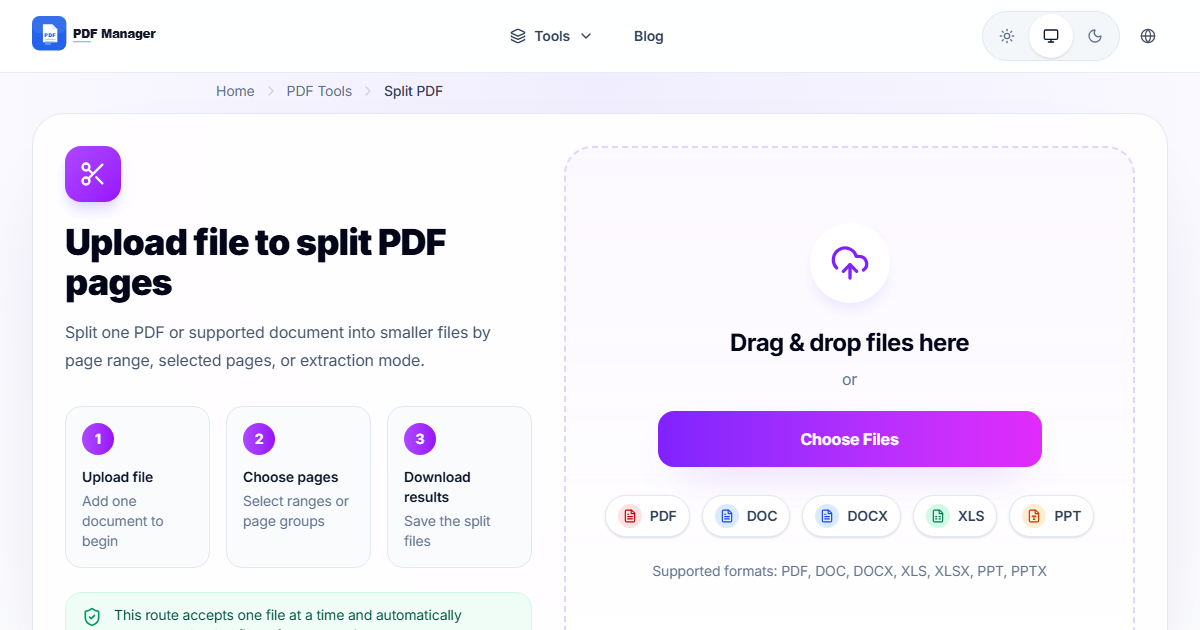
- Open the PDF Manager split tool. Navigate to the Split PDF section.
- Upload your tax document PDF. Drag and drop the combined file onto the upload area.
- Choose the split method. Use "Split by page range" to extract specific forms or "Split by bookmarks" if the PDF has built-in navigation.
- Define each split range. For example: pages 1-2 for W-2, pages 3-5 for 1099-INT, pages 6-15 for Schedule A, etc.
- Name each output file. Use descriptive names like "W2_2026.pdf" or "Schedule_C_2026.pdf".
- Click "Split PDF". The tool processes each range and generates separate files.
- Download all split files. Save them to a dedicated tax folder organized by year.
- Verify each file. Open each split PDF to confirm it contains the correct pages and is complete.
Tips for Best Results
When splitting a full tax return, keep a copy of the complete return PDF before splitting-it's your master record. Use year-specific folder names like "Tax_2026" and within each folder, subfolders for "Income", "Deductions", and "Correspondence". For multiple years of the same form type, use consistent naming like "1099-DIV_2024.pdf", "1099-DIV_2025.pdf", etc. Consider merging all split files for a given year back into a tidy annual file after organization.
Common Use Cases
Splitting tax document PDFs helps when separating a full tax return into individual forms (1040, Schedule A, Schedule C, etc.), extracting W-2 and 1099 forms for different tax years, isolating deduction receipts from your main filing document, splitting IRS correspondence and notices from your return documents, separating business and personal tax documents that were combined in one scan, and organizing multi-year tax files by creating year-specific PDFs from a single large archive.
Frequently Asked Questions
Can I split a scanned tax document PDF that's all images?
Yes, the split tool works with any PDF regardless of whether it contains text or scanned images. You specify page ranges, and the tool extracts those pages into new files. The image quality and content of each page are preserved exactly as they were.
How do I know which pages correspond to which tax forms?
If your tax preparation software generated the PDF, the forms are usually labeled in the file. You can also open the PDF and scroll through to identify where each form begins. Many tax PDFs include a table of contents or bookmark navigation that lists page numbers for each form.
Can I split PDFs by tax year if multiple years are in one file?
Yes, use the "Split by page range" option and enter the page ranges corresponding to each tax year. For example, pages 1-50 for 2025 and pages 51-100 for 2026. Name each output file with the appropriate year for clear organization.
Is there a limit on how many tax documents I can split at once?
PDF Manager supports up to 20 split ranges per operation. For comprehensive tax files with many individual forms, this is usually sufficient. If you have more than 20 forms, process them in multiple batches.
Will splitting my tax return PDF affect the digital signatures or form fields?
Splitting extracts exact copies of pages, so digital signatures, form fields, and annotations present on each page are preserved in the output file. The individual form pages retain all their original interactive elements.
Should I keep the original combined tax PDF after splitting?
Yes, always keep the original combined file as your master record. The split files are for convenience and organization, but the complete tax return PDF is the authoritative document for your records and any future audits.
Related Tools
Complete your tax document management with these PDF Manager tools: Split PDF for form separation, Merge PDF to combine documents for submission, Compress PDF to reduce file sizes for e-filing portals, and PDF to Word if you need to modify form information.
Ready to Organize Your Tax Documents?
Upload your tax PDF now and split it into separate forms and years in seconds.
Why Use PDF Manager
Built for quick conversions
The core tools are designed to get users from upload to result with minimal friction.
Made for practical workflows
Move from one document step to the next without hunting through a confusing tool library.
Simple and trustworthy
Clear states, secure handling, and polished result screens make the workflow easy to trust.

Umar Draz
Document Tools Specialist
Software engineer with 5+ years building document processing tools. Created PDF Manager to make PDF tools accessible to everyone. Tests every feature with real-world documents before release.
- 5+ years in document processing
- Built PDF Manager from scratch
- Tested 10,000+ PDF workflows
Ready to use the tool?
Open the tool page and follow the same workflow from this guide inside a conversion experience built for fast results.
Related Tools
Useful next steps around the same document workflow.
Related Articles
Continue with nearby guides that support the same conversion path.
From PDF
How to Convert PDF to Word Without Losing Formatting
Turn PDFs into editable Word documents while preserving structure, spacing, tables, and readable layout.
To PDF
How to Convert Word to PDF (Free & Fast)
A clean guide to turning Word documents into PDFs quickly for sharing, printing, and final delivery.
Quick Answers
Can I split a scanned tax document PDF that's all images?
Yes, the split tool works with any PDF regardless of whether it contains text or scanned images. You specify page ranges, and the tool extracts those pages into new files. The image quality and content of each page are preserved exactly as they were.
How do I know which pages correspond to which tax forms?
If your tax preparation software generated the PDF, the forms are usually labeled in the file. You can also open the PDF and scroll through to identify where each form begins. Many tax PDFs include a table of contents or bookmark navigation that lists page numbers for each form.
Can I split PDFs by tax year if multiple years are in one file?
Yes, use the "Split by page range" option and enter the page ranges corresponding to each tax year. For example, pages 1-50 for 2025 and pages 51-100 for 2026. Name each output file with the appropriate year for clear organization.
Is there a limit on how many tax documents I can split at once?
PDF Manager supports up to 20 split ranges per operation. For comprehensive tax files with many individual forms, this is usually sufficient. If you have more than 20 forms, process them in multiple batches.
Will splitting my tax return PDF affect the digital signatures or form fields?
Splitting extracts exact copies of pages, so digital signatures, form fields, and annotations present on each page are preserved in the output file. The individual form pages retain all their original interactive elements.
Should I keep the original combined tax PDF after splitting?
Yes, always keep the original combined file as your master record. The split files are for convenience and organization, but the complete tax return PDF is the authoritative document for your records and any future audits.