
PDF Manager Guide
Split PDF Textbook into Chapters | Separate by Chapter
Split your PDF textbook into individual chapters by page range. Extract each chapter as a separate PDF for easier studying, annotation, and mobile reading.
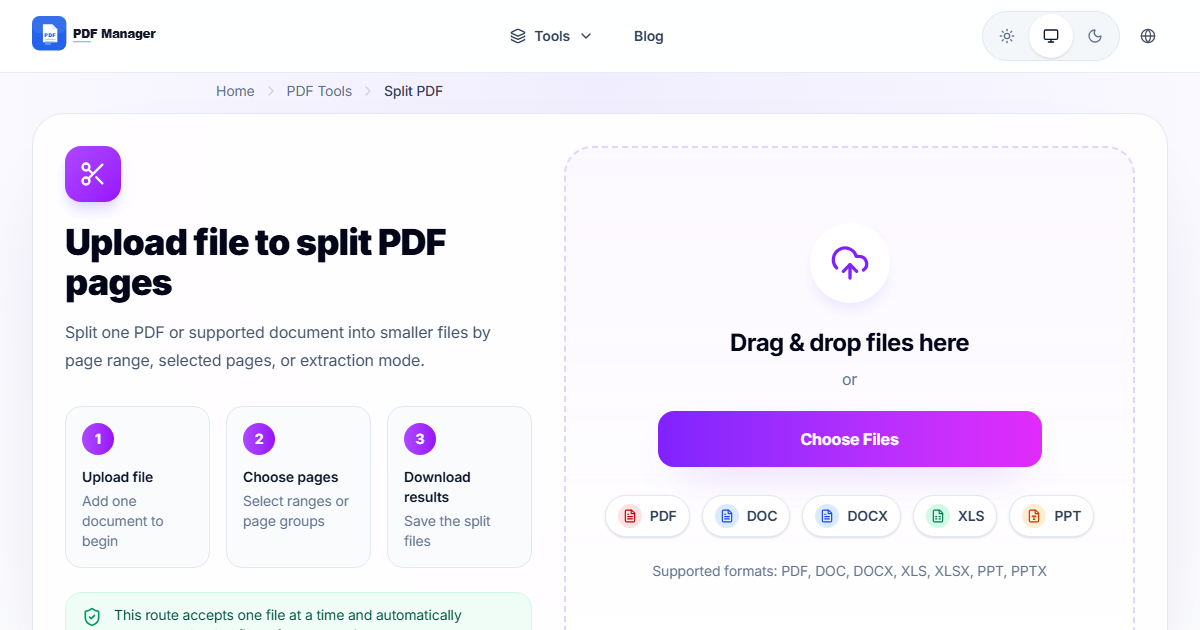
Having split thousands of PDF pages for clients from law firms to university archives, I have learned that precise page-range selection is the single most critical skill for clean document separation. Digital textbooks are convenient, but carrying around a 500-page PDF on your tablet or phone can be cumbersome. Splitting the textbook into individual chapter files makes studying more manageable-you can carry only what you need, annotate per chapter, and keep files organized by week or exam schedule. This guide walks you through splitting your PDF textbook by chapter.
- Why Split a Textbook PDF into Chapters?
- Before You Start
- Step-by-Step Splitting Guide
- Tips for Best Results
- Common Use Cases
- Frequently Asked Questions
- Related Tools
Why Split a Textbook PDF into Chapters?
Splitting a textbook by chapter reduces file size per document, which means faster loading on mobile devices and e-readers. It also enables focused studying-you can annotate, highlight, and take notes on one chapter at a time without scrolling through hundreds of pages. Chapter-level files are easier to share with classmates, easier to search within a specific topic, and more manageable when printing only the sections you need for class.
Before You Start
Open your textbook PDF and locate the table of contents. Note the starting page number for each chapter. Many textbooks have a chapter opener on an odd-numbered page. Also check for front matter (preface, introduction) and back matter (appendices, index, glossary) that you may want to split separately. Write down the page ranges for each chapter you want to extract.
Step-by-Step Splitting Guide
- Open the PDF Manager split tool. Navigate to the Split PDF section.
- Upload your textbook PDF. Drag and drop the full textbook file onto the upload area.
- Choose the split mode. Select "Split by page range" for chapter-by-chapter extraction.
- Enter chapter page ranges. For each chapter, add a range (e.g., pages 1-30 for Chapter 1, 31-58 for Chapter 2, etc.).
- Name each output file. Label each range with the chapter name (e.g., "Chapter_1_Introduction", "Chapter_2_Basics").
- Click "Split PDF". The tool processes each range and generates separate files.
- Download all chapter PDFs. Each chapter downloads as its own individual PDF file.
- Organize your files. Create a folder with subfolders per chapter or rename files with your course numbering system.
Tips for Best Results
When entering page ranges, remember that PDF page numbers might not match the printed page numbers printed on the textbook pages. Check the PDF viewer's actual page counter to get accurate ranges. If your textbook has a separate index and glossary at the end, consider splitting those as a bonus file for quick reference. Name your chapter files clearly so you can reassemble them later if needed using the merge tool.
Common Use Cases
Splitting a PDF textbook into chapters applies to university course textbooks where each week covers a specific chapter, self-study materials where you focus on one topic at a time, reference books where you only need certain sections for research, exam preparation where you study chapter by chapter, and sharing specific chapters with study groups without sending the entire file.
Frequently Asked Questions
Will splitting a textbook PDF reduce image or text quality?
No, the split tool extracts pages without any compression or quality loss. Each chapter PDF retains the exact same resolution, image quality, and text clarity as the original textbook. The only difference is that each file contains fewer pages.
Can I split a PDF textbook by bookmarks or table of contents entries?
Yes, if your textbook PDF includes bookmark metadata, you can use the "Split by bookmarks" option. The tool detects chapter bookmarks and automatically creates separate files based on those markers, saving you the trouble of manually entering page ranges.
What if the page ranges between chapters are not sequential?
If your textbook has appendix sections or inserts that break the flow, you can specify non-sequential page ranges. The split tool accepts any valid page range, and you can create as many ranges as needed to accommodate complex textbook structures.
Is there a limit on the number of chapters I can split?
PDF Manager allows up to 20 split ranges per operation. Most textbooks have 10-15 chapters, so this limit is sufficient. For textbooks with more chapters, you can run the split tool in multiple batches.
Can I combine the split chapters back into a full textbook later?
Yes, you can use PDF Manager's Merge PDF tool to recombine your chapter files back into a single textbook PDF. Simply upload all chapters in order and merge them. This is useful when you need the full textbook for reference but want to study by chapter.
Do I need special software to open chapter PDFs on my phone or tablet?
No, the split chapter files are standard PDFs compatible with any PDF reader on any device-smartphones, tablets, e-readers, and computers. You can use the built-in reader on your device or any free PDF app from your app store.
Related Tools
Complement your textbook management with these tools: Split PDF for chapter extraction, Merge PDF to recombine chapters, Compress PDF to reduce chapter file sizes for mobile devices, and PDF to Word if you need to extract and edit text passages.
Ready to Split Your Textbook?
Upload your textbook PDF now and extract chapters in seconds. Study smarter by carrying only what you need.
Why Use PDF Manager
Built for quick conversions
The core tools are designed to get users from upload to result with minimal friction.
Made for practical workflows
Move from one document step to the next without hunting through a confusing tool library.
Simple and trustworthy
Clear states, secure handling, and polished result screens make the workflow easy to trust.

Umar Draz
Document Tools Specialist
Software engineer with 5+ years building document processing tools. Created PDF Manager to make PDF tools accessible to everyone. Tests every feature with real-world documents before release.
- 5+ years in document processing
- Built PDF Manager from scratch
- Tested 10,000+ PDF workflows
Ready to use the tool?
Open the tool page and follow the same workflow from this guide inside a conversion experience built for fast results.
Related Tools
Useful next steps around the same document workflow.
Related Articles
Continue with nearby guides that support the same conversion path.
From PDF
How to Convert PDF to Word Without Losing Formatting
Turn PDFs into editable Word documents while preserving structure, spacing, tables, and readable layout.
To PDF
How to Convert Word to PDF (Free & Fast)
A clean guide to turning Word documents into PDFs quickly for sharing, printing, and final delivery.
Quick Answers
Will splitting a textbook PDF reduce image or text quality?
No, the split tool extracts pages without any compression or quality loss. Each chapter PDF retains the exact same resolution, image quality, and text clarity as the original textbook. The only difference is that each file contains fewer pages.
Can I split a PDF textbook by bookmarks or table of contents entries?
Yes, if your textbook PDF includes bookmark metadata, you can use the "Split by bookmarks" option. The tool detects chapter bookmarks and automatically creates separate files based on those markers, saving you the trouble of manually entering page ranges.
What if the page ranges between chapters are not sequential?
If your textbook has appendix sections or inserts that break the flow, you can specify non-sequential page ranges. The split tool accepts any valid page range, and you can create as many ranges as needed to accommodate complex textbook structures.
Is there a limit on the number of chapters I can split?
PDF Manager allows up to 20 split ranges per operation. Most textbooks have 10-15 chapters, so this limit is sufficient. For textbooks with more chapters, you can run the split tool in multiple batches.
Can I combine the split chapters back into a full textbook later?
Yes, you can use PDF Manager's Merge PDF tool to recombine your chapter files back into a single textbook PDF. Simply upload all chapters in order and merge them. This is useful when you need the full textbook for reference but want to study by chapter.
Do I need special software to open chapter PDFs on my phone or tablet?
No, the split chapter files are standard PDFs compatible with any PDF reader on any device-smartphones, tablets, e-readers, and computers. You can use the built-in reader on your device or any free PDF app from your app store.