Word to PDF vs Google Docs: Why Formatting Breaks (And How to Actually Fix It in 2026)
Word to PDF vs Google Docs — why formatting breaks when you convert, and how to fix it. Compare font rendering, page breaks, table shifts, and layout issues between the two platforms.
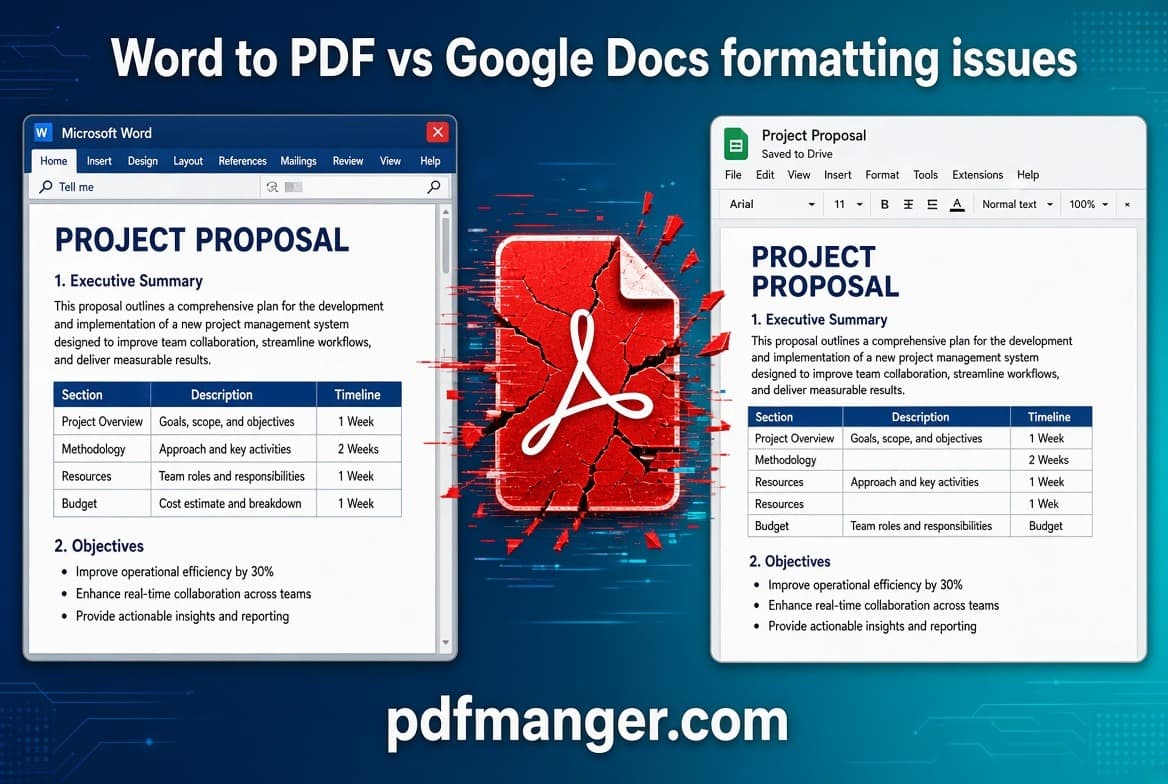
If you have ever opened a document in Google Docs, saved it as a PDF, and watched your bullet points shift or your margins collapse, you are not alone. In fact, 148 people posted the exact same complaint on a single Google Help thread, all describing layouts that go "off-center" or "messed up" the moment a Google Doc gets exported to PDF. Understanding the difference between Word to PDF vs Google Docs is the first step to figuring out why formatting breaks, and what you can actually do about it.
Key Takeaways
Question | Quick Answer |
|---|---|
Why does Word to PDF vs Google Docs formatting break? | Both programs use different default font libraries and rendering engines, so text that fits on one line in Word can wrap or shift when Google Docs recalculates spacing during conversion. |
Which one keeps formatting more reliable? | Converting directly from Word to PDF generally locks formatting more reliably than exporting from Google Docs, because Word's PDF export engine reads its own native styles instead of translating them. |
Do fonts really change between platforms? | Yes. Google Docs substitutes web-safe fonts for anything it does not recognize, which shifts line breaks and page counts. |
Can I convert PDF to Word without losing the layout again? | Yes, with the right tool. Our PDF to JPG converter is a useful workaround when you just need a static image of the page instead of editable text. |
What causes extra pages after conversion? | Paragraph spacing and margin defaults differ between Word and Google Docs, so a document that fits on two pages in one program can spill onto three in the other. |
Is there a free way to combine files without breaking formatting? | Yes, tools like Merge PDF let you combine Word-based reports and image scans into one file without re-typing anything. |
Is this still a problem in 2026? | Yes. As Google Workspace and Microsoft 365 continue splitting the office software market almost evenly, cross-platform formatting breaks remain one of the most common document complaints reported this year. |
Why Word to PDF vs Google Docs: Why Formatting Breaks Explained
Word and Google Docs were never built to be identical twins. They were built by two different companies, on two different rendering engines, with two different sets of assumptions about fonts, spacing, and page geometry.
When you compare Word to PDF vs Google Docs, the core issue is that each program interprets your document's styling rules through its own lens. A PDF exported from Word reads Word's native formatting code directly.
A PDF exported from Google Docs, on the other hand, has to translate a browser-based document into a fixed-layout file. That translation step is where most of the formatting breaks actually happen.
How Google Docs and Microsoft Word Handle Fonts and Layouts Differently
Fonts are the single biggest culprit behind formatting shifts. Microsoft Word ships with over a hundred fonts pre-installed locally on your device.
Google Docs, because it runs in a browser, relies on a smaller library of web-safe fonts and often substitutes anything it does not recognize with a close match. That substitution changes character width, which changes line breaks, which changes where your page breaks fall.
This single difference explains why a resume that looks perfect in Word can suddenly run onto a second page after being opened and re-saved in Google Docs.
The default font libraries differ wildly between Google Docs and Microsoft Word, shifting text layouts during conversions.
Converting Word to PDF: What Actually Stays Locked in Place
When you finish a document in Word and export it directly to PDF, the conversion engine reads your styles, tables, and images from the same file format they were created in. That means margins, tab stops, and embedded fonts usually stay exactly where you put them.
This is why Word to PDF vs Google Docs comparisons almost always favor Word for locking formatting on the first try. A dedicated Word to PDF converter is built specifically to preserve this consistency across devices, email clients, and printers.
If you finish a report, resume, or contract in Word, converting it straight to PDF is still the most reliable option for a file that needs to look the same everywhere it lands.
Converting Google Docs to PDF: Where the Layout Actually Shifts
Google Docs saves your document in its own internal format, then converts that to PDF only when you click "Download" or "Print." That extra translation step is where things go wrong.
Spacing that looked correct on screen can compress or expand once the PDF renderer recalculates page breaks. Tables can shift columns. Bullet indentation can shrink or grow by a few pixels, just enough to throw off an entire page.
Did You Know?
More than 10 users publicly reported that saving as PDF from Word Online "destroys formatting," shifting paragraph spacing and bullet points while adding entire extra pages.
Source: Microsoft Learn
Notice that even Word's own web version has this problem when it runs inside a browser instead of the desktop app. This tells us the issue is less about "Google vs Microsoft" and more about browser rendering versus native desktop rendering.
The Most Common Formatting Breaks You Will See
After comparing Word to PDF vs Google Docs conversions repeatedly, a handful of problems show up again and again. Here is what to watch for:
Font substitution: A font not available in Google Docs gets swapped for a similar one, changing line spacing throughout the document.
Page count changes: Margin and spacing differences push content onto extra pages, which is especially disruptive for resumes and contracts with strict page limits.
Table column shifting: Tables built in Word do not always map cleanly onto Google Docs' table engine, causing columns to resize unexpectedly.
Bullet and indent drift: Nested bullet points can lose their indentation levels during conversion.
Header and footer misalignment: Headers set up in Word sometimes duplicate, disappear, or shift position once pulled into Google Docs.
Image anchoring problems: Images that were "inline" in Word can become "floating" in Google Docs, moving away from their original paragraph.
None of these problems are random. Each one traces back to a specific difference in how the two platforms store and render document data.
Getting an Editable File Back Without Losing the Layout
Sometimes the problem runs in reverse. You receive a PDF, and you need to edit it in Word without the formatting falling apart on the way back.
This is exactly what a dedicated PDF to Word converter is built for. It reads the fixed PDF layout and reconstructs paragraphs, tables, and images into an editable Word document instead of dumping raw, unformatted text.
This matters most for contracts, policy documents, and archived reports that need updates without retyping the entire file from scratch.
Best Practices to Keep Formatting Intact When Converting
You cannot rewrite how Google Docs or Word render fonts, but you can control a few habits that reduce the odds of a formatting break.
Convert from the source, not a copy. Export directly from the original Word file to PDF rather than uploading it into Google Docs first and converting from there.
Stick to widely supported fonts. Arial, Calibri, and Times New Roman convert far more predictably than decorative or licensed fonts.
Check page breaks manually. Always scroll through the final PDF before sending it, since a shifted paragraph can push an entire section onto a new page.
Avoid nested tables where possible. Simple table structures survive conversion far better than tables inside tables.
Use a dedicated converter for the final step. A tool built specifically for one direction of conversion, rather than a general "export" button, tends to preserve more of the original layout.
Did You Know?
Google Workspace now holds roughly 48% of the global office software market, nearly tied with Microsoft 365 at 46%, which explains why files are constantly bounced between the two platforms in 2026.
Source: Document Formatting Services
Because the two platforms are so close in market share, most professionals will keep switching between them for years to come. Building good conversion habits now saves a lot of last-minute reformatting later.
Other Document Conversions Worth Knowing About
Formatting breaks are not limited to Word and Google Docs. The same font and layout mismatches show up whenever files move between different document formats.
Converting a slide deck? PPT to PDF locks your presentation layout so it displays correctly on any device, without PowerPoint installed.
Need to edit a PDF-based deck again? PDF to PPT rebuilds editable slides while preserving text, images, and layout structure.
Working with scanned pages or photos instead of typed text? JPG to PDF combines images into one document without introducing font or spacing issues at all.
Assembling a long report from multiple source files? Split PDF lets you pull out just the pages you need, keeping the rest of the layout untouched.
Each of these tools solves a narrower version of the same core problem: keeping a document's appearance stable while its file format changes underneath it.
Conclusion
When you line up Word to PDF vs Google Docs side by side, the formatting breaks come down to one thing: two different rendering engines making different assumptions about fonts, spacing, and page geometry. Converting directly from Word tends to hold formatting together more reliably, while Google Docs introduces an extra translation step that opens the door to shifted margins, resized tables, and surprise extra pages.
The good news is that these formatting breaks are predictable once you understand the cause. Choosing the right conversion path, sticking to widely supported fonts, and checking your final PDF before sending it will save you from most of the headaches that come with moving files between Word and Google Docs in 2026.
Frequently Asked Questions
Why does my formatting break when I convert Word to PDF vs Google Docs?
Formatting breaks because Word and Google Docs use different rendering engines and font libraries, so spacing and line breaks get recalculated during conversion. Converting straight from Word to PDF usually avoids the extra translation step that causes most of these shifts.
Is it better to convert directly from Word or from Google Docs?
Converting directly from Word to PDF is generally more reliable because it reads native formatting code instead of translating a browser-based document. If you start in Google Docs, expect to double-check margins, tables, and page breaks before sharing the final PDF.
Why does my document gain extra pages after converting to PDF?
Extra pages usually appear because paragraph spacing and margin defaults differ between Word and Google Docs, so content that fit on one page can spill onto another. This is one of the most reported issues when comparing Word to PDF vs Google Docs conversions.
Can I fix formatting after converting a Google Doc to PDF?
Yes, but it is usually easier to fix the formatting in the original document before converting rather than editing the finished PDF. Checking fonts, table structures, and bullet indentation before export prevents most of the common formatting breaks.
Does converting PDF back to Word also cause formatting problems?
Yes, going in reverse can shift layouts too, especially with tables and images. A dedicated PDF to Word converter reduces this risk by reconstructing the document structure instead of dumping raw text.
Is Word to PDF vs Google Docs still a problem worth worrying about in 2026?
Yes, since Google Workspace and Microsoft 365 now hold nearly identical shares of the global office software market, files are constantly moving between the two platforms. That constant back-and-forth keeps formatting breaks a common, ongoing issue for professionals in 2026.
What is the safest font choice to avoid formatting breaks?
Stick to widely supported fonts like Arial, Calibri, or Times New Roman, since these convert predictably between Word and Google Docs. Decorative or licensed fonts are far more likely to get substituted, which changes line spacing and page breaks during conversion.
Why Use PDF Manager
Built for speed
Upload to result with minimal friction.
Practical workflows
Move between tools without confusion.
Simple and secure
Clear states and polished result screens.

Written by
Umar Draz
Document Tools Specialist
Software engineer with 5+ years building document processing tools. Created PDF Manager to make PDF tools accessible to everyone. Tests every feature with real-world documents before release.
Ready to use the tool?
Open the tool and follow the same workflow from this guide.
Related Tools
Related Articles
How to Convert PDF to Word Without Losing Formatting
Turn PDFs into editable Word documents while preserving structure, spacing, tables, and readable layout.
How to Convert Word to PDF (Free & Fast)
A clean guide to turning Word documents into PDFs quickly for sharing, printing, and final delivery.
Quick Answers
Why does my formatting break when I convert Word to PDF vs Google Docs?
Formatting breaks because Word and Google Docs use different rendering engines and font libraries, so spacing and line breaks get recalculated during conversion. Converting straight from Word to PDF usually avoids the extra translation step that causes most of these shifts.
Is it better to convert directly from Word or from Google Docs?
Converting directly from Word to PDF is generally more reliable because it reads native formatting code instead of translating a browser-based document. If you start in Google Docs, expect to double-check margins, tables, and page breaks before sharing the final PDF.
Why does my document gain extra pages after converting to PDF?
Extra pages usually appear because paragraph spacing and margin defaults differ between Word and Google Docs, so content that fit on one page can spill onto another. This is one of the most reported issues when comparing Word to PDF vs Google Docs conversions.
Can I fix formatting after converting a Google Doc to PDF?
Yes, but it is usually easier to fix the formatting in the original document before converting rather than editing the finished PDF. Checking fonts, table structures, and bullet indentation before export prevents most of the common formatting breaks.
Does converting PDF back to Word also cause formatting problems?
Yes, going in reverse can shift layouts too, especially with tables and images. A dedicated PDF to Word converter reduces this risk by reconstructing the document structure instead of dumping raw text.
Is Word to PDF vs Google Docs still a problem worth worrying about in 2026?
Yes, since Google Workspace and Microsoft 365 now hold nearly identical shares of the global office software market, files are constantly moving between the two platforms. That constant back-and-forth keeps formatting breaks a common, ongoing issue for professionals in 2026.
What is the safest font choice to avoid formatting breaks?
Stick to widely supported fonts like Arial, Calibri, or Times New Roman, since these convert predictably between Word and Google Docs. Decorative or licensed fonts are far more likely to get substituted, which changes line spacing and page breaks during conversion.